MP4 to WebM Converter: CloudConvert vs. Convertio for Web-Friendly Video Formats

Choose CloudConvert if you want control over WebM settings, and choose Convertio if you want a quick MP4 to WebM conversion with fewer decisions. WebM is a strong choice for web video because it is widely supported in Chromium browsers, Firefox, and modern Safari versions, though support can vary by codec and browser version [source: Can I use]. For most websites, the best workflow is simple: keep MP4 as a fallback, then add WebM for browsers that can use it efficiently.
TLDR: CloudConvert is better for developers, marketers, and site owners who care about codec choice, resolution, bitrate, and repeatable output. Convertio is better when you just need to turn one MP4 into WebM without thinking too hard. For example, a 90 MB MP4 product demo might shrink to around 35–50 MB as a VP9 WebM, depending on settings, which can cut page video weight by roughly 40–60%. If you publish video often, CloudConvert is the safer pick; if you convert once a month, Convertio feels easier.
Why Convert MP4 to WebM?
MP4 is the safe, familiar option. It works almost everywhere, especially when it uses H.264 video and AAC audio. WebM, though, is built for the web. It commonly uses VP8, VP9, or AV1 video with Vorbis or Opus audio. That can mean smaller files at similar visual quality.
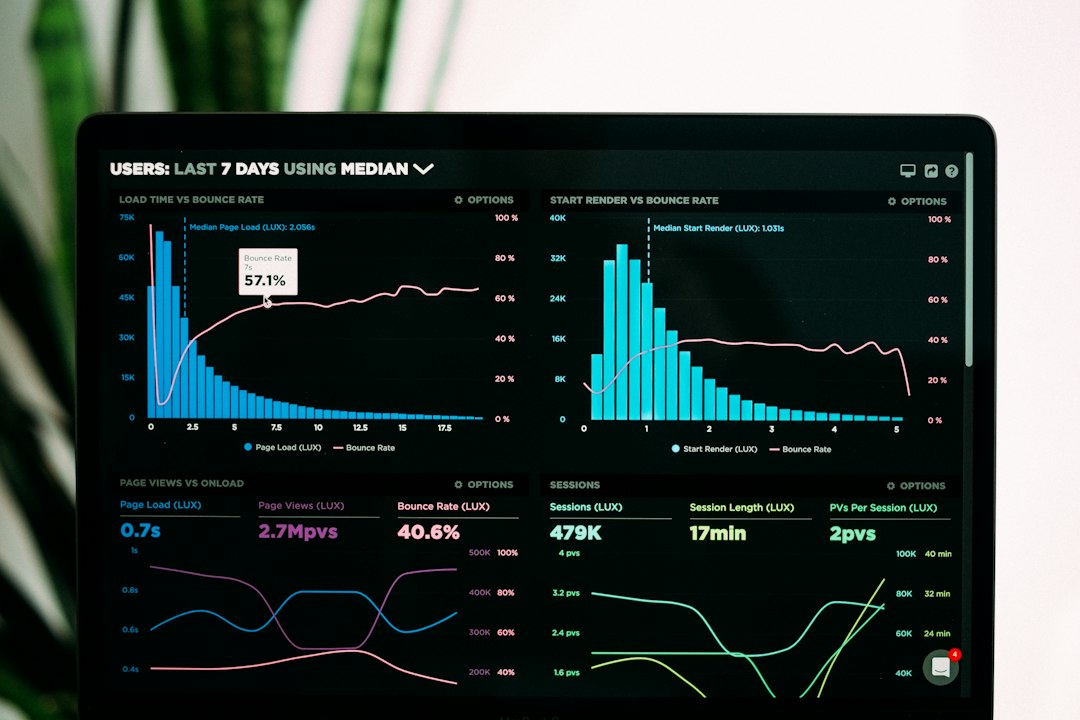
Smaller files matter. A background video that loads faster can make a landing page feel cleaner. A tutorial clip that weighs less is kinder to mobile users. A product animation that starts sooner can reduce the awkward blank moment before playback. Nobody likes waiting for a hero video to crawl in while the rest of the page just sits there.
The catch is that WebM should not fully replace MP4 for every site. Some older devices and browser setups may still prefer MP4. The practical setup is to offer both formats:
- WebM for modern browsers and smaller file delivery.
- MP4 as a fallback for broad compatibility.
- Poster image for users with slow connections or disabled autoplay.
CloudConvert: Better Control, More Professional Feel
CloudConvert feels like a tool made for people who care about the final file, not just the conversion button. When converting MP4 to WebM, you can adjust useful settings such as video codec, resolution, audio codec, audio bitrate, frame rate, and trim options. That makes it a better fit for web teams.
The interface is not hard, but it is more detailed than Convertio. You can upload from your computer, Google Drive, Dropbox, OneDrive, or a URL. You can also chain conversions into a workflow, which is handy if you are preparing a batch of videos for a website or app.
Best CloudConvert strengths:
- Granular settings: Good control over codec, quality, and size.
- Batch conversion: Useful for content teams and agencies.
- API access: Helpful for automated publishing systems.
- Clean output options: Easier to standardize WebM files across a project.
The annoying part is that all those settings can slow you down. If you only want one simple WebM file, expect to spend extra time checking dropdowns. Honestly, it feels like ordering coffee from a menu with too many milk choices. Useful, yes. Quick? Not always.
Convertio: Faster for Simple Jobs
Convertio is the friendlier option for casual users. Upload an MP4, choose WebM, hit convert, download the result. That is the whole appeal. It keeps the path short, which makes it less intimidating for people who do not want to think about VP9, bitrate, or frame size.
Convertio also supports uploads from local storage and cloud services. The interface is clean and easy to understand. For a quick social clip, small website video, or class presentation, it gets the job done without much fuss.
Best Convertio strengths:
- Simple interface: Good for beginners.
- Fast setup: Few settings to review before converting.
- Broad format support: Useful if you work with many file types.
- No software install: Runs in the browser.
The weak spot is control. Convertio may let you change some settings, but it does not feel as precise as CloudConvert when you are targeting a specific website performance goal. If your WebM must stay under 10 MB or match a fixed resolution, CloudConvert gives you more room to tune.

CloudConvert vs. Convertio: Feature Comparison
| Category | CloudConvert | Convertio |
|---|---|---|
| Ease of use | Moderate | Very easy |
| WebM settings | More detailed | Basic to moderate |
| Best for | Web teams, developers, repeat projects | Casual users, one-off conversions |
| Batch work | Strong | Good for light use |
| Learning curve | Slightly higher | Lower |
Which One Produces Better WebM Files?
The answer depends on settings. A poorly configured WebM can look worse than the original MP4 and still fail to save much space. A well-configured WebM can look sharp while cutting file size heavily.
CloudConvert has the edge because it gives you more control. For example, you can reduce resolution from 1080p to 720p for a background website video, lower the bitrate, and use VP9 for stronger compression. This is often enough for hero banners, product loops, and short explainers.
Convertio is fine when quality is not mission-critical. If you need a WebM version of a small MP4 for a blog post, it can be perfectly adequate. But if you are preparing assets for a commercial landing page, paid ad page, or SaaS product demo, CloudConvert is the better bet.
Recommended Settings for Web-Friendly Video
For most website videos, start with these basic settings:
- Codec: VP9 for a good balance of quality and size.
- Resolution: 720p for background video, 1080p for featured video.
- Audio: Remove audio if the video is decorative.
- Frame rate: Keep the original unless motion looks choppy.
- Bitrate: Lower it gradually, then preview before publishing.
Removing audio is an underrated trick. If your video is a muted background loop, audio adds weight for no reason. It drives me crazy when a silent hero video still ships with an audio track. That wasted data can add up across mobile visits.
Privacy and File Handling
Both tools are cloud converters, so your video leaves your machine. That is normal for browser-based conversion, but it matters if the MP4 contains client work, unreleased ads, private meetings, or internal training clips. Read each service’s file retention policy before uploading sensitive material.
If privacy is critical, use desktop software such as FFmpeg or a trusted local editor. Online converters are convenient, but convenience is not the same as full control over data handling.
Best Choice by User Type
- Small business owner: Use Convertio for quick videos, unless file size is hurting page speed.
- Developer: Use CloudConvert or FFmpeg. CloudConvert is easier to connect to automated workflows.
- Marketing team: Use CloudConvert for consistent export settings across campaigns.
- Teacher or student: Use Convertio for simple assignments and presentations.
- Agency: Use CloudConvert for batches, presets, and quality checks.

Final Verdict
CloudConvert wins for quality control, repeat work, and web performance tuning. It is the better MP4 to WebM converter when you care about the exact output. Use it when file size, codec, and resolution matter.
Convertio wins for speed and simplicity. It is ideal when you need a fast WebM file and do not want to touch technical settings. For casual use, that simplicity is refreshing.
The smartest web setup is not choosing WebM or MP4 forever. Use both. Put WebM first for browsers that support it, keep MP4 as backup, and test the page on desktop and mobile before publishing. Your visitors will not praise your codec choice, but they will notice when the video loads quickly and plays without stutter.