How to Create GIFs From Videos: GIPHY vs. Canva for Making Shareable Animations

GIPHY is better for fast reaction GIFs, while Canva is better for polished branded animations that need text, layouts, logos, and social sizing. A creator who only needs a five-second clip from a video will usually finish faster in GIPHY. A marketer making a product teaser, story post, or email animation will usually get a cleaner result in Canva. GIPHY also states that uploads can include GIF, MP4, and MOV files up to 100 MB, which makes it handy for quick video-to-GIF work [source: GIPHY].
TLDR: GIPHY wins when speed matters most; Canva wins when the GIF needs to look designed. For example, a social media assistant cutting a 6-second customer reaction from a product demo could make and share it through GIPHY in a few minutes. A small brand creating 12 matching launch GIFs for Instagram Stories, email headers, and ads would save more time in Canva because templates and brand assets keep everything consistent. If the goal is share now, use GIPHY; if the goal is look on brand, use Canva.
GIPHY vs. Canva: The Short Answer
Both tools can turn videos into GIFs, but they serve different types of work. GIPHY feels like a quick cutter. It is built for short, funny, searchable, and shareable clips. Canva feels like a design studio with animation export. It is slower for a plain trim, but stronger for layouts, typography, graphics, and campaign visuals.
The choice should come down to three questions:
- Does the GIF need to be made quickly? GIPHY is the easier pick.
- Does it need brand colors, logos, or clean text? Canva is stronger.
- Will it be reused across platforms? Canva gives more control over sizes and versions.
How GIPHY Creates GIFs From Videos
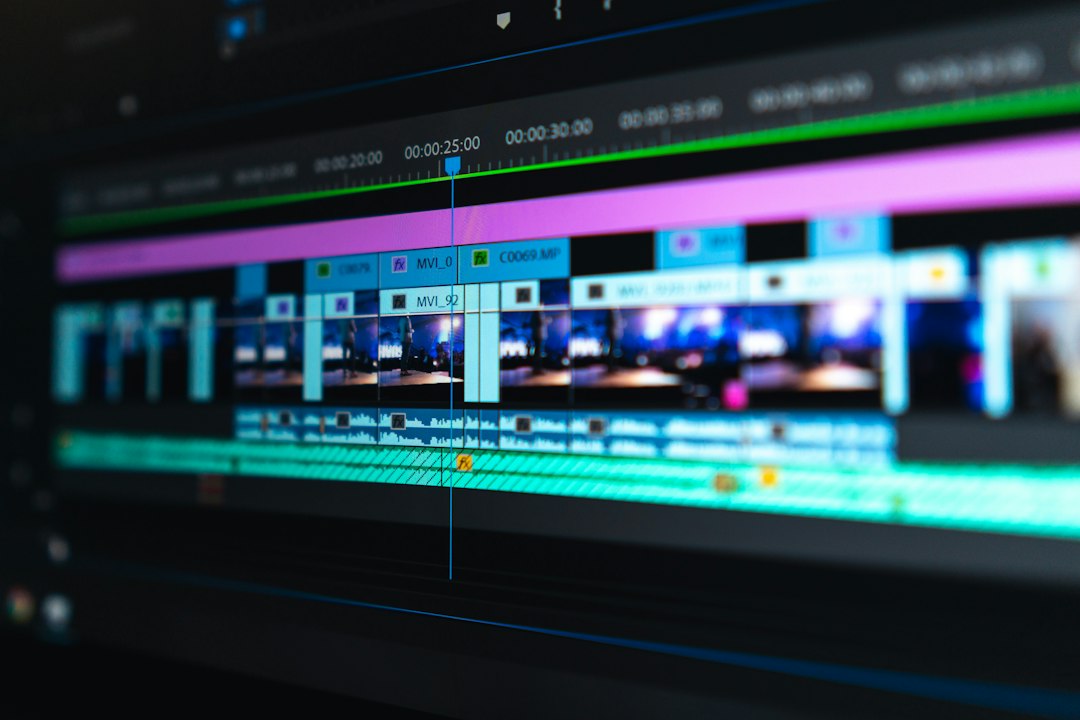
GIPHY keeps the process simple. A user uploads a video, trims the section, adds a caption or sticker, then publishes or downloads the GIF. The interface is light, and that is the whole point. It does not ask for much setup.
For many creators, that is refreshing. A meme, a reaction clip, a product blooper, or a quick tutorial moment does not need a full design workspace. It needs speed. GIPHY handles that well.
Best uses for GIPHY include:
- Reaction GIFs from interviews, podcasts, webinars, or livestreams
- Short clips for Slack, Discord, X, Reddit, or messaging apps
- Funny brand moments that do not need heavy polish
- Fast public GIFs that should be searchable inside GIPHY’s system
The catch is that GIPHY can feel cramped when a GIF needs serious design work. Text options are basic. Layout control is limited. Brand consistency takes effort. A creator can add captions, but building a refined ad-style animation inside GIPHY is not its strength.
How Canva Creates GIFs From Videos
Canva treats GIF creation as part of a broader design workflow. A user can upload a video, place it inside a template, trim it, add text, icons, logos, and motion effects, then export the result as a GIF. The tool is especially useful when the final animation must match a brand style.
Canva works well for social posts, email banners, website graphics, course promotions, sale announcements, and short explainers. A designer can start with a square post, resize it for a vertical story, then create a wide banner version. That saves time when one video clip must feed several channels.
Best uses for Canva include:
- Branded product teasers
- Animated sale graphics
- Email GIF headers
- Social media story animations
- Educational mini clips with labels and arrows
Honestly, it feels like Canva sometimes turns a simple trim into a bigger task than needed. Opening a design, setting the canvas, checking layers, and picking export settings can add 30 to 60 extra seconds compared with GIPHY. That is not terrible, but it is annoying when the job is just “make this clip into a GIF.”
Video-to-GIF Workflow Comparison
GIPHY workflow:
- Upload a video file or add a supported link.
- Select a short start and end point.
- Add a caption, sticker, or filter if needed.
- Publish, copy, embed, or download.
Canva workflow:
- Create or open a design size.
- Upload the video clip.
- Trim it on the timeline.
- Add text, logos, shapes, frames, and animation effects.
- Export as a GIF file.
GIPHY is faster because it asks fewer questions. Canva is more flexible because it gives more control. That tradeoff defines the whole comparison.
Which Tool Makes More Shareable GIFs?
GIPHY has a strong advantage when sharing through chats, social apps, and GIF search. Public GIFs can be found and reused, which helps memes and reaction content spread. That makes it useful for creators who want a GIF to live outside a single post.
Canva has the edge when the GIF will be shared as part of a campaign. A polished animated announcement with a logo, matching colors, and clean type is more likely to fit an email, shop page, or ad creative. It may not feel as spontaneous, but it looks more intentional.
A simple rule works well: GIPHY is for reach and reactions. Canva is for presentation and control.
Quality, File Size, and Export Control
GIFs are not always small. A short clip can become a large file fast, especially if it includes many colors, fast motion, or a large canvas. This matters for websites and email. Heavy GIFs load slowly and can hurt the viewing experience.
GIPHY compresses and prepares GIFs for sharing, which helps casual use. Canva gives more control over the design size before export. That control can help when a creator needs a smaller animation for an email header or landing page.
For better results, teams should keep GIFs short. Three to six seconds is often enough. Text should be large. Motion should be simple. If a clip needs sound, subtitles, or long playback, a video file may be a better choice than a GIF.

Pricing and Team Use
GIPHY is attractive because casual GIF creation is free and easy to access. It suits individuals, social teams, and community managers who need speed more than design control.
Canva has a free plan, but many stronger features sit behind paid plans. Brand kits, premium templates, some assets, and team tools can make a big difference for businesses. For a one-off GIF, paid features may be unnecessary. For a team making campaign assets every week, they can save hours.
Which One Should a Creator Choose?
Choose GIPHY if:
- The GIF is casual, funny, or reactive.
- The clip needs to be made in minutes.
- The creator wants easy sharing through GIF platforms.
- Design precision is not a major concern.
Choose Canva if:
- The GIF must match brand guidelines.
- The animation needs polished text or graphic overlays.
- The same asset will be resized for several channels.
- The GIF is part of a launch, email, ad, or sales page.
The strongest workflow may use both tools. A team can rough out quick culture GIFs in GIPHY and build campaign GIFs in Canva. That keeps casual content fast and branded content clean.
FAQ
Is GIPHY or Canva better for beginners?
GIPHY is easier for beginners who only want to trim a video and make a quick GIF. Canva is still beginner-friendly, but it has more design choices, so it can take longer.
Can Canva turn a video into a GIF?
Yes. Canva can import video clips, trim them, add design elements, and export the result as a GIF.
Can GIPHY make branded GIFs?
Yes, but only in a basic way. GIPHY can add captions and stickers, but Canva gives more control over logos, fonts, layouts, and colors.
Which tool is better for social media?
GIPHY is better for fast social reactions and meme-style clips. Canva is better for planned social posts, product promos, and branded story graphics.
How long should a shareable GIF be?
Most GIFs work best at 3 to 6 seconds. Shorter clips usually load faster, loop better, and keep attention.
Should creators use GIFs or short videos?
GIFs are useful for silent loops, reactions, and lightweight visual cues. Short videos are better when sound, higher quality, captions, or longer playback matter.