Videography Basics for Beginners: Adobe Premiere Pro vs. DaVinci Resolve for Editing Professional Videos
Choose Premiere Pro if you already use Adobe apps; choose DaVinci Resolve if you want stronger color tools and a serious free version before spending money. For beginners who want professional-looking videos, both editors can cut, trim, color, mix sound, add titles, and export polished work. The biggest difference is cost and workflow: DaVinci Resolve offers a free version plus a Studio version priced at $295 [source: Blackmagic Design], while Premiere Pro is subscription-based and fits tightly into the Adobe ecosystem.
TLDR: Premiere Pro is easier to adopt if you use Photoshop, After Effects, or Adobe Stock. DaVinci Resolve is the better value if you are starting from zero and care about color grading, audio, and long-term cost. For example, a beginner making four client reels per month could save hundreds in the first year by using Resolve’s free version instead of paying monthly software fees. If your work is mostly social clips, YouTube videos, and short promos, either tool can produce professional results with the right workflow.
What beginners should care about first
Good editing is not about clicking every button in the software. It is about clear pacing, clean sound, balanced color, and exports that do not look like they were crushed through a potato. Before comparing features, focus on the basics that affect real projects:
- Timeline editing: cutting clips, trimming mistakes, adding B-roll, and shaping the story.
- Audio cleanup: reducing noise, balancing dialogue, and adding music without overpowering voices.
- Color correction: fixing exposure, white balance, and skin tones.
- Titles and graphics: adding captions, lower thirds, and simple branded elements.
- Export settings: making files that look sharp on YouTube, Instagram, TikTok, or client websites.
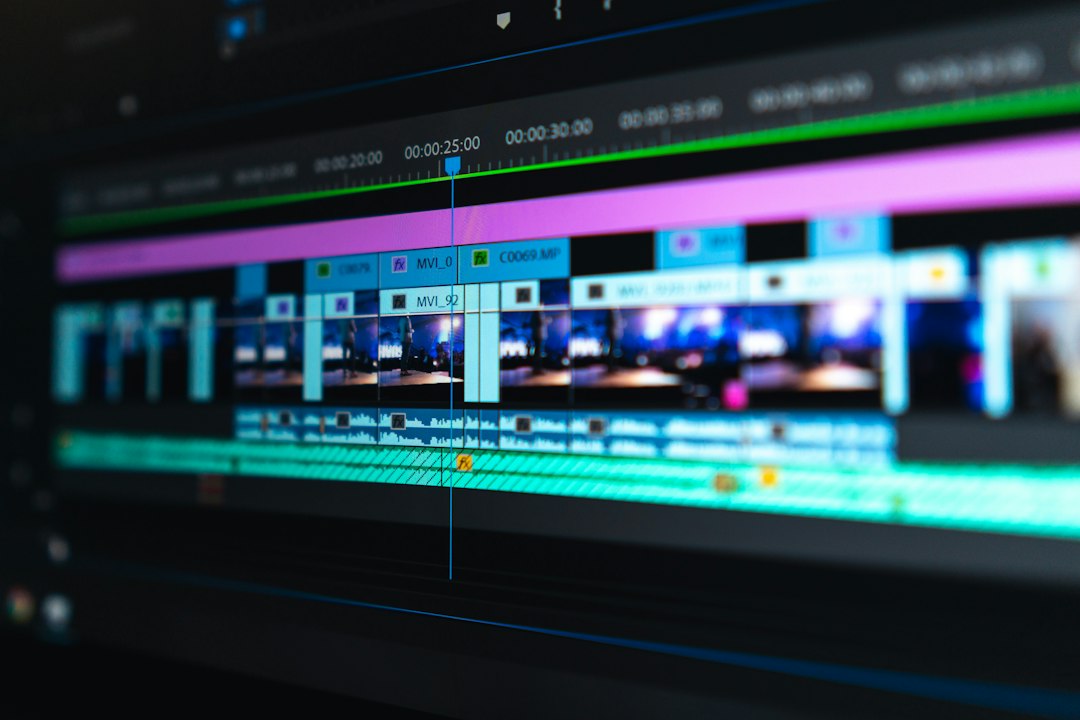
Adobe Premiere Pro: best for Adobe users and fast client workflows
Premiere Pro is one of the most common editors in creative agencies, YouTube teams, marketing departments, and freelance studios. That matters if you plan to work with other editors. Project files, templates, and workflows are widely shared.
Its biggest strength is the Adobe connection. You can send graphics to After Effects, edit images in Photoshop, use Adobe Fonts, and build motion graphics with templates. If a client sends a layered Photoshop file or asks for animated text, Premiere feels practical.
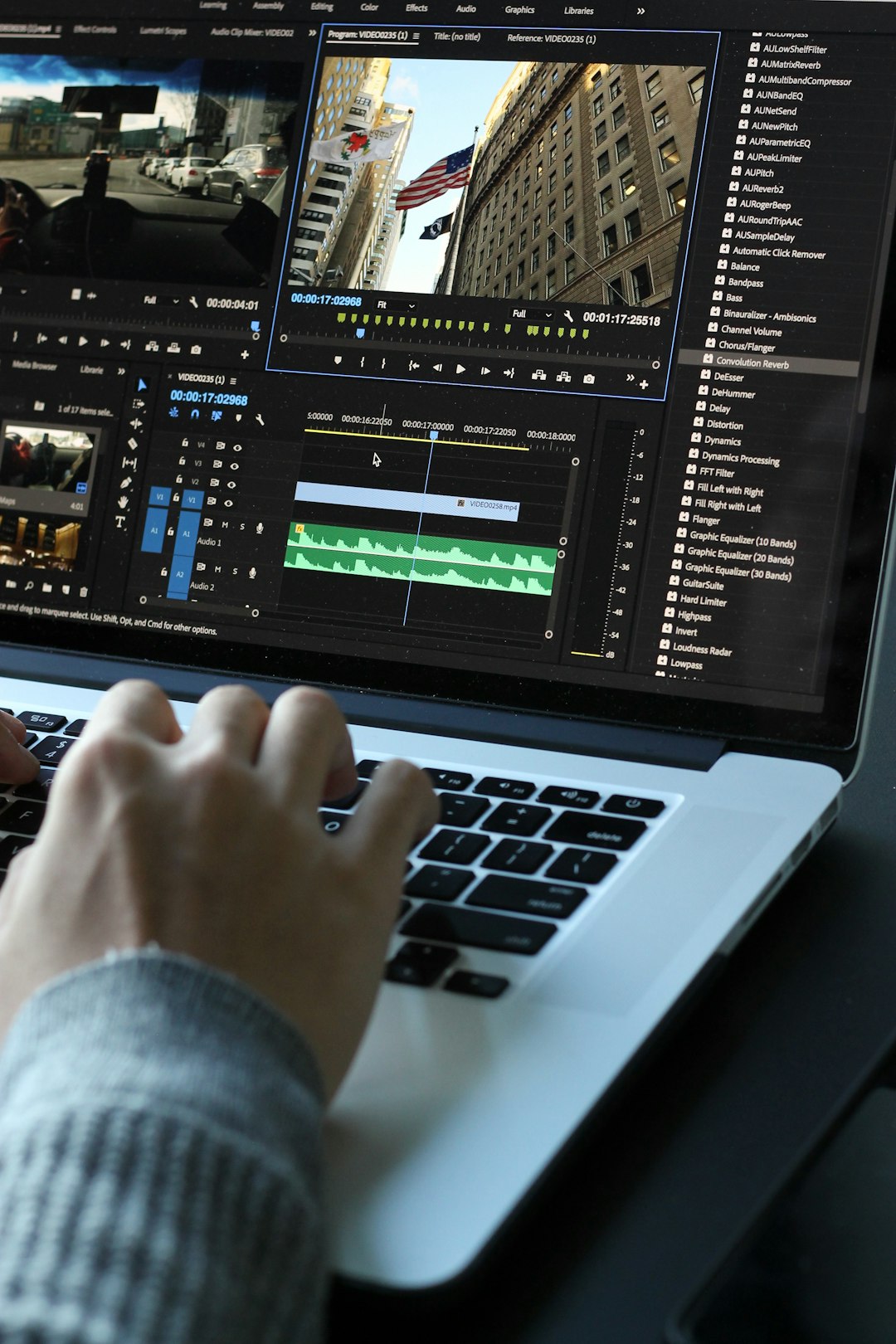
The interface is also friendly enough for beginners. You get workspaces for editing, color, audio, captions, and effects. The sequence system is easy to understand after a few hours. Drag clips in, trim them, add audio, export. Simple enough.
But Premiere can be annoying. Honestly, it feels like Premiere asks you to babysit media cache more than it should. If your laptop is older, playback may stutter, and a simple edit can feel slower than expected. Expect to spend time learning proxies, cache clearing, and render previews if you work with 4K footage.
Premiere Pro is a strong choice if you:
- Already subscribe to Adobe Creative Cloud.
- Need After Effects for motion graphics.
- Work with clients who send Adobe files.
- Want lots of tutorials, plugins, and templates.
- Edit marketing videos, interviews, podcasts, or branded social content.
DaVinci Resolve: best for color, value, and all-in-one post-production
DaVinci Resolve started with a reputation for serious color grading. Now it is a full editing suite with editing, color, audio, effects, and delivery tools built into one app. The free version is powerful enough for many beginners, creators, and small businesses.
Resolve is split into pages: Cut, Edit, Fusion, Color, Fairlight, and Deliver. At first, this can feel like too much. The catch is that each page has a clear job. Once it clicks, the layout makes sense.
The Color page is where Resolve wins. You can correct exposure, match cameras, adjust skin tones, and create cinematic looks with more precision than most beginners expect from free software. Even simple tools like curves, color wheels, and scopes make your footage look less amateur.
Fairlight, the audio section, is also impressive. You can clean dialogue, mix music, add effects, and control levels without opening a separate app. It drives me crazy that many beginner videos still have decent visuals but horrible sound. Resolve gives you fewer excuses.
DaVinci Resolve is a strong choice if you:
- Want to start editing without a monthly fee.
- Care about film-style color grading.
- Edit interviews, short films, music videos, or YouTube content.
- Want strong audio tools in the same program.
- Plan to grow into advanced post-production over time.
Ease of learning: which one feels better for beginners?
Premiere Pro feels more familiar at first. Its timeline works like many other editing apps. If you have used CapCut, iMovie, or a simple drag-and-drop editor, Premiere will feel less intimidating.
Resolve feels more organized but more serious. The separate pages can scare beginners, especially Fusion, which handles visual effects. You do not need to learn everything at once. Start with the Cut or Edit page, then move to Color and Fairlight later.
If your goal is to edit fast social videos, Premiere may feel quicker in week one. If your goal is to build deeper editing skills, Resolve may reward your patience.
Performance and hardware
Both programs need a decent computer. Editing 4K video on a weak laptop is painful. No software can magically fix underpowered hardware.
Premiere Pro can run well, but performance depends on your system, codec, graphics card, and project setup. Long projects with effects can get sluggish. Using proxies helps a lot.
Resolve is known for strong GPU use. That means it can feel smooth on a capable machine with a good graphics card. On low-end laptops, though, Resolve may struggle, especially with noise reduction, Fusion effects, or heavy color grades.
For beginners, the best trick is simple: shoot in manageable settings. Use 1080p or standard 4K, avoid weird frame rates, and create proxy files for large projects.
Professional results: what actually makes a video look expensive?
The software matters, but the edit matters more. A bad cut in expensive software still looks bad. A smart edit in free software can look polished.
To make videos feel professional, focus on these habits:
- Use clean audio first. Viewers forgive average visuals faster than bad sound.
- Cut dead space. Remove pauses, stumbles, and weak moments.
- Add B-roll with purpose. Do not cover every cut with random footage.
- Correct color before adding a look. Fix problems before creating style.
- Use simple titles. Big effects often look cheap when overused.
- Export properly. Match resolution, frame rate, and bitrate to the platform.
Pricing and long-term value
Premiere Pro’s subscription model can make sense if you earn money from editing or need several Adobe apps. For a freelancer who bills clients every week, the monthly cost may be easy to justify.
Resolve is harder to beat for value. The free version covers a lot. The Studio version is a one-time purchase and adds features such as advanced noise reduction, extra effects, higher-end formats, and more GPU support. If you are learning, the free version is usually enough.
Which one should you pick?
Pick Adobe Premiere Pro if your work depends on Adobe files, motion graphics, agency handoffs, or template-heavy marketing content. It is practical, popular, and easy to pair with other creative tools.
Pick DaVinci Resolve if you want the best no-cost starting point, stronger color tools, and an all-in-one editing system that can grow with you. It is especially good for creators who want their footage to look rich, balanced, and cinematic.
Best beginner advice: choose one editor and stick with it for at least 30 days. Make five short projects. Edit a vlog, a product clip, an interview, a reel, and a one-minute story. By the fifth project, the right choice will feel obvious.