What Is a Network Security Key? Everything You Need to Know
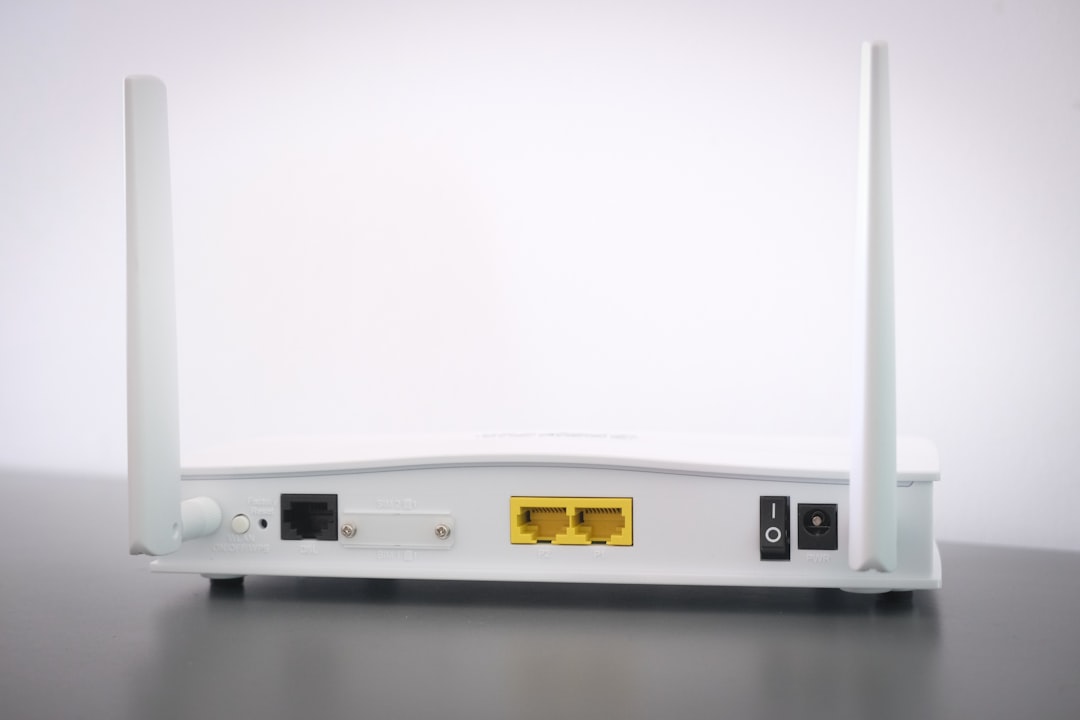
Few things are more frustrating than trying to connect a phone, laptop, smart TV, or printer to Wi-Fi and being asked for a network security key when you are not entirely sure what that means. The term sounds technical, but in most everyday situations, it simply refers to the password that protects your wireless network. Still, there is more to it than just a string of characters printed on your router.
TLDR: A network security key is usually your Wi-Fi password, used to protect your wireless network from unauthorized access. It encrypts data traveling between your device and the router, helping keep hackers, neighbors, and strangers out. You can usually find it on your router label, in your device settings, or through your router’s admin page. A strong key should be long, unique, and difficult to guess.
What Is a Network Security Key?
A network security key is a password or passphrase used to authenticate devices that want to connect to a secure network. In a home or small office setting, this is most often the same thing as your Wi-Fi password. When you enter it correctly, your device is allowed to join the network and communicate with the router.
However, the key does more than unlock access. It also helps encrypt the information traveling between your device and the wireless router. Without encryption, data sent over Wi-Fi could potentially be intercepted and read by someone nearby. A security key ensures that only trusted devices with the correct credentials can join and exchange data securely.
Why Is a Network Security Key Important?
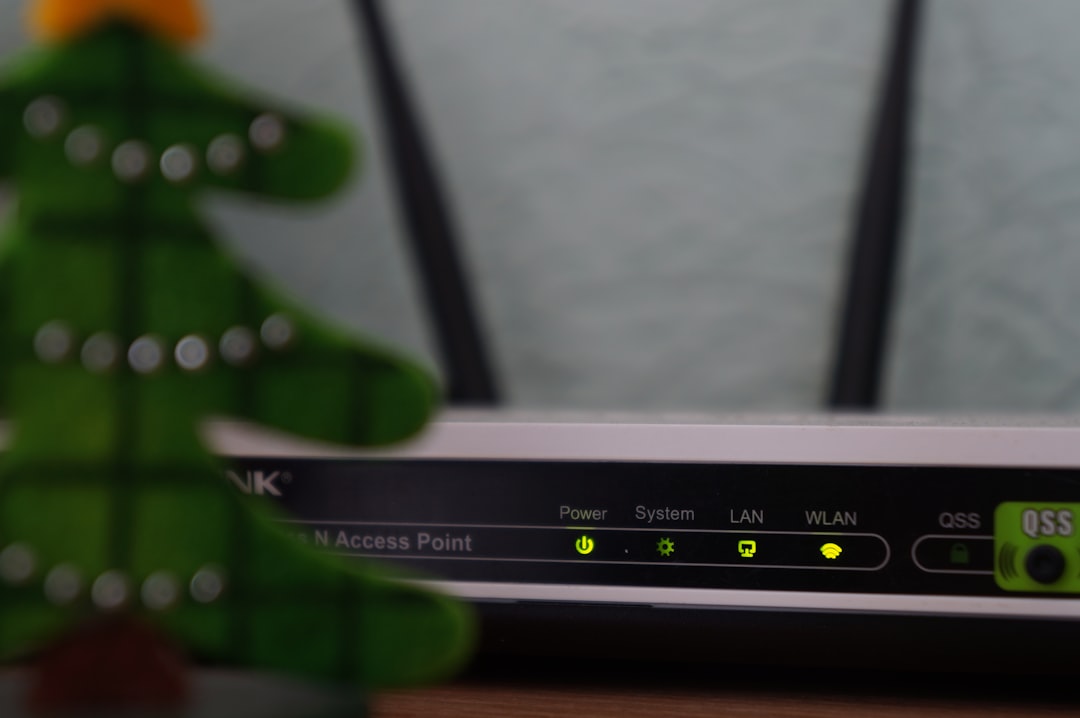
Your network security key is one of the first lines of defense against unauthorized access. If your Wi-Fi is unsecured or uses a weak password, anyone within range could connect to it. That may sound harmless at first, but it can create several problems.
- Slower internet: Extra users can consume bandwidth, making your connection noticeably slower.
- Privacy risks: Unauthorized users may be able to monitor traffic or target devices on your network.
- Security threats: Hackers could attempt to access shared files, cameras, printers, or smart home devices.
- Legal issues: If someone uses your connection for illegal activity, it may be traced back to your network.
In short, a strong network security key helps keep your digital household or workplace private, stable, and safe.
Is a Network Security Key the Same as a Wi-Fi Password?
In most cases, yes. When your computer or phone asks for a network security key, it is usually asking for the Wi-Fi password. Different devices and operating systems may use different wording. For example, Windows often says “network security key,” while phones and tablets usually say “Wi-Fi password.”
There are exceptions in more advanced networking environments, such as corporate systems using certificates, enterprise authentication, or special hardware keys. But for typical home users, the phrase almost always means the password needed to connect to a wireless network.
Common Types of Network Security Keys
Network security keys are linked to different Wi-Fi security standards. These standards determine how data is encrypted and how secure the connection is.
- WEP: Short for Wired Equivalent Privacy, WEP is an old and insecure standard. It can be cracked easily and should be avoided.
- WPA: Wi-Fi Protected Access improved on WEP but is now also considered outdated.
- WPA2: This is still widely used and provides strong protection for most home networks.
- WPA3: The newest standard, offering stronger encryption and better protection against password guessing attacks.
If your router supports WPA3, it is usually the best choice. If not, WPA2 is still a solid option. Avoid WEP whenever possible, even if an older device offers it.
Where Can You Find Your Network Security Key?
If you need to connect a new device and cannot remember your network security key, there are several places to check.
- Look on the router: Many routers have a sticker showing the default Wi-Fi name and password. It may be labeled “Wireless Key,” “Wi-Fi Password,” “WPA Key,” or “Network Security Key.”
- Check your computer: If a Windows or Mac device is already connected, you may be able to view the saved Wi-Fi password in the network settings.
- Log in to your router: By entering the router’s IP address in a browser, you can access its admin panel and view or change the Wi-Fi password.
- Ask the network owner: In offices, cafes, rentals, or shared homes, the owner or administrator may provide the correct key.
How to Create a Strong Network Security Key
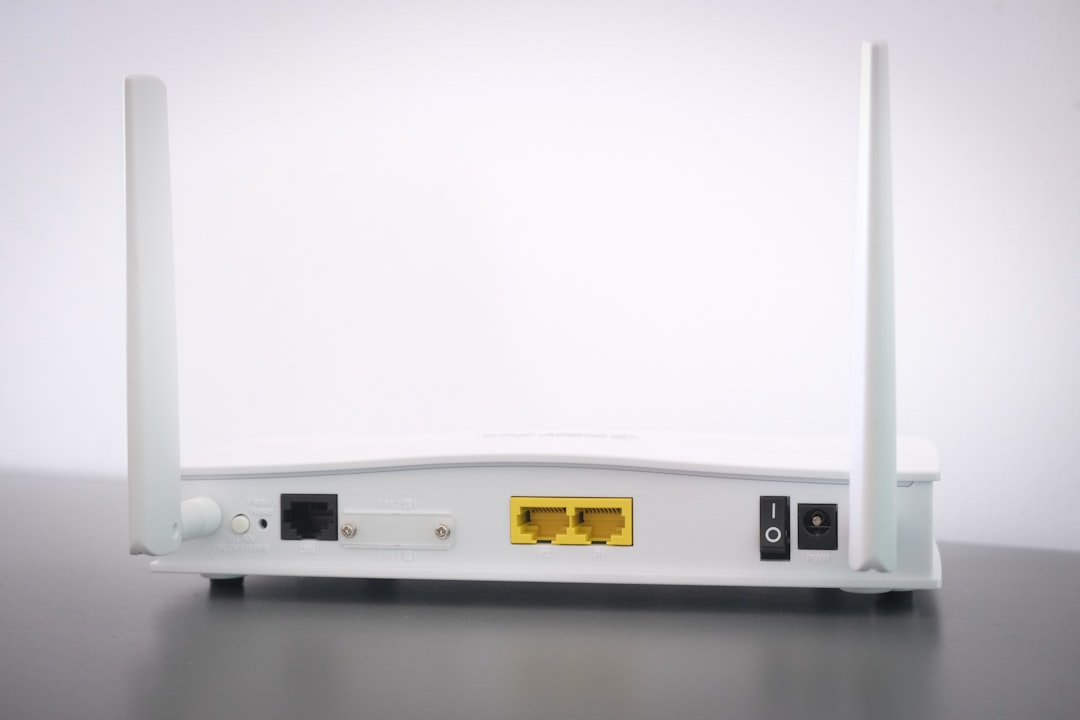
A strong network security key should be easy enough for you to store safely but difficult for others to guess. Many people make the mistake of using names, birthdays, addresses, pet names, or simple phrases. These are convenient, but they are also easy targets.
For better protection, follow these tips:
- Use at least 12 to 16 characters, or longer if possible.
- Mix uppercase letters, lowercase letters, numbers, and symbols.
- Avoid personal information, such as family names or phone numbers.
- Do not reuse passwords from email, banking, or social media accounts.
- Consider using a memorable passphrase, such as several unrelated words combined with numbers or symbols.
For example, a weak key might be johnwifi123, while a stronger one might look more like River!Clock7PurpleGarden. The second example is longer, less predictable, and much harder to crack.
What Happens If You Enter the Wrong Network Security Key?
If you enter the wrong key, your device will fail to connect. You may see an error message such as “incorrect password,” “unable to join network,” or “network security key mismatch.” This does not usually mean anything is broken. It simply means the key entered does not match the one stored on the router.
Before assuming there is a technical issue, check for simple mistakes. Wi-Fi passwords are often case-sensitive, so uppercase and lowercase letters matter. Also watch out for similar-looking characters, such as zero and the letter O, or lowercase l and the number 1.
Should You Change Your Network Security Key?
Changing your network security key from time to time is a smart habit, especially if many people have used your Wi-Fi. You should definitely change it if:
- You are still using the default password printed on the router.
- You suspect someone unauthorized is connected.
- You shared the password with guests, tenants, or temporary workers.
- You recently moved into a new home or office.
- Your router uses an outdated security mode like WEP.
After changing the key, all connected devices will need to reconnect using the new password. This can be slightly inconvenient, but it is a worthwhile tradeoff for improved security.

How to Keep Your Wi-Fi Network More Secure
Your network security key is important, but it is only one part of good Wi-Fi security. For stronger protection, combine it with a few basic best practices.
- Update your router firmware: Manufacturers release updates to fix bugs and security vulnerabilities.
- Use WPA2 or WPA3: Choose the strongest security standard your router supports.
- Change the default admin login: Your router’s admin password is different from your Wi-Fi password and should also be secure.
- Disable WPS if not needed: WPS can make connecting easier, but it may introduce security weaknesses on some routers.
- Create a guest network: This lets visitors use the internet without accessing your main devices.
Final Thoughts
A network security key may sound like a complicated technical term, but for most people, it is simply the password that protects a Wi-Fi network. Its job is to control access and help encrypt the data moving between your devices and router. Without it, your network would be far more vulnerable to unwanted users and security threats.
By using a strong, unique key and keeping your router settings up to date, you can make your home or office network much safer. The next time a device asks for a network security key, you will know exactly what it means, where to find it, and why it matters.