The Complete Guide to iMessage Stickers
Few features capture the playful side of Apple’s Messages app quite like iMessage stickers. They can turn a simple “yes,” “wow,” or “I’m late” into something expressive, funny, dramatic, or beautifully personal. Whether you use them to react to a friend’s message, decorate a photo, promote a brand, or share your own art, stickers have become a small but powerful part of digital conversation.
TLDR: iMessage stickers are images, animations, or emoji-like graphics you can send in Apple’s Messages app or place directly on message bubbles, photos, and other stickers. You can download sticker packs from the App Store, use built-in options like Memoji, or create your own with Apple’s sticker tools and third-party apps. They are great for personal expression, artists, creators, and brands because they are visual, fun, and easy to share. The best stickers are simple, readable, emotionally clear, and designed with conversation in mind.
What Are iMessage Stickers?
iMessage stickers are visual graphics used inside Apple’s Messages app on iPhone, iPad, and Mac. Unlike a normal image that simply appears as a message, a sticker can be dragged and placed on top of a message bubble, a photo, a video, or even another sticker. This makes them feel more interactive and spontaneous than standard images.
Stickers can be static illustrations, animated designs, character expressions, reaction icons, text graphics, or even cutouts made from your own photos. They are especially popular because they add personality without requiring a long response. A tiny cartoon eye roll can say more than a paragraph.
Apple introduced iMessage stickers as part of the broader iMessage app ecosystem, giving developers and creators a way to build sticker packs that users can install and access directly within a conversation. Over time, stickers have become more flexible, especially with features that allow users to lift subjects from photos and create personal stickers.
How iMessage Stickers Work
Stickers live inside the Messages app and are accessed through the app drawer, the plus button, or sticker-related menus depending on your iOS version. Once opened, you can tap a sticker to send it as a standalone message, or press and hold it to drag it onto an existing message.
This drag-and-drop behavior is what makes iMessage stickers distinctive. You can place a laughing face on a friend’s text, add a heart over a shared photo, or stack multiple stickers to create a mini visual joke. The recipient sees the sticker attached in context, making the conversation feel more dynamic.
Common ways to use iMessage stickers include:
- Reacting to messages with expressive faces, symbols, or short phrases.
- Decorating photos with cute, funny, or themed graphics.
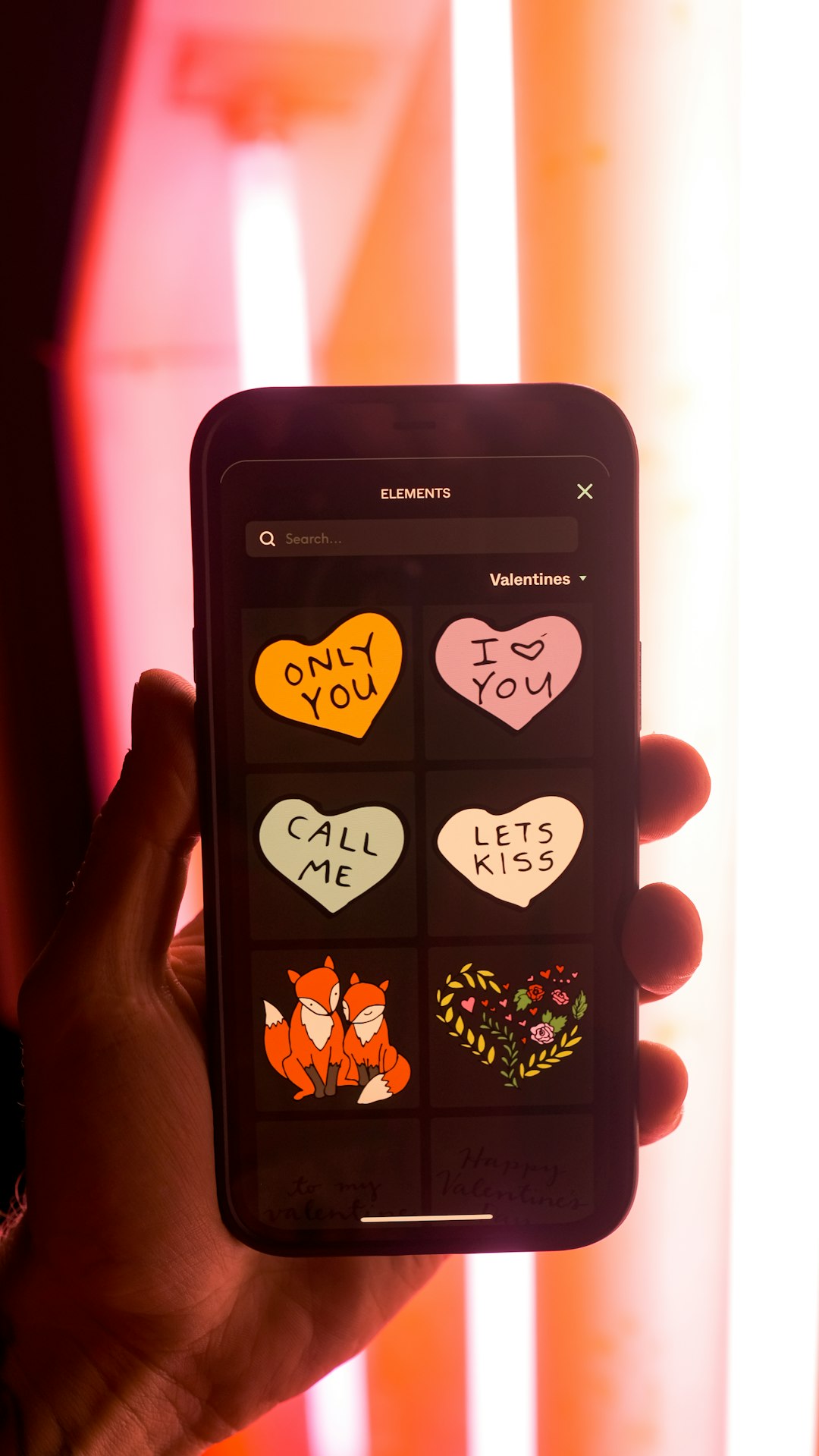
- Sending seasonal greetings for holidays, birthdays, and special events.
- Sharing inside jokes with friends, family, or group chats.
- Promoting characters, brands, or artwork in a casual and shareable format.
Types of iMessage Stickers
Not all stickers are the same. Some are designed for quick reactions, while others are miniature works of art. Understanding the different types can help you find or create stickers that people will actually use.
1. Static Stickers
Static stickers are still images, usually PNG files with transparent backgrounds. They are the simplest and most common type. A static sticker might be a smiling cat, a handwritten “thank you,” a pizza slice, or a logo mascot.
These stickers work well when the design is clear at small sizes. Since many people view messages on mobile screens, fine details can get lost. Strong shapes, bold outlines, and readable text make static stickers more effective.
2. Animated Stickers
Animated stickers include movement, often using short looping animations. A waving character, sparkling heart, bouncing text, or exploding confetti sticker can bring energy to a chat. Animation is especially useful for emotional reactions, such as excitement, embarrassment, celebration, or surprise.
The key is to keep animations short and smooth. If a sticker is too busy, it can become distracting rather than delightful.
3. Memoji and Personalized Stickers
Apple’s Memoji feature lets users create cartoon avatars that resemble themselves or represent a character. Once created, Memoji automatically generates many sticker-style expressions, such as laughing, crying, thumbs up, heart eyes, and facepalm.
These are popular because they feel personal. Instead of sending a generic reaction, you can send a reaction that looks like you.
4. Photo Cutout Stickers
Modern iOS versions allow users to lift a subject from a photo and turn it into a sticker. For example, you can create a sticker of your dog, your favorite coffee mug, a funny pose, or a memorable vacation snapshot. Some effects can also be applied, such as outlines or shiny finishes.
This feature has made sticker creation far more accessible. You no longer need to be a professional designer to make something fun and personal.
How to Find and Download iMessage Sticker Packs
The easiest way to get more stickers is through the App Store. Many sticker packs are free, while others are paid or included with larger apps. Some are simple collections of images, while others come as part of games, media apps, or design-focused tools.
To find sticker packs, open Messages, start or enter a conversation, and look for the app or sticker section. You can also search the App Store using phrases such as funny iMessage stickers, cat stickers, animated stickers, or holiday stickers.
When choosing a sticker pack, consider:
- Style: Does it match your personality or the tone of your conversations?
- Variety: Does it include enough expressions or situations?
- Readability: Can you understand each sticker quickly?
- Quality: Are the images sharp, polished, and well cropped?
- Usefulness: Will you use the stickers often, or only once?
How to Use iMessage Stickers Like a Pro
Using stickers is easy, but using them well is an art. The best sticker users know how to add humor, warmth, or emphasis without overwhelming the conversation.
Here are some practical tips:
- Use stickers as reactions. Instead of sending a separate message, place a sticker directly on the message you are reacting to.
- Match the mood. A silly sticker can lighten the tone, but it might not fit a serious conversation.
- Do not overdo it. A few well-placed stickers are fun; too many can clutter the chat.
- Layer creatively. Combine stickers on photos or messages to create a custom visual response.
- Save favorites. Keep your most-used sticker packs accessible so you can respond quickly.
Stickers work especially well in group chats, where fast reactions help keep the energy moving. A single dramatic sticker can become the highlight of a conversation, especially when it perfectly captures what everyone is thinking.

Creating Your Own iMessage Stickers
One of the most exciting parts of iMessage stickers is that you can create your own. This is useful for artists, small businesses, content creators, families, fan communities, and anyone who wants a more personal messaging experience.
There are several ways to create stickers. The simplest is to use built-in iOS features to turn photo subjects into stickers. For more advanced packs, creators can design images in illustration software and package them as an iMessage sticker app using Apple’s development tools.
Design Basics for Great Stickers
Good sticker design is different from poster, logo, or social media design. Stickers are small and used quickly, so they need to communicate instantly.
Keep these principles in mind:
- Make the emotion obvious. Happy, angry, confused, sleepy, excited, or impressed should be clear at a glance.
- Use transparent backgrounds. This helps stickers blend naturally into conversations.
- Avoid tiny text. If you use words, make them bold and easy to read.
- Create a consistent style. A sticker pack feels stronger when the colors, lines, and characters belong together.
- Design for common moments. Think about phrases like “yes,” “no,” “sorry,” “brb,” “lol,” “congrats,” and “good night.”
If you are creating a sticker pack for public release, it is also helpful to test your stickers with friends. Ask which ones they would actually use. Sometimes the funniest design on its own is not the most useful design in a real conversation.
Sticker Ideas for Creators and Brands
For creators and brands, iMessage stickers can be more than entertainment. They can be a subtle form of identity and community building. When fans or customers use your stickers, they are sharing a piece of your visual world inside private conversations.
Here are some sticker pack ideas:
- Character reactions: A mascot or original character showing different emotions.
- Catchphrases: Popular sayings, slogans, or community jokes.
- Seasonal packs: Stickers for holidays, launches, events, or celebrations.
- Product-themed stickers: Fun illustrations based on items, services, or brand symbols.
- Behind-the-scenes humor: Stickers that feel exclusive to fans or team members.
The best branded stickers do not feel like advertisements. They feel like useful, funny, or charming visuals that people want to send. If every sticker is just a logo, users will probably ignore the pack. But if the stickers express real emotions in a recognizable style, they can travel naturally through conversations.

Privacy and Compatibility
iMessage stickers are designed for Apple’s messaging ecosystem. They work best between Apple devices using iMessage, which appears in blue message bubbles. If you are texting someone outside iMessage, sticker behavior may be limited or may appear differently depending on the recipient’s device and messaging app.
As with any app download, it is wise to pay attention to privacy. Most simple sticker packs should not need extensive permissions. If a sticker app requests unnecessary access, review its details carefully before using it.
Also remember that stickers placed in chats are visible to conversation participants. A funny personal sticker may be perfect for close friends but less appropriate in a work group chat. Context matters.
Common Problems and Quick Fixes
Sometimes stickers do not appear where you expect them, or a downloaded pack seems hard to find. Most issues are simple to solve.
- Sticker pack not showing: Check the Messages app drawer or manage your iMessage apps to make sure the pack is enabled.
- Can’t drag a sticker: Press and hold the sticker slightly longer, then drag it onto a message bubble or image.
- Stickers look blurry: The original artwork may be too small or low resolution.
- Too many sticker apps: Remove or hide packs you no longer use to keep the interface clean.
- Recipient cannot see it correctly: They may not be using iMessage or may be on an older software version.
The Future of iMessage Stickers
Stickers continue to evolve as Apple adds more image recognition, personalization, and creative features. The ability to create stickers from photos already points toward a more customized future, where every user can build a personal visual language from pets, friends, hobbies, and everyday moments.
We may also see more animated, interactive, and AI-assisted sticker creation workflows. For artists and designers, this means more opportunities to create expressive packs. For everyday users, it means conversations can become even more personal and playful.
Final Thoughts
iMessage stickers may seem small, but they have a big effect on how people communicate. They add tone, humor, emotion, and personality to conversations that might otherwise feel flat. A well-timed sticker can soften a message, celebrate good news, tease a friend, or turn an ordinary chat into something memorable.
Whether you download sticker packs, use Memoji, create cutouts from your photos, or design a complete sticker collection from scratch, the goal is the same: make communication more expressive. The best stickers are not just decorative. They say something quickly, clearly, and with style.
So the next time words are not quite enough, open your sticker drawer. The perfect reaction might already be waiting there.