BetterTouchTool Review: Mac Productivity Powerhouse
BetterTouchTool has earned a reputation as one of the most flexible productivity utilities available for macOS. It is not merely a gesture app, a shortcut manager, or a window snapping tool; it is a broad customization platform that helps Mac users redesign the way they interact with their devices.
TLDR: BetterTouchTool is a powerful Mac productivity app for creating custom gestures, keyboard shortcuts, window management actions, automation triggers, and device-specific workflows. It is best suited for users who enjoy personalizing macOS and want deeper control than Apple provides by default. Its learning curve can feel steep at first, but the payoff is substantial for anyone willing to configure it carefully. For many Mac power users, it becomes an essential everyday tool.
What BetterTouchTool Does
BetterTouchTool, often shortened to BTT, allows users to assign actions to gestures, shortcuts, mouse buttons, Touch Bar controls, trackpad movements, drawing gestures, and more. Its central promise is simple: it lets a Mac respond in exactly the way a user wants.
For example, a three-finger swipe could move a window to the left half of the screen. A keyboard shortcut could open a favorite app, run a script, paste formatted text, or trigger a system command. A mouse button could switch desktops, resize a window, or launch a workflow. The app turns everyday input devices into customized control panels.
BetterTouchTool supports a wide range of input sources, including:
- Trackpad gestures
- Magic Mouse gestures
- Keyboard shortcuts
- Normal mouse buttons
- Touch Bar customizations on supported MacBooks
- Stream Deck-style triggers and external device controls
- MIDI devices and other advanced inputs
- Window snapping and window movement commands
This range makes the app unusually versatile. Instead of forcing users into one productivity method, it creates a toolkit that can be adapted to many different workflows.
Interface and Setup Experience
At first glance, BetterTouchTool may appear slightly intimidating. Its interface is practical rather than decorative, and it presents many options immediately. The app is organized around triggers, actions, and conditions. A trigger is the input, such as a gesture or shortcut. An action is what happens after that trigger. Conditions determine when the trigger should apply.
This structure is logical, but it takes time to understand. New users may need to experiment with basic shortcuts before creating more complex automations. However, once the concept is clear, BetterTouchTool becomes surprisingly approachable. A user can start with a simple command, such as assigning a keyboard shortcut to open Safari, and later build layered workflows involving multiple actions.
The app also includes presets and examples, which help demonstrate what is possible. These examples can be especially useful for users who are unsure where to begin. BetterTouchTool rewards curiosity, and its interface becomes more powerful the more time a user spends exploring it.
Gesture Customization
One of BetterTouchTool’s strongest features is gesture customization. Apple’s built-in trackpad gestures are polished, but limited. BetterTouchTool greatly expands that system. Users can create gestures involving taps, swipes, force clicks, corner clicks, multi-finger movements, and custom drawings.
This is especially valuable on MacBooks, where the trackpad is large, precise, and central to daily use. A designer might assign gestures to switch between creative applications. A writer might use gestures to manage research windows. A developer might use them to open terminals, move windows, or trigger scripts.
The app can also create application-specific gestures. This means a gesture can perform one action in Finder and a different action in Final Cut Pro, Photoshop, Safari, or any other app. That level of context awareness is one of the reasons BetterTouchTool feels so powerful. It does not merely add shortcuts; it adapts to the work being done.
Window Management
BetterTouchTool includes excellent window management tools. macOS has improved its native window controls over time, but many users still prefer the speed and flexibility of third-party solutions. BetterTouchTool allows windows to be snapped, resized, moved, centered, maximized, sent to another display, or arranged into custom layouts.
For users working with multiple monitors, this can be a major productivity boost. A single shortcut can send a window to a defined screen position. Another can move it to a different display. Complex layouts can be built for recurring tasks, such as writing, coding, editing, or customer support.
Its window snapping feels responsive and customizable. Users can define snap areas, adjust behavior, change animation preferences, and create highly specific placement rules. This turns BetterTouchTool into a strong alternative to standalone window managers.
Automation and Advanced Workflows
Beyond gestures and windows, BetterTouchTool becomes a serious automation utility. It can run AppleScript, shell scripts, shortcuts, keyboard sequences, menu commands, and system functions. It can also chain multiple actions together, allowing one trigger to perform a series of tasks.
For instance, a single shortcut could open a set of work apps, arrange their windows, set the volume, enable a focus mode, and display a notification. Another trigger could paste a template response, move the active window, and switch to a communication app. These workflows can save seconds dozens of times per day, which becomes meaningful over weeks and months.
BetterTouchTool also supports conditional logic. Actions can depend on the active app, connected display, clipboard state, system status, or other criteria. This makes it far more than a simple shortcut launcher. It operates like a personal automation layer sitting on top of macOS.
Keyboard Shortcuts and Text Productivity
The app is also useful for keyboard-focused users. BetterTouchTool allows custom keyboard shortcuts to be created at a system level or per application. These shortcuts can trigger almost any action available in the app.
Some users rely on it for text expansion-like workflows, clipboard actions, or repeated commands. While it is not a full replacement for dedicated text expansion software, it can handle many common repetitive tasks. It can paste snippets, insert dates, manipulate clipboard content, or run scripts that transform text.
For knowledge workers, writers, support agents, and developers, these features can reduce friction. Instead of navigating menus or repeating the same small actions, users can build direct commands that match their habits.
Touch Bar and External Device Support
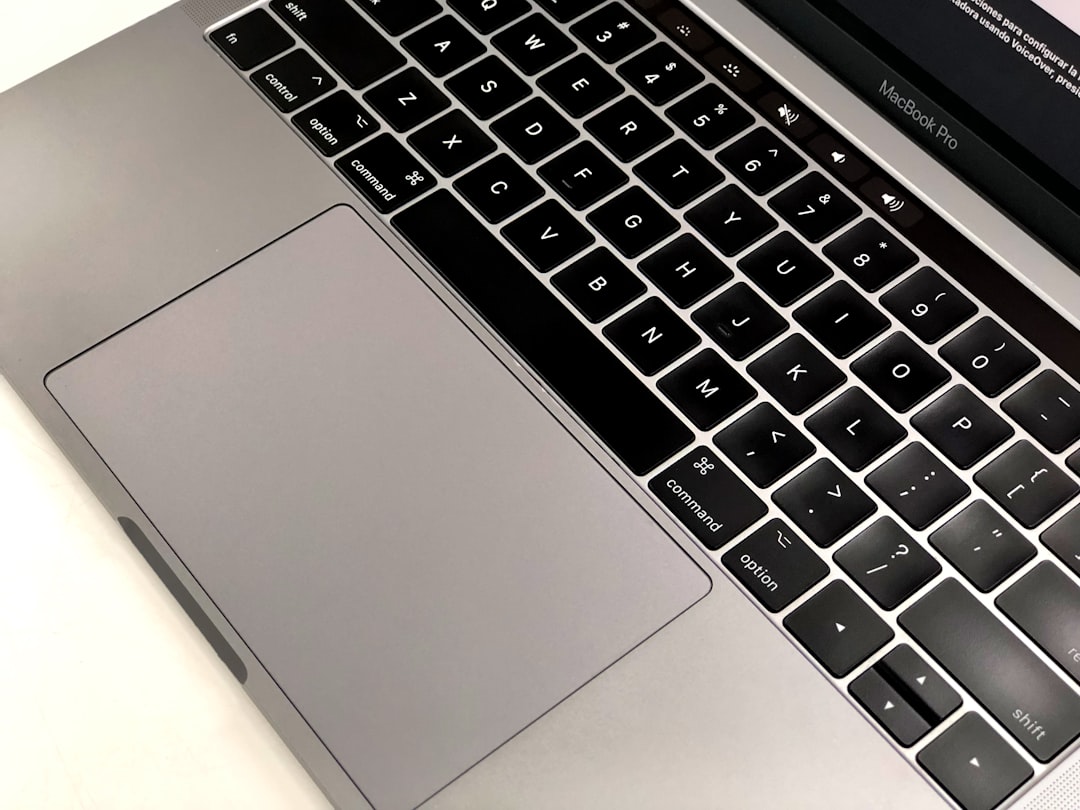
BetterTouchTool became especially popular among MacBook Pro owners because of its Touch Bar customization. Apple’s Touch Bar divided opinion, but BetterTouchTool allowed it to become much more useful. Users could create custom buttons, sliders, widgets, and app-specific controls.
Even as newer MacBook models have moved away from the Touch Bar, this feature remains valuable for supported hardware. BetterTouchTool can turn the Touch Bar into a dynamic launcher, media controller, system monitor, or editing panel.
The app also supports external devices and specialized workflows. Users who enjoy hardware controls, such as keyboards with extra buttons or control decks, can create highly personalized command systems. This contributes to BetterTouchTool’s appeal among productivity enthusiasts who want their Mac to feel like a custom workstation.
Performance and Reliability
For an app with so many capabilities, BetterTouchTool is generally efficient. It runs quietly in the background and responds quickly to triggers. Most actions feel instant, especially basic gestures and shortcuts.
Reliability is one of its strengths, but configuration matters. If a user creates overlapping gestures or conflicting shortcuts, unexpected behavior can occur. This is not usually a flaw in the app itself; it reflects the complexity of a highly customizable system. A well-organized setup tends to run smoothly.
The app is frequently updated, and its developer has maintained a strong reputation within the Mac community. Updates often add features, improve compatibility, and refine existing tools. That ongoing development gives BetterTouchTool an advantage over many smaller utilities that become outdated after major macOS changes.
Learning Curve
The biggest drawback of BetterTouchTool is its learning curve. New users who expect a simple one-click productivity boost may initially feel overwhelmed. The app does not hide its depth, and its many menus can make the first experience feel dense.
However, the learning curve is part of what makes the app powerful. BetterTouchTool is not designed only for quick tweaks. It is designed for users who want to build a custom interaction system. Those who start small usually have the best experience. A few simple gestures or window shortcuts can deliver immediate value, while advanced automations can be added later.
A helpful approach is to begin with three categories:
- Window actions, such as snapping and moving windows.
- App launch shortcuts, such as opening commonly used tools.
- Trackpad gestures, such as switching tabs or triggering Mission Control alternatives.
Once these basics feel natural, more advanced workflows become easier to design.
Pricing and Value
BetterTouchTool is typically offered as a paid utility with licensing options rather than a large subscription-heavy platform. Pricing can change, but it has long been considered affordable compared with the amount of functionality it provides.
Its value depends on the user. Casual Mac users who rarely customize settings may not need it. They might use only a small fraction of its features. However, for power users, developers, creatives, students, office professionals, and multitaskers, BetterTouchTool can be one of the best-value Mac apps available.
The app can replace several smaller utilities, including basic window managers, gesture tools, shortcut launchers, and Touch Bar customizers. That consolidation makes its price easier to justify.
Best Use Cases
BetterTouchTool is especially useful for people who perform repetitive actions throughout the day. It suits users who want greater speed, fewer clicks, and a more personal Mac experience.
Common use cases include:
- Developers creating shortcuts for terminals, IDEs, scripts, and window layouts.
- Writers building research layouts, text shortcuts, and distraction reduction workflows.
- Designers setting app-specific gestures for creative tools.
- Office workers improving window management and repetitive task handling.
- Students organizing study apps, notes, browsers, and reference materials.
- Multimonitor users moving windows quickly between displays.
It is less ideal for users who prefer a completely minimal setup or who dislike configuring software. BetterTouchTool provides the greatest benefit to those willing to personalize it.
Pros and Cons
Like any advanced utility, BetterTouchTool has clear strengths and some limitations.
Pros
- Extremely flexible customization across gestures, shortcuts, windows, and devices.
- Powerful automation options including scripts and chained actions.
- Application-specific controls for context-aware workflows.
- Strong window management that can replace dedicated tools.
- Active development and long-standing community trust.
- Excellent value for users who take advantage of its depth.
Cons
- Steep initial learning curve for beginners.
- Interface can feel crowded due to the number of available options.
- Overconfiguration is possible, especially with too many gestures or conflicting shortcuts.
- Not necessary for every Mac user, particularly those with simple workflows.
Final Verdict
BetterTouchTool is one of the most capable productivity apps on macOS. It gives users a deep level of control over gestures, shortcuts, windows, devices, and automation. Its greatest strength is not any single feature, but the way all of its tools work together to create a personalized Mac experience.
It is not the simplest utility, and it may feel excessive for casual users. However, for anyone who spends many hours on a Mac and wants to reduce friction, it can be transformative. BetterTouchTool turns ordinary input methods into powerful commands, and it allows macOS to adapt to the user rather than the other way around.
Overall, BetterTouchTool deserves its reputation as a Mac productivity powerhouse. It is flexible, efficient, actively developed, and remarkably useful once configured. For power users and customization enthusiasts, it is easy to recommend.
FAQ
What is BetterTouchTool used for?
BetterTouchTool is used to create custom gestures, keyboard shortcuts, window management commands, automation workflows, and device-specific controls on macOS.
Is BetterTouchTool good for beginners?
It can be useful for beginners, but it has a learning curve. New users usually benefit from starting with simple window snapping shortcuts or basic trackpad gestures before exploring advanced automation.
Can BetterTouchTool replace a window manager?
Yes, for many users it can replace a dedicated window manager. It offers window snapping, resizing, movement between displays, and custom layouts.
Does BetterTouchTool work with the Mac trackpad?
Yes. Trackpad customization is one of its strongest features. It supports taps, swipes, force clicks, multi-finger gestures, and app-specific commands.
Is BetterTouchTool worth paying for?
For users who enjoy customization or perform repetitive tasks, it is usually worth the cost. Its combination of gesture control, automation, and window management provides significant value.
Who should avoid BetterTouchTool?
Users who prefer a very simple Mac setup or do not want to spend time configuring shortcuts may not need it. The app is most valuable for users who want deeper control over macOS.