5 The Rasterbator Alternatives for Large-Format Poster Printing, Pixelated Artwork, and Custom Wall Decor
PosteRazor is the safest first pick if you want a free Rasterbator alternative for tiled, large-format poster printing. It turns one image into a multi-page PDF that you can print on A4 or Letter paper, then trim and assemble. For scale, an A0 sheet is 841 × 1189 mm, far larger than a normal home printer page [source: Wikipedia]. That is why tiling tools still matter for dorm rooms, classrooms, events, retail displays, and custom wall art.
TLDR: Use PosteRazor for free offline tiled posters, Adobe Acrobat Reader if your file is already a PDF, and Block Posters if you want the fastest browser option. For example, a 24-page A4 grid can turn a small 3000 × 2000 px image into a wall poster about 1.2 meters wide, if viewed from a few steps back. If you want cleaner decor rather than a DIY paper grid, use Canva or Vistaprint for printed posters on heavier stock.
1. PosteRazor: Best free offline Rasterbator alternative
Best for: students, artists, teachers, and anyone who wants tiled output without uploading images.
PosteRazor is simple and serious. You open an image, choose the paper size, set overlap, pick the final poster size, and export a PDF. That PDF can be printed at home or at a copy shop.
- Strengths: free, offline, direct PDF export, good page overlap controls.
- Weaknesses: the interface feels old, and image editing options are limited.
- Use it for: black-and-white portraits, school displays, event signs, and pixelated art walls.
Honestly, it feels like the software has not tried to impress anyone in years. Still, that is almost a benefit. It does one job and does it well. For sensitive images, offline processing is also a major plus.
2. Adobe Acrobat Reader Poster Mode: Best for PDF tiling
Best for: people who already have a poster design saved as a PDF.
Adobe Acrobat Reader includes a Poster print option. It lets you split a large PDF over smaller sheets. You can set tile scale, overlap, cut marks, and labels. This makes it useful for office posters, project boards, and printed plans.
- Strengths: reliable print controls, widely installed, good for exact PDF layouts.
- Weaknesses: not ideal for editing images before print.
- Use it for: conference posters, classroom charts, diagrams, and clean text-heavy designs.
The catch is that Acrobat works best when the design is already prepared. If your source image is low quality, Acrobat will not fix it. It will simply print a bigger low-quality image.
3. Block Posters: Best quick web-based option
Best for: fast, casual posters with no software install.
Block Posters is one of the easiest browser tools for turning an image into a tiled poster. Upload an image, choose how many pages wide it should be, and download the result. It is friendly for one-off projects.
- Strengths: fast setup, no install, simple controls.
- Weaknesses: upload limits and privacy concerns may matter.
- Use it for: party posters, fan art, garage signs, and temporary wall decor.
Expect to waste time if your file is huge. Large uploads can stall, and resizing before upload is often faster. Keep a copy of the original image, then upload a print-ready version.
Image not found in postmeta4. Posteriza: Best lightweight Windows option
Best for: Windows users who want a small poster tool with basic text support.
Posteriza is an older Windows poster program, but it still has a place. It can split images across pages and add text. That makes it handy for simple notices, local sale posters, hobby projects, and workshop signs.
- Strengths: small app, easy to learn, supports text and borders.
- Weaknesses: dated design and fewer export options than newer tools.
- Use it for: community posters, simple photo walls, and practical signage.
It drives me crazy that older tools like this can still feel faster than modern web apps. The downside is polish. Do a test print before committing to 20 or 30 sheets.
5. Canva or Vistaprint: Best for finished custom wall decor
Best for: people who want a polished poster printed on proper paper.
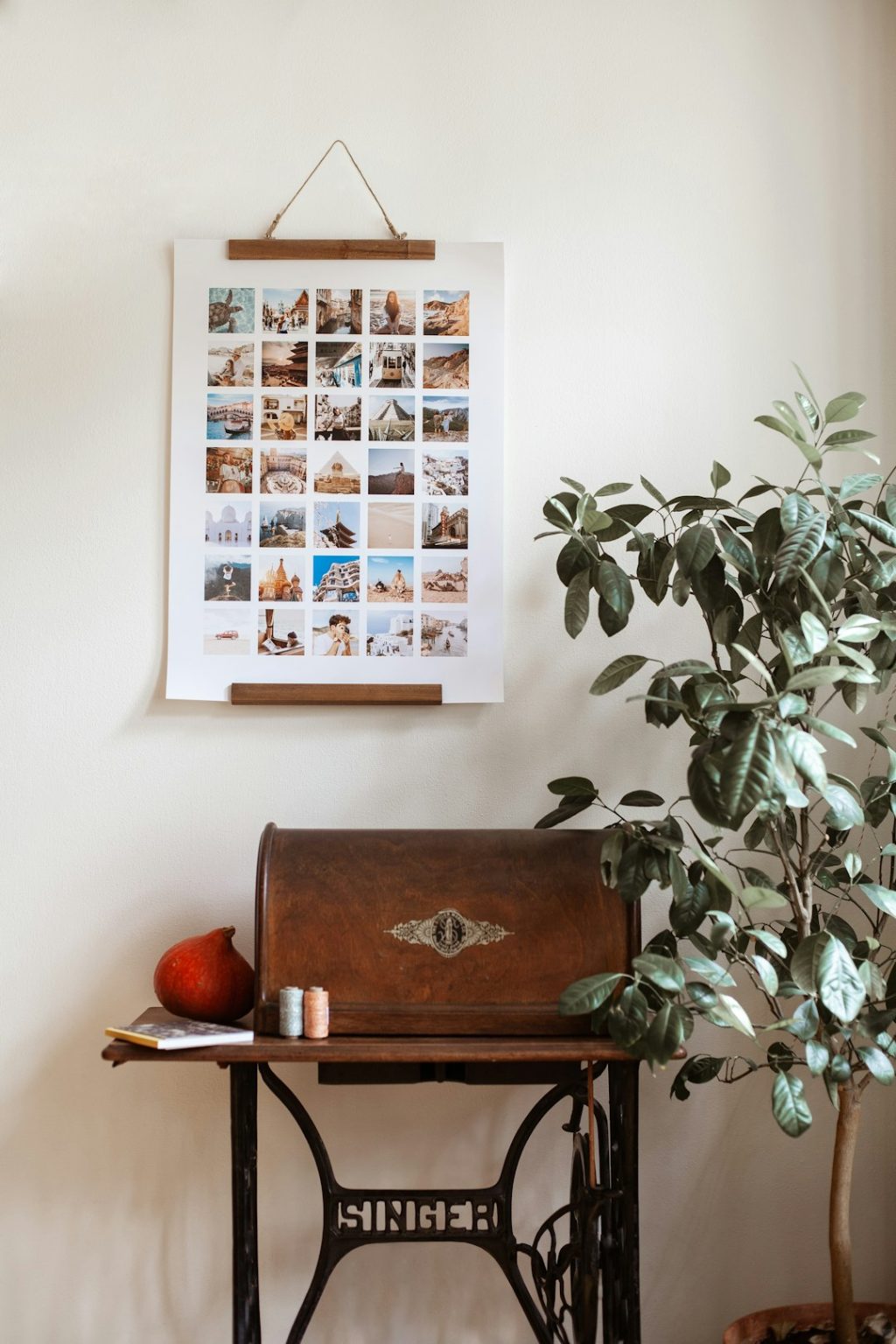
Canva is useful for designing posters, collages, quotes, and decorative wall pieces. Vistaprint is better when you want the final print handled by a print service. These are not true Rasterbator-style tiling tools, but they are strong alternatives when the goal is custom wall decor, not a taped paper grid.
- Strengths: clean templates, print ordering, better materials.
- Weaknesses: less control over tiled DIY output.
- Use it for: apartment decor, office branding, family photo posters, and gift prints.
Choose this route if you care about paper weight, color consistency, and a cleaner finish. DIY tiling can look great from a distance. Up close, seams are still seams.
How to choose the right tool
- Need free and private? Pick PosteRazor.
- Need to print a PDF across many sheets? Use Adobe Acrobat Reader.
- Need something quick in a browser? Try Block Posters.
- Need a small Windows utility? Use Posteriza.
- Need polished wall decor? Use Canva or Vistaprint.
For pixelated artwork, start with a high-resolution file or scale the image using nearest-neighbor resizing before printing. That keeps hard square edges sharp. For photo posters, use the highest-quality source you have. A blurry selfie will not become gallery art just because it covers twelve sheets.
Final recommendation: start with PosteRazor for DIY tiled posters. Use Acrobat when you already work in PDF. Move to a print service when the poster needs to look clean, durable, and ready for a real wall.