Best Video Editing Software for YouTube
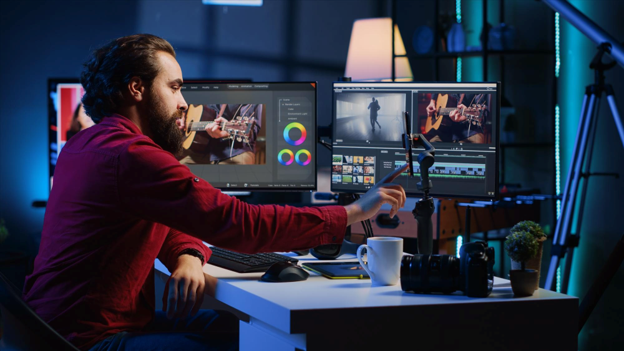
The best editing software for YouTube depends on how often you post and how many hours each video can cost you. Searches for what editing software YouTubers use mostly turn up professional suites. Those suit a crew cutting a documentary. They are a lot of program for someone who films a daily routine and wants to post it right away. That work needs quick cuts and accurate captions, plus a vertical export for Shorts.
TLDR: Judged on learning curve, AI tools, and free-version limits, the ten editors split by need. Movavi Video Editor suits beginners filming vlogs, CapCut suits short vertical clips, and Descript suits talking heads. Filmora fits frequent uploaders and Clipchamp fits simple videos on Windows. Premiere Pro, DaVinci Resolve, and Final Cut Pro are for editors who want full professional control, while Clideo covers one-off browser tasks and Shotcut is the free open-source pick.
Comparison table: best editing software
| Editor | Type and platform | Best for | Pricing model |
| Movavi Video Editor | Desktop for Windows and macOS | Beginners and everyday creators | Free version, Lite, full subscription |
| CapCut | Mobile-first, plus desktop and web | Short vertical clips | Free and Pro tiers |
| Descript | Transcript-based editor | Podcasts and talking heads | Free and tiered subscriptions |
| DaVinci Resolve | Desktop for Windows, macOS, and Linux | Colorists and professional editors | Free, one-time Studio purchase |
| Final Cut Pro | Mac and iPad | Apple-ecosystem editors | One-time purchase or subscription |
| Adobe Premiere Pro | Desktop for Windows and macOS | Professional editors and studios | Subscription with free trial |
| Filmora | Desktop for Windows and macOS | Frequent uploaders | Free, annual plans, one-time license |
| Clideo | Browser | One-off browser tasks | Free and Pro |
| Clipchamp | Browser, plus Windows app | Simple videos on Windows | Free, paid tiers via Microsoft 365 |
| Shotcut | Desktop for Windows, macOS, and Linux | Budget users who accept manual work | Free, open source |
Prices change often, so the table lists pricing models rather than amounts. Check each editor’s official website for current prices before you commit.
The 10 best software for editing videos for YouTube
1. Movavi Video Editor
Best for: beginners and everyday creators who film lifestyle vlogs and travel recaps.
Pricing model: Free version, Lite, and a full version sold as a monthly or yearly subscription. The free version lets you explore the tools, with exports capped at 60 seconds and watermarked. The full version removes both limits.
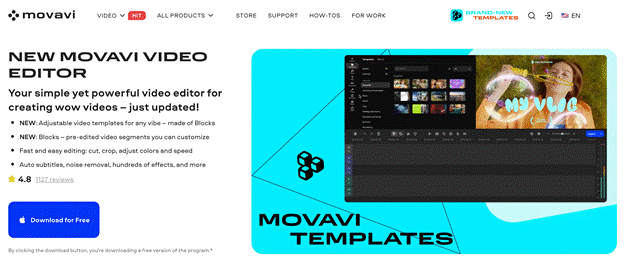
Movavi Video Editor is an intuitive video editor with customizable video templates, one-click AI tools, and hundreds of drag-and-drop effects. Hover previews, built-in hints, and Movavi Ideas, a free tutorial hub, make it beginner-friendly.
The AI tools run without credits in the paid version. They cover auto subtitles in 100+ languages, audio and video noise removal, silence removal, background removal without a green screen, motion tracking, and auto-tracked cropping for vertical Shorts.
Templates give video structure. Movavi Video Templates is a multi-style library of customizable, pro-looking, modular templates for any kind of video. Each is built from Blocks, short pre-edited segments, that can be moved around, added, removed, or restyled. They come with music, transitions, and text in place, so even a first vlog looks professionally edited.
Pros: Easy to use, hundreds of built-in effects, customizable templates, and AI without credits.
Cons: Lacks advanced, detailed controls for a professional workflow and has no web version or cloud project sync.
2. CapCut
Best for: social media creators making short vertical clips, with long-form YouTube videos as a second use.
Pricing model: Free and Pro in monthly or yearly billing, plus team plans. Pro adds the advanced AI tools, Pro-tier templates and effects, and cloud storage.
CapCut is great for speed. It is a mobile-first editor from the TikTok ecosystem that also runs on desktop and in the browser. A multi-layer timeline, keyframe animation, chroma key, and color grading sit beside beginner shortcuts such as one-tap filters and caption templates.
The free plan covers basic editing, filters, transitions, and text. Auto captions are available too, although some advanced caption styles and AI features require Pro. Feature access can differ between mobile, desktop, and web.
Free cloud storage was discontinued in August 2024, so project backup now sits behind Pro as well. CapCut also offers a separate Teams plan for collaborative projects, which matters more for an agency than for a solo vlogger. The company also publishes how-to guides and template trend roundups on its own website, which gives a newcomer somewhere to learn.
Pros: Short-form editing is fast, and the template library follows trending formats. The editor works across mobile, desktop, and web.
Cons: Some AI features, effects, and templates require Pro, and free cloud storage is limited.
3. Descript
Best for: podcasters, interviewers, and talking-head creators, plus screencasts and tutorials with screen recording.
Pricing model: A free plan with 720p exports and a watermark, then Hobbyist, Creator, and Business plans billed monthly or annually. Plans are metered in media hours and AI credits, and Hobbyist adds watermark-free 1080p exports.
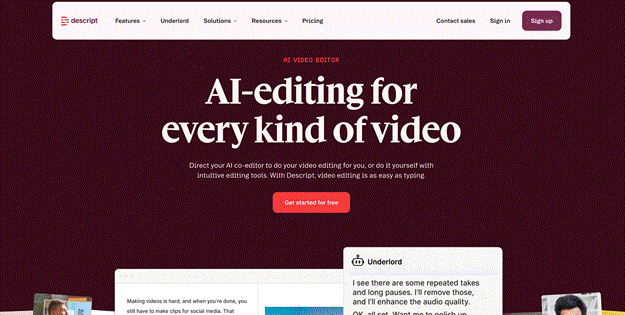
Descript edits video by editing its transcript. Delete a sentence in the text and the matching footage goes with it, which turns a long interview into a reading job instead of a scrubbing one.
Underlord, its AI co-editor, sits beside Studio Sound for audio cleanup, a filler-word remover, and a tool that cuts clips out of longer recordings. Screen recording is built in. The toolset leans toward speech rather than visual effects.
A lifestyle vlog built on b-roll, music, and transitions cuts differently from an interview. The transcript view pays off on the talking sections and does little for the rest.
Pros: Cutting by text makes interview rough cuts quick. Filler words come out in one pass.
Cons: Visual effects and transitions are not its focus, and plans are metered in media hours and AI credits.
4. DaVinci Resolve
Best for: colorists, professional editors, and indie film and production work.
Pricing model: The base version is free, with no watermark. Studio is a one-time purchase that adds the AI tools, noise reduction, and other advanced features.
The free version of DaVinci Resolve carries no watermark, but AI tools such as Magic Mask are only in the paid Studio version. Resolve runs on Windows, macOS, and Linux, and version 21 arrived in June 2026 with a Photo page and a fresh set of AI tools on top of separate pages for editing, color, audio, and visual effects.
The speech-to-subtitle feature belongs to Studio too. A vlogger who wants captions generated from audio has to pay for the upgrade or caption elsewhere. The learning curve is steep and the hardware demands are high. That suits colorists and film editors, and it adds work to a daily vlog.
Blackmagic Design offers free video lessons, downloadable training books, and practice files. There is plenty to learn, but the official courses give beginners a clear place to start.
Pros: Film-grade color tools in the free version, detailed controls for advanced effects, and a one-time purchase for Studio.
Cons: The learning curve is steep, and the program demands capable hardware. AI tools, including captions from audio, require Studio.
5. Final Cut Pro
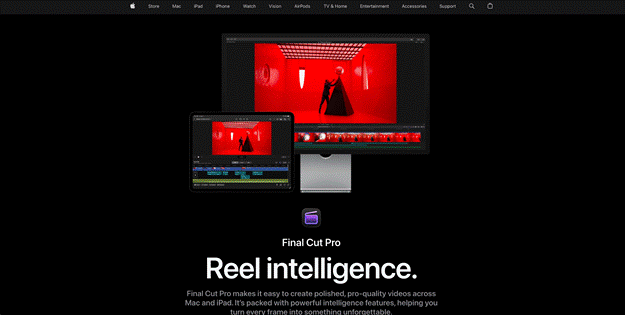
Best for: editors on Mac and iPad who shoot with an iPhone or a pro camera and cut YouTube, film, or commercial work.
Pricing model: A one-time purchase, or an Apple Creator Studio subscription billed monthly or yearly with a free trial. Some extra content is open only to subscribers.
Final Cut Pro is Apple’s professional editor, built around a magnetic timeline and tuned for Apple silicon. It runs on Mac and, through Apple Creator Studio, on iPad.
Generate Captions transcribes audio on the device and places subtitles on the timeline. It needs a Mac with Apple silicon and macOS 15.6 or later. Edit Detection and Auto Mask arrived in the same update, with the deeper toolset on Mac.
The tie to Apple hardware is the main constraint. A Windows user has no route to the program at all.
The program pairs with Final Cut Camera, Apple’s free capture app for iPhone and iPad. The subscription bundles Motion and Compressor with the editor, while the one-time purchase covers Final Cut Pro alone. The trial lets you cut a few real videos before you pay.
Pros: The magnetic timeline speeds up rearranging clips, captions are generated on the device, well optimized for Macs.
Cons: It runs on Apple hardware only, and some extra content is limited to subscribers.
6. Adobe Premiere Pro
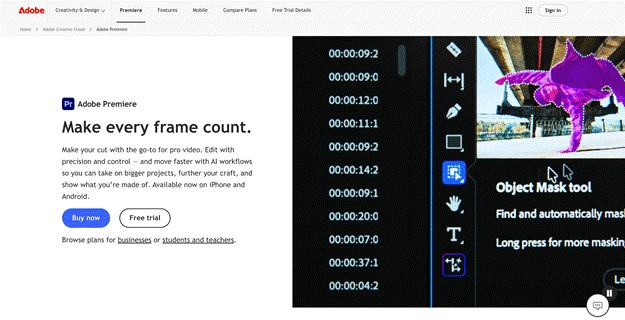
Best for: professional editors and studios working on multicam projects, film and TV, and commercials.
Pricing model: Subscription only, billed monthly or annually, with a 7-day free trial. The program is also part of the Creative Cloud Pro plan.
Adobe Premiere Pro is the industry standard for professional editing and runs on Windows and macOS. Multicam editing, advanced color correction, and plugin integration for visual effects make up the toolkit.
Speech to Text, Enhance Speech, Caption Translation, and Auto Reframe come with the Creative Cloud membership. Generative tools such as Generative Extend draw on generative credits, with limited complimentary use.
In-app tutorials soften the first project. The panels, effects, and export settings still ask a new vlogger to learn a lot before a simple edit feels quick.
Because the program belongs to the Creative Cloud family, projects move between Premiere and Adobe’s other video and design apps. Teams gain the most from that, and a solo vlogger gains less. Premiere is also available as a free standalone app on iPhone, separate from the desktop program.
Pros: Wide feature set for professionals, multicam editing covers complex shoots, Auto Reframe converts horizontal footage for Shorts.
Cons: It is subscription only, and generative features use credits.
7. Filmora
Best for: bloggers with a steady upload schedule, freelance editors, and semi-professional creators.
Pricing model: A free version with watermarked exports, annual Basic and Advanced plans, and a one-time Perpetual license. Basic removes the watermark and includes 4K export without AI credits, and Advanced adds 1,000 AI credits a month.
Filmora is an AI-powered desktop editor for Windows and macOS. A multitrack timeline, keyframe animation, motion tracking, and multicam editing handle layered projects. The AI Mate assistant, Smart Search, and Auto Reframe are among its AI tools, and generative features are paid for with AI credits.
One Basic or Advanced license covers both Windows and macOS. The Basic plan includes 500 free AI Mate conversations. Paid plans include cloud storage, which is 1 GB on Basic and 10 GB on Advanced. Pricing needs a careful read, since the right plan depends on which AI features you plan to use.
Pros: The toolset handles layered, multi-clip projects, comes with plenty of creative assets, advanced includes a monthly AI credit allowance.
Cons: AI credits and the Advanced plan add cost on top of the base license, and the Perpetual license covers one version.
8. Clideo
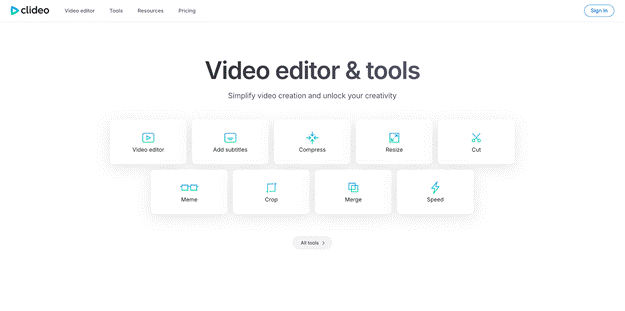
Best for: quick browser edits, such as trimming a clip, compressing a video for sending, or adding subtitles.
Pricing model: A free plan with 720p exports, a watermark, 500 MB uploads, and 10 monthly credits for auto subtitles and translation. Pro, billed monthly or yearly, removes the watermark, allows 4K, and raises the credits to 500.
Clideo is a browser-based video maker built from a long list of single-purpose tools, with an all-in-one editor that adds a multitrack timeline. Nothing needs to be installed.
Auto subtitles come with translation, and the text downloads as an SRT or TXT file. The subtitles are burned into the video rather than switchable in the player.
Free uploads stop at 500 MB, and free exports stop at 720p. A vlogger shooting long 4K clips outgrows those limits quickly, while a one-off trim or compression job fits them well.
The subtitle editor lets you review the generated text and its timing before export, which keeps a short caption job quick.
Pros: There is nothing to install, each tool does one job, so the learning time is short.
Cons: Free exports are watermarked and capped at 720p. Auto subtitles run on a monthly credit allowance.
9. Clipchamp
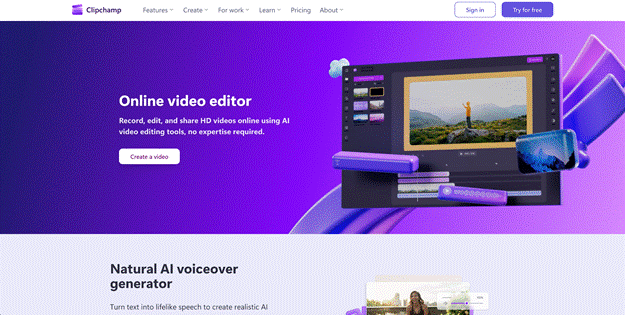
Best for: Windows users who need simple social and training videos made quickly.
Pricing model: A free plan with core editing tools, free stock media, and watermark-free exports up to 1080p. Paid features such as 4K export, extra stock media, and the brand kit come through a Microsoft 365 subscription or a standalone plan.
Clipchamp runs in Edge or Chrome and as an app for Windows. Microsoft owns it, and a personal Microsoft account is all you need to sign in.
Autocaptions, silence removal for pauses over 3 seconds, and text-to-speech voiceovers are free for everyone. Speaker coach and auto-compose sit in the same toolbox. The toolset aims at quick jobs, and it stays deliberately small. Extra stock media, filters, 4K export, and the brand kit require a paid plan.
Personal accounts sign in with a Microsoft account, while work and school accounts get Clipchamp Standard with selected Microsoft 365 plans. Noise suppression, a voice recorder, and a green screen effect round out the audio and video basics for talking-head clips.
Pros: Comes preinstalled on Windows 11, free exports reach 1080p with no watermark, captions and silence removal cost nothing.
Cons: 4K export and extra stock media require a paid plan, and there’s no Mac app.
10. Shotcut
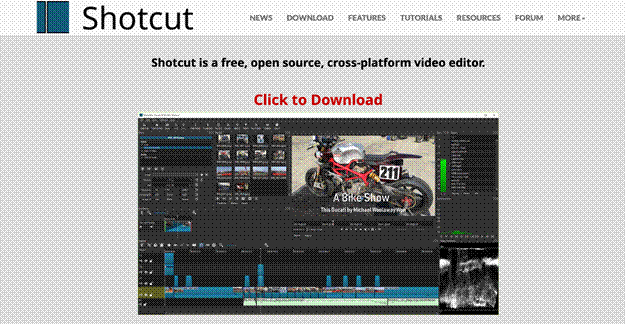
Best for: budget-minded users who accept manual controls, for basic edits, school projects, and simple YouTube videos.
Pricing model: Completely free and open source, with no account, watermark, or export limit.
Shotcut is a free editor for Windows, macOS, and Linux. It edits natively with no import step and reads hundreds of formats through FFmpeg.
Latest versions added Speech to Text based on Whisper, which generates subtitles on your own computer, text-to-speech, and screen recording. Hardware decoding is on by default where the system supports it.
Generated subtitles land in the Subtitles panel as a new track, and a text style preset can format them when they are placed on the timeline. Most other decisions stay with you. Filters and keyframes take more manual work than in some beginner-friendly editors, although presets help with common settings.
The program also runs as a portable app from an external drive, which helps on a shared or locked-down computer.
Pros: It costs nothing and puts no limits on exports, Speech to Text runs locally.
Cons: Cropping and cleanup take more manual work, and there are fewer automated editing tools.
How to choose the best editing software for YouTube videos
Start with your upload schedule. The common mistake is picking the longest feature list and then using a tenth of it. A channel that posts once a week rarely needs multicam editing or film-grade color, the two things Premiere Pro and DaVinci Resolve are built around, and the weeks spent learning them are weeks without new videos. Movavi Video Editor, CapCut, and Filmora are easier to pick up, with ready-to-use effects and automatic tools that make routine edits quicker.
Check what the AI costs. Auto captions and noise removal save the most time on vlogs, but some tools meter them in credits or lock them behind a higher plan. Clipchamp and Shotcut include captions at no charge.
Read the free tier closely. Export caps, watermarks, and resolution limits differ between editors, and Resolve, Clipchamp, and Shotcut all export without a watermark. If a cheap or free route is the goal, that detail matters more than the feature list.
Think about platform. Final Cut Pro stays within Apple devices, Movavi Video Editor and Filmora run on Windows and macOS, and Clideo works in the browser. Descript edits through text, which changes how you work more than where.
Hardware and connection speed count too. DaVinci Resolve expects capable hardware, and a browser editor depends on your internet. Test a short project with your own footage before you pay.
Finally, look at where you will learn. Adobe builds tutorials into Premiere Pro, CapCut publishes how-to guides on its site, Movavi Video Editor has Movavi Ideas, and Descript runs a community with podcasting guides. An easy start comes from short, step-by-step lessons more than from a manual.
FAQ
What editing software do YouTubers use?
There is no single answer, because the choice follows the channel. Professionals cutting client work and long films use Adobe Premiere Pro, DaVinci Resolve, and Final Cut Pro. Everyday creators filming lifestyle vlogs have simple options like Movavi Video Editor or Clipchamp. Filmora serves frequent uploaders, CapCut serves short-form channels, and Descript serves talking-head and interview channels. Clideo handles one-off jobs, and Shotcut attracts budget users who accept manual work.
What is the best free editing software for YouTube?
Several editors cost nothing, though the limits differ. DaVinci Resolve’s free version has no watermark but leaves the AI tools to Studio. Clipchamp exports 1080p without a watermark, and Shotcut is completely free. Movavi Video Editor, Filmora, Clideo, and Descript add watermarks to free exports, and CapCut keeps many assets behind Pro. Adobe Premiere Pro and Final Cut Pro are paid tools that start with a free trial.
Which editor is good for beginners?
Look for an easy-to-read timeline, previews before you apply an effect, and automatic tools for captions and silence. Predictable AI billing matters too, because a subtitle tool that runs out of credits mid-project stalls a weekly schedule. Short, step-by-step tutorials teach faster than a manual, so check what learning material the maker publishes.
Is a paid editor worth it for a growing channel?
A paid editor earns its price when the free version’s limits cost you time. Watermarks, export caps, and locked AI tools all turn into manual work. Pricing models differ. Final Cut Pro and DaVinci Resolve Studio can be bought once, Adobe Premiere Pro is a subscription, and Descript meters its plans in media hours and AI credits. Compare the cost across a year of weekly uploads, not a single month.
Which software is best for YouTube Shorts?
Pick an editor that turns horizontal footage into vertical without cutting you out of frame. Auto-reframing with subject tracking handles that, and caption styles built for vertical screens save time on every clip. Export a short test clip first and watch it on a phone before you commit to a tool.
Do I need AI features to edit YouTube videos?
You can edit without them, and plenty of channels do. AI pays off when it removes repetitive work such as captions, silence cutting, background noise, and subject tracking.
Can one editor handle long videos and Shorts?
Most can, as long as they export both horizontal and vertical formats. The difference is how much work it takes to switch between them. Automatic reframing can track the subject and keep it in view when converting a horizontal video into a Short, saving you from adjusting every shot by hand.
Do I need a powerful computer to edit YouTube videos?
It depends on the editor. DaVinci Resolve expects capable hardware, and browser editors such as Clipchamp lean on your connection instead. Test a short project with your own footage first. If playback stutters with two or three layers, the editor is too heavy for that computer.