Hackintosh on a Razer Blade Stealth: Compatibility and Setup Considerations
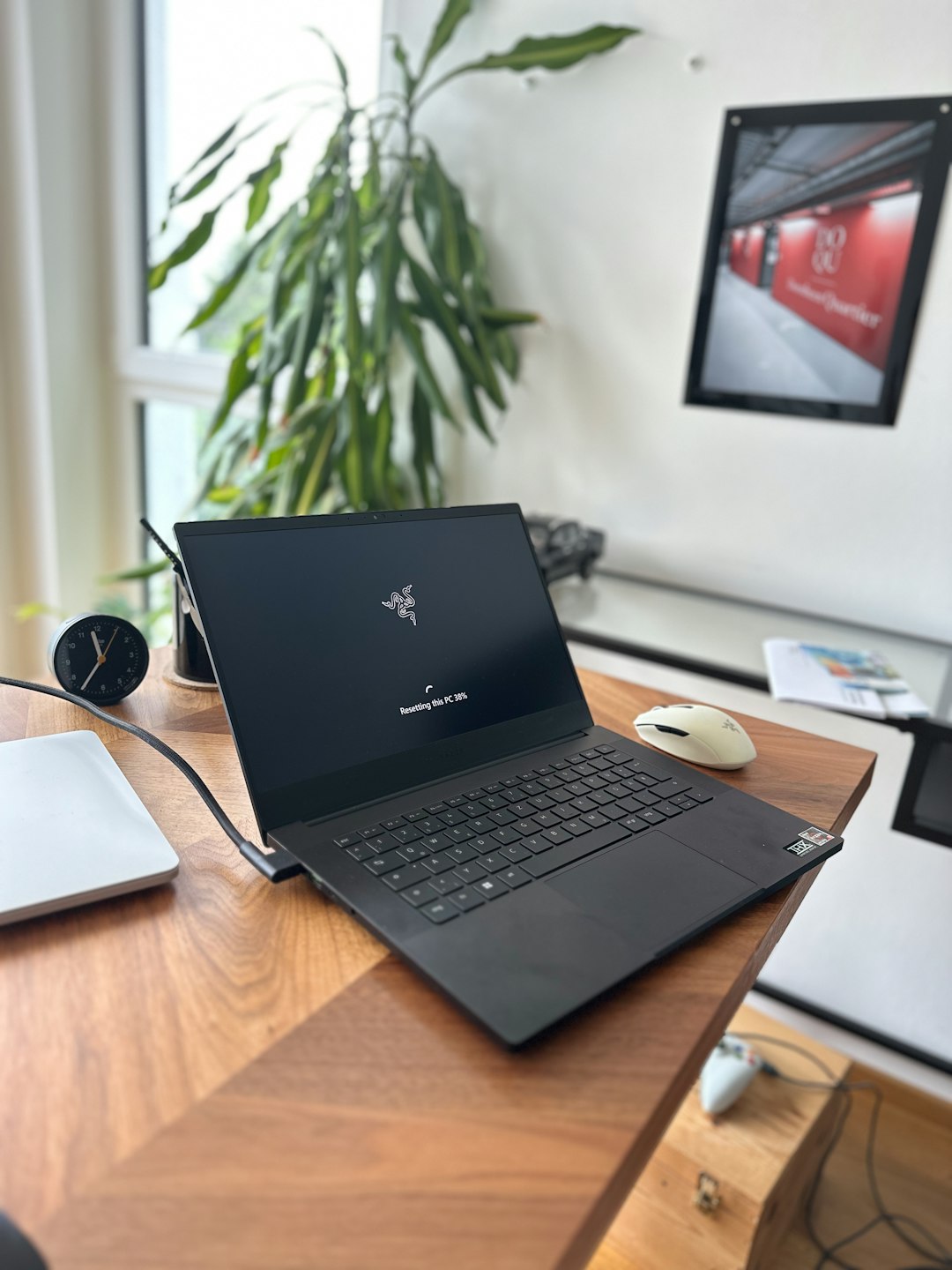
Pick an older Intel Razer Blade Stealth with supported Intel graphics if you want a sane Hackintosh build; avoid Iris Xe models unless you like pain. The Stealth is slim, well built, and tempting, but macOS compatibility changes hard by model year. For example, the Blade Stealth 13 moved from 10th gen Intel Iris Plus to 11th gen Intel Iris Xe in later models, and that matters a lot for graphics support [source: Razer].
TLDR: A Razer Blade Stealth Hackintosh can work well if you choose a model with UHD 620 or some Iris Plus graphics, but newer Iris Xe machines are a bad match because macOS has no proper hardware acceleration for them. A 2018 or 2019 Stealth can feel about 80–90% like a MacBook after setup, assuming Wi Fi, sleep, audio, and trackpad are tuned. Example: a student using Xcode, Safari, Notes, and light photo edits may be happy; a video editor needing smooth GPU export probably will not be.
Best Models to Consider
The safest Razer Blade Stealth choices are usually the older Intel versions with integrated graphics that macOS already understands. Think Intel UHD 620, found in many 8th gen Whiskey Lake machines. Some 10th gen Ice Lake models with Iris Plus can also be realistic, but they need more careful setup.
The models to be wary of are the later 11th gen Tiger Lake units with Iris Xe. They may boot macOS, but without graphics acceleration the system feels rough. Windows will fly. macOS will drag windows like it is running through syrup. Honestly, that gets old in about five minutes.
- Good target: 2018–2019 Blade Stealth with UHD 620.
- Possible target: 2020 Ice Lake model with Iris Plus.
- Poor target: 2020 or newer Tiger Lake model with Iris Xe.
- Not useful in macOS: Nvidia MX150, MX250, or GTX graphics in these laptops.
What Usually Works
With the right model, macOS can be surprisingly usable on a Blade Stealth. The display is sharp. The keyboard is decent. USB C works with tuning. Audio can usually be fixed with AppleALC. Battery status often works through VirtualSMC and its battery plugins.
The trackpad is more of a project. Many Stealth models use I2C devices, so you will likely need VoodooI2C and related kexts. Once working, gestures can feel close to a real Mac. Not perfect, but good enough for daily use.
Expect these parts to be fixable or partly fixable:
- Intel integrated graphics, only on supported generations.
- Keyboard and basic input, usually without drama.
- Trackpad gestures, with VoodooI2C tuning.
- Audio, with AppleALC and the right layout ID.
- Battery readings, with ACPI patches.
- USB ports, after proper USB mapping.
What Breaks or Annoys People
The catch is that “mostly working” still means hours of small fixes. Sleep may fail. Bluetooth may act odd. Webcam support can vary. Touchscreen input is usually not worth chasing. Fingerprint readers are basically dead weight in macOS.
Wi Fi is the big one. Many Blade Stealth units ship with Intel wireless cards. You can use itlwm or AirportItlwm, but native Apple features may still be limited. AirDrop, Continuity, and Handoff are far easier with a compatible Broadcom card, if your model allows a swap. Newer macOS versions have also made Broadcom support more annoying, so check your target version before buying parts.
Setup Path: OpenCore, Not Clover
Use OpenCore. It is the standard route for modern Hackintosh builds. Start by reading the OpenCore install guide, especially the laptop section [source: Dortania]. Do not copy a random EFI folder from a forum and hope. It might boot, but you will not know what is broken or why.
Your rough setup list looks like this:
- Check the exact CPU, GPU, Wi Fi card, audio codec, and storage model.
- Create a macOS installer USB.
- Build an OpenCore EFI for your CPU generation.
- Add required kexts, such as Lilu, WhateverGreen, VirtualSMC, AppleALC, and VoodooI2C.
- Apply ACPI patches for battery, trackpad, and sleep.
- Map USB ports after the first stable boot.
- Sign into Apple services only after serial numbers are set correctly.
It drives me crazy that one BIOS reset can add 20 minutes of troubleshooting. Secure Boot, RAID modes, Thunderbolt settings, and CFG Lock can all send you back to the boot picker with no clear error. Write down every BIOS change before you start.
Storage and macOS Version Choices
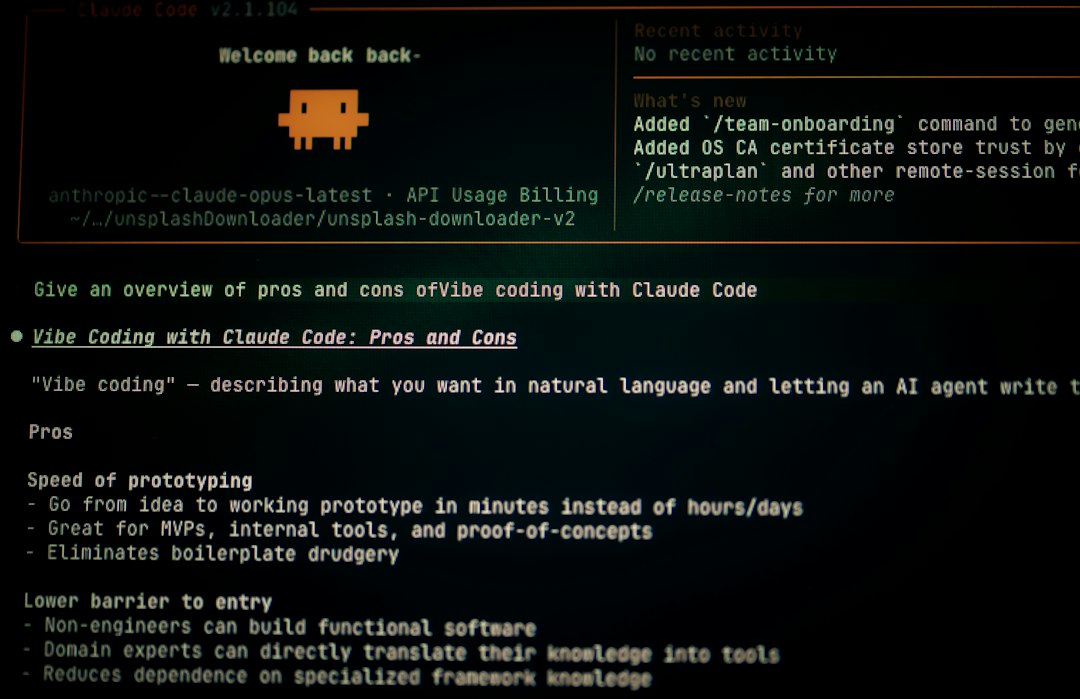
Some factory NVMe drives cause trouble. Older Samsung PM981 drives, for example, have a bad reputation in Hackintosh builds. If installs freeze or boot times feel strange, the SSD may be part of the problem. A WD SN750, Crucial P5, or similar macOS friendly drive can save hours.
For macOS, do not chase the newest release first. macOS Monterey or Ventura may be easier on older Intel hardware. Sonoma and Sequoia can work on some builds, but wireless and older patches may need extra care.
Is It Worth It?
A Blade Stealth Hackintosh is worth it if you enjoy tinkering and already own a compatible model. It is not worth buying blindly. The best use case is a portable macOS laptop for coding, writing, browsing, light design work, and learning OpenCore. The worst use case is expecting a cheap MacBook clone with zero fuss.
Also, Apple’s macOS license is written for Apple hardware. Keep that in mind before using a Hackintosh for paid client work or anything mission critical. For a hobby machine, though, the right Razer Blade Stealth can be a slick little project. Just choose the model carefully, backup often, and accept that one tiny kext update can ruin your afternoon.