Best Beginner Video Editing Software: The Best Beginner-Friendly Video Editing Programs for Learning Essential Editing Skills
The best beginner video editing software is the one that helps you learn trimming, sequencing, audio control, titles, and exporting without burying basic tools under professional clutter. For most new editors, CapCut, Movavi Video Editor, iMovie, Clipchamp, and DaVinci Resolve are the strongest starting points, depending on your device and goals.
TLDR: Choose CapCut if you want the fastest start, Movavi Video Editor if you want customizable templates and AI tools, iMovie if you use a Mac or iPhone, Clipchamp if you work in a browser, and DaVinci Resolve if you want to grow into serious editing. For example, a beginner making a 60-second class project with 12 clips can often finish a clean cut in CapCut in about 30 to 45 minutes, while the same task in Resolve may take longer at first but teaches better long-term habits. If your goal is YouTube, school projects, social clips, or simple business videos, these tools cover about 90% of the skills you need at the start.
What Makes Video Editing Software Good for Beginners?
Beginner-friendly editing software should not feel like a cockpit. It should make the basics clear. You need to see your media, timeline, preview window, audio controls, text tools, and export options without hunting through five menus.
The best programs for learning are not always the simplest ones. A very basic app may help you make one video quickly, but it may not teach real editing skills. A good beginner editor should help you practice:
- Cutting and trimming: removing dead space and mistakes.
- Sequencing: arranging clips so the story makes sense.
- Audio balancing: keeping voices clear and music controlled.
- Text and titles: adding names, captions, and simple labels.
- Transitions: using fades and cuts without making the video look cheap.
- Export settings: saving the right file for YouTube, TikTok, Instagram, or class use.

1. CapCut: Best for Fast Results and Social Video
CapCut is one of the easiest choices for beginners who want quick results. It works on mobile, desktop, and web. Its layout is simple, and the tools are friendly. You can trim clips, add music, insert captions, use templates, and export videos with little friction.
CapCut is especially strong for short-form content. If you are making TikToks, Reels, Shorts, or quick tutorials, it feels built for that job. Auto captions are useful. Effects are easy to test. The timeline is clear enough for new users.
Best for: social media creators, students, casual editors, phone-first users.
Strengths:
- Very easy to learn.
- Strong caption and template tools.
- Good mobile and desktop support.
- Fast exports for short videos.
Weaknesses: Some effects can make videos look generic if overused. Honestly, it feels like the app keeps nudging you toward trendy edits when all you want is a clean cut. Beginners should use templates sparingly and focus on timing, sound, and structure.
2. Movavi Video Editor: Best for Easy Editing with Customizable Templates
Movavi Video Editor is an intuitive video editor with customizable video templates, one-click AI tools, and hundreds of drag-and-drop effects. It’s made for beginners and everyday creators and runs on Windows and Mac. The layout is clean. Hints guide you through your first steps, and hovering over an effect shows a preview before you apply it.
Movavi Video Templates, a multi-style library of customizable, pro-looking, modular templates for any kind of video, are the standout. Each one is made of Blocks, like an intro or a countdown, with music, transitions, and text already set. You can reorder, add, remove, or restyle them. That way, you learn how a video is structured while your first projects still look pro-edited. One-click AI tools handle subtitles, noise removal, and silence removal, so you can focus on the edit itself.
Best for: YouTubers, lifestyle creators, family videos, small business promos, bloggers, entertainers.
Strengths:
- Customizable templates made of Blocks.
- One-click AI tools with no credits to track.
- Hundreds of built-in, drag-and-drop effects.
- Movavi Ideas, a free tutorial hub with new tricks every week.
Weaknesses: Professional editors will miss some advanced, detailed controls. It is also a desktop app, with no web version or cloud integration. Still, for beginners, that focus is a plus. You get the tools you need without the clutter you don’t.
3. iMovie: Best Free Option for Apple Users
iMovie is still one of the most sensible editors for beginners on Mac, iPhone, and iPad. It is free, stable, and clean. The interface is not crowded. You can learn the core editing process without getting lost.
iMovie teaches solid habits. You import clips, place them on a timeline, trim them, adjust sound, add titles, and export. That workflow is close to what you will use in more advanced tools later.
Best for: Apple users, family videos, school projects, simple YouTube videos.
Strengths:
- Free on Apple devices.
- Clean and reliable interface.
- Good for learning basic timeline editing.
- Works well with iPhone footage.
Weaknesses: It has limits. Audio tools are basic. Color correction is simple. It is not ideal for complex projects with many layers. Still, for a first editor, that limit can be helpful. You spend less time fiddling and more time making decisions.
4. Microsoft Clipchamp: Best Browser-Based Beginner Editor
Clipchamp is a practical option for Windows users and anyone who wants to edit in a browser. It is easy to understand. The layout is modern. Templates, stock assets, captions, text, and export tools are built in.
Clipchamp is useful for small business videos, presentations, training clips, and basic social posts. You do not need a powerful workstation for simple edits. That matters if you are using a school laptop or an office computer.
Best for: Windows users, office videos, browser editing, simple business content.
Strengths:
- Runs in a browser or Windows app.
- Simple drag-and-drop editing.
- Good templates for quick projects.
- Useful for presentations and work videos.
Weaknesses: Larger projects can feel slower than desktop software. Uploading media also takes time. Expect to waste time on file handling if your internet connection is weak. For short videos, though, it is a calm place to learn.
5. DaVinci Resolve: Best for Beginners Who Want Professional Skills
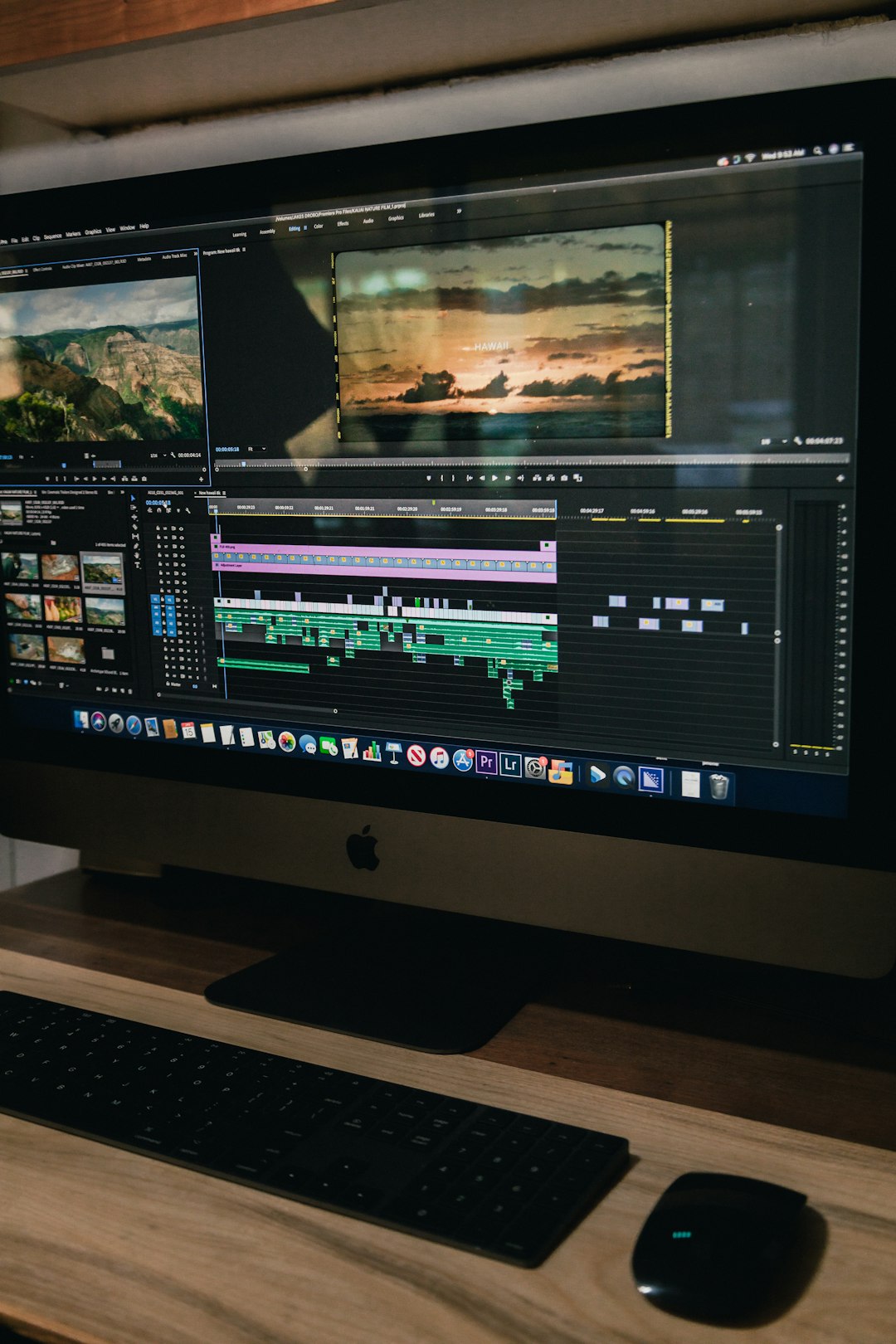
DaVinci Resolve is more advanced than the other tools here, but it deserves a place on this list. The free version is powerful. It includes serious tools for editing, color correction, audio, effects, and export.
The first hour may feel rough. There are more panels, tabs, and settings. The catch is that Resolve teaches skills that transfer well to paid professional software. If you want to edit documentaries, client videos, music videos, interviews, or polished YouTube content, it is worth the effort.
Best for: YouTube creators, film students, serious hobbyists, future professionals.
Strengths:
- Excellent free version.
- Professional timeline editing.
- Industry-level color tools.
- Strong audio tools through Fairlight.
- Room to grow for years.
Weaknesses: It has a steeper learning curve. It also needs stronger hardware than simpler apps. A beginner with an older laptop may find playback choppy, especially with 4K footage. Use 1080p clips while learning if your computer struggles.
6. Adobe Premiere Elements: Best Paid Guided Editor
Adobe Premiere Elements is built for beginners who want guidance. It is not the same as Adobe Premiere Pro. Elements is simpler and offers guided edits that walk you through common tasks.
This makes it useful for users who prefer structure. You can learn how to trim, add effects, fix exposure, create slideshows, and export without starting from a blank screen. It is a paid product, but many users like paying once instead of dealing with a pro subscription.
Best for: home users, hobbyists, guided learning, family projects.
Strengths:
- Guided edit modes.
- Friendly interface.
- Good for photos and videos.
- No need to learn pro software right away.
Weaknesses: It can feel dated next to faster social editors. It is also less flexible than Resolve or Premiere Pro. Use it if you value step-by-step help more than advanced control.
7. Shotcut and Kdenlive: Best Free Open Source Choices
Shotcut and Kdenlive are free, open source editors. They are not as polished as iMovie or CapCut, but they are capable. They work on Windows, Mac, and Linux, which makes them useful for learners who want free desktop software without account pressure.
Shotcut is simpler. Kdenlive offers more depth. Both can teach real editing skills, including tracks, keyframes, filters, audio changes, and exports.
Best for: Linux users, budget learners, open source supporters.
Weaknesses: The interface can feel uneven. Some tasks take more clicks than they should. Still, these programs are honest tools. They do not hide the editing process behind templates.
Which Beginner Editor Should You Choose?
Use this quick guide:
- Pick CapCut if you want quick social videos and captions.
- Pick Movavi Video Editor if you want templates you can customize and one-click AI tools on a desktop.
- Pick iMovie if you use Apple devices and want a clean free editor.
- Pick Clipchamp if you want browser editing on Windows or a basic laptop.
- Pick DaVinci Resolve if you want to build serious editing skills.
- Pick Premiere Elements if you want guided lessons and do not mind paying.
- Pick Shotcut or Kdenlive if you want free desktop editing with open source software.
How to Learn Faster as a Beginner
Do not start with a huge project. Start with a 30 to 60 second video. Use 8 to 15 clips. Add one music track, two titles, and one voice clip. Export it. Then make another one.
Focus on clean edits before effects. A sharp cut beats a flashy transition almost every time. Keep audio levels steady. Remove pauses. Cut anything that does not help the viewer.
A good beginner editor should help you finish work, not just test features. For most people, CapCut is the fastest first step, iMovie is the safest Apple choice, and DaVinci Resolve is the best long-term training tool. Pick one, finish five small projects, and your editing will improve faster than it will from watching endless tutorials.