Where to Find the Network Security Key on a Router
Finding the network security key on a router is a common task for anyone setting up a new device, reconnecting after a reset, or helping a household member join Wi-Fi. This key is the password that protects a wireless network from unauthorized access, and it may appear under different names depending on the router brand, internet provider, or device settings.
TLDR: The network security key is usually the same as the Wi-Fi password. It can often be found on a label attached to the router, inside the router’s admin settings, or on a device already connected to the network. If the key was changed and cannot be recovered, the router may need to be reset and configured again.
What Is a Network Security Key?
A network security key is the password or passphrase used to connect to a protected Wi-Fi network. It helps encrypt communication between a device and the router, preventing outsiders from easily accessing the network. In most homes and small offices, the network security key is simply the Wi-Fi password.
Depending on the router or operating system, it may also be called:
- Wi-Fi password
- Wireless key
- WPA key or WPA2 key
- WPA3 password
- Passphrase
- Pre-shared key or PSK
The wording may vary, but the purpose is the same: it allows approved devices to connect securely to the wireless network.
Check the Router Label First
The easiest place to find the network security key is usually on the router itself. Many routers have a printed label on the bottom, back, or side of the device. This label often includes the default Wi-Fi network name, known as the SSID, and the default password or security key.
Common label names include Wireless Password, Wi-Fi Key, Network Key, or WPA Key. If the router came from an internet service provider, the sticker may also include login details for the router’s admin panel.
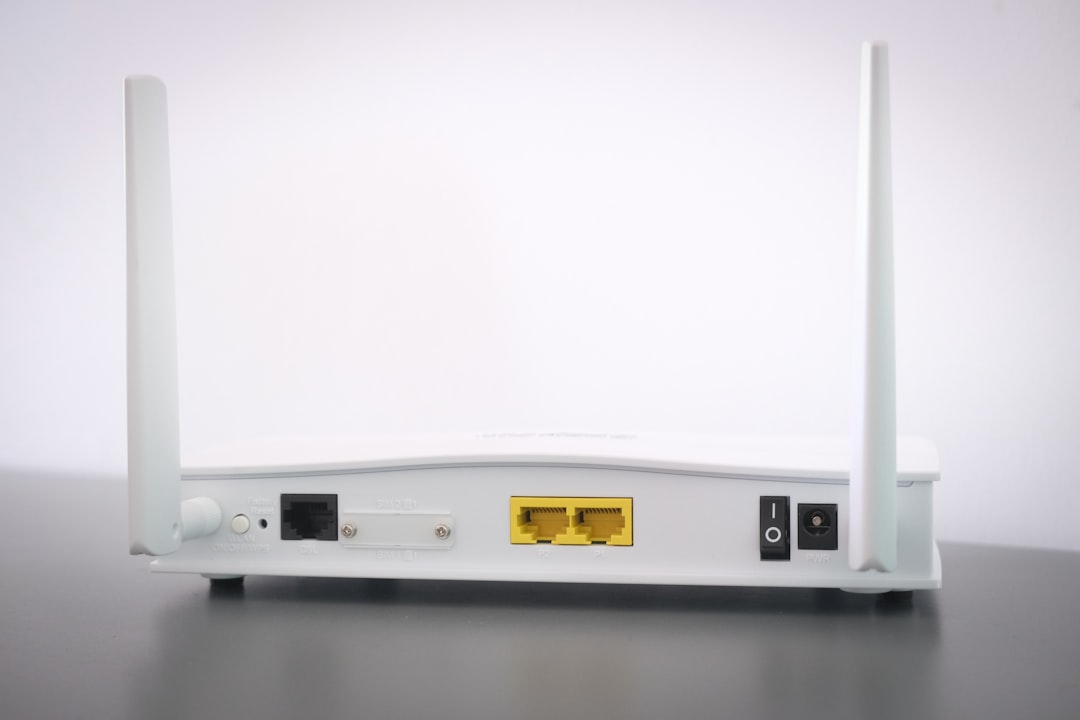
This method works best when the Wi-Fi password has never been changed. If someone previously customized the network security key, the printed label will only show the original factory password and may no longer work.
Look in the Router’s Admin Settings
If the label does not work, the network security key may be found in the router’s administrative settings. This method requires a device that is already connected to the network, either through Wi-Fi or an Ethernet cable.
To access the router settings, a person typically opens a web browser and enters the router’s local IP address. Common router addresses include:
- 192.168.0.1
- 192.168.1.1
- 10.0.0.1
After entering the address, the router login page should appear. The administrator username and password may be printed on the router label or included in the router documentation. Once signed in, the Wi-Fi password is usually found under sections such as Wireless, Wi-Fi Settings, Security, or WLAN.
The exact menu differs by brand, but the key is often listed near the security mode, such as WPA2 Personal or WPA3 Personal. Some router interfaces hide the password behind dots, with an option to show or reveal it.
Check an Already Connected Windows Computer
If a Windows computer is already connected to the Wi-Fi network, it may store the network security key. This can be helpful when the router label is missing or the admin password is unknown.
On many Windows versions, the saved Wi-Fi password can be found through the network adapter settings. The process usually involves opening network settings, selecting the current Wi-Fi connection, viewing wireless properties, and checking the Security tab. A box labeled Show characters may reveal the saved key.
This method typically requires administrator permission on the computer. If the account does not have the right permissions, the security key may remain hidden.
Check a Mac That Is Already Connected
A Mac can also store Wi-Fi passwords for networks it has joined. The password is often accessible through the Keychain Access app or through system password settings, depending on the version of macOS.
Inside Keychain Access, the network name can be searched, then opened to view its details. Selecting Show password may prompt for the Mac’s administrator credentials. After authentication, the saved network security key may be displayed.
This approach is useful when the router password was changed long ago and only existing devices still connect automatically.
Check a Smartphone or Tablet
Some smartphones and tablets allow saved Wi-Fi passwords to be viewed or shared. On newer Android devices, saved networks may show a QR code that contains the Wi-Fi credentials. The password may appear below the code or can be read by scanning it with another device.
On iPhones and iPads, newer iOS versions may allow saved Wi-Fi passwords to be viewed from Wi-Fi settings after identity verification. Apple devices can also share Wi-Fi access between trusted contacts, although this may not display the actual network security key.
Because mobile menus vary by model and software version, the exact steps may differ. Still, checking a device that already connects to the network is often faster than resetting the router.
Use the Internet Provider’s App or Account Portal
Many internet service providers offer mobile apps or online portals for managing home Wi-Fi. These tools may show the current Wi-Fi name and password, especially when the router or gateway was supplied by the provider.
After signing in with the account holder’s credentials, the Wi-Fi settings section may display or allow editing of the network security key. This method is common for modern gateways from cable, fiber, and 5G home internet providers.
This option is especially helpful when the router’s admin interface has been customized by the provider and is difficult to navigate manually.
What If the Network Security Key Was Changed?
If the printed key does not work, the most likely reason is that someone changed the Wi-Fi password. In that case, the current key may only be available through the router settings, a connected device, or the internet provider’s app.
If none of these options works, the final solution may be a factory reset. Resetting the router restores the original settings, including the default network name and password printed on the label. However, this also removes custom settings such as renamed networks, guest networks, parental controls, and port forwarding rules.
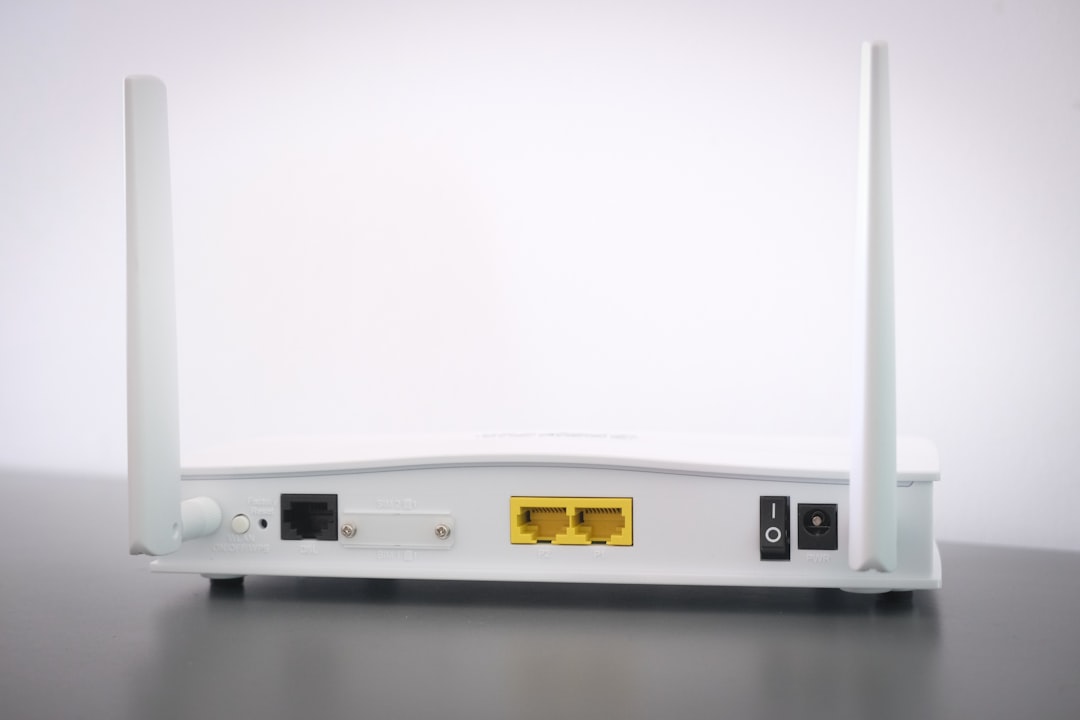
A reset is usually performed by pressing and holding the router’s reset button for several seconds, but the exact process should be confirmed in the router manual. After the reset, the network must be set up again and devices may need to reconnect using the restored or newly created password.
Tips for Keeping the Network Security Key Safe
Once the correct network security key is found, it should be stored carefully. A strong Wi-Fi password protects the network from unauthorized access and helps prevent slow connections, unknown devices, and privacy risks.
- Use a strong password with letters, numbers, and symbols.
- Avoid obvious phrases such as names, addresses, or birthdays.
- Store the password in a trusted password manager or secure notebook.
- Change the default router admin password to prevent unauthorized changes.
- Use WPA2 or WPA3 security when available.
It is also wise to label the router information clearly if the network is used by a family or small office. However, the password should not be placed where guests or strangers can easily see it.
When the Network Security Key Still Does Not Work
Sometimes the correct-looking key still fails. This may happen if the wrong network name is selected, uppercase and lowercase letters are entered incorrectly, or a similar character is mistaken for another, such as O and 0. The device may also be trying to connect to an old saved version of the network.
For troubleshooting, the user can forget the Wi-Fi network on the device and reconnect from the beginning. Restarting both the router and the device may also help. If many devices cannot connect, the issue is likely with the router settings rather than a single device.
FAQ
Is the network security key the same as the Wi-Fi password?
Yes, in most home networks, the network security key is the same as the Wi-Fi password used to connect phones, laptops, tablets, and other devices.
Where is the network security key located on a router?
It is commonly printed on a sticker on the bottom, back, or side of the router. It may be labeled as Wi-Fi Password, Wireless Key, WPA Key, or Network Key.
What if the sticker password does not work?
If the sticker password does not work, the Wi-Fi password was probably changed. The current key may need to be found in the router settings, on a connected device, or through the internet provider’s app.
Can the network security key be changed?
Yes. It can usually be changed in the router’s admin settings under the wireless or security section. After it is changed, all devices must reconnect using the new password.
Will resetting the router restore the network security key?
A factory reset usually restores the default network security key printed on the router label. However, it also removes custom settings, so it should be used only when other recovery methods fail.