6 Draw Things Alternatives for AI Image Generation, Local Creative Workflows, and Editing Digital Artwork
DiffusionBee, InvokeAI, ComfyUI, AUTOMATIC1111, Krita AI Diffusion, and Fooocus are the strongest Draw Things alternatives right now. Draw Things is great because it runs AI image generation locally on Apple devices, including iPhone, iPad, and Mac [source: Apple]. Still, desktop artists often need better file handling, bigger editing space, batch output, or tighter painting tools.
TLDR: Use DiffusionBee if you want the easiest Mac option, ComfyUI if you want deep control, and Krita AI Diffusion if you paint over your AI work. For example, if you make 30 concept thumbnails a week, saving just 3 minutes per image gives you back 90 minutes. That is real time for cleanup, client notes, or just not hating your workflow.
Image not found in postmeta1. DiffusionBee
Best for: Mac users who want a simple local AI image app.
DiffusionBee feels close to the “install it and start making images” idea. You can generate images, use image to image, run inpainting, and test styles without wrestling with a command line. It is a smart pick if Draw Things feels too cramped on a smaller screen.
The catch is storage. Models get large fast. A few checkpoints, LoRAs, and upscalers can chew through tens of gigabytes before you notice. Still, for Mac creators, it is one of the least painful ways to work locally.
2. InvokeAI
Best for: artists who want generation plus a cleaner creative canvas.
InvokeAI has a polished web interface and a strong focus on real image work, not just prompt testing. Its canvas tools help with inpainting, outpainting, and controlled edits. That makes it useful for fixing hands, extending backgrounds, or changing a jacket without rebuilding the whole image.
It is also easier to understand than many power-user tools. You still need to manage models and settings, but the layout makes sense. If you create fantasy art, product shots, or character concepts, InvokeAI can sit nicely between AI generation and manual editing.
3. ComfyUI
Best for: repeatable workflows, automation, and advanced control.
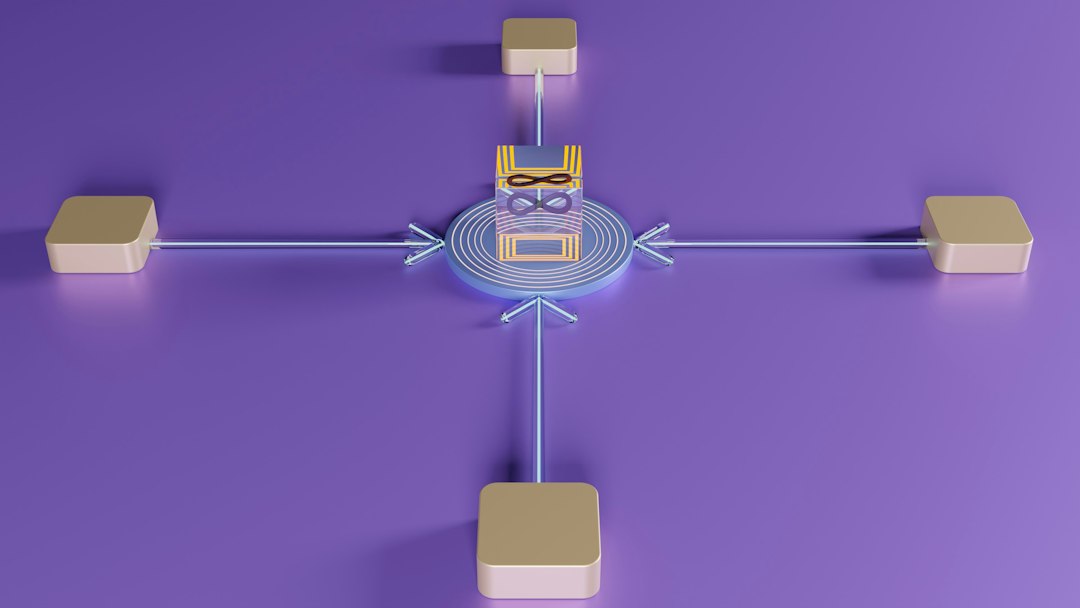
ComfyUI is the one people recommend when they want total control. It uses nodes. Each node handles part of the process, such as prompts, samplers, ControlNet, upscaling, masks, or image input. This can look scary at first. Honestly, it feels like opening a circuit board when you only wanted a sketch.
But once it clicks, ComfyUI is powerful. You can build a workflow once, save it, and reuse it for a full project. That is great for comic panels, game assets, product mockups, and style tests. Expect to waste time on setup. Expect to save time later.
4. AUTOMATIC1111 Stable Diffusion WebUI
Best for: users who want plugins, community support, and lots of settings.
AUTOMATIC1111 is still a favorite because it has a huge extension ecosystem. You can add ControlNet, face restoration, upscalers, prompt tools, training helpers, and more. If a new Stable Diffusion trick gets popular, someone usually adds support fast.
The downside is clutter. The interface can feel packed with tabs, sliders, and settings that do not explain themselves well. It drives me crazy that one small setting can add 20 seconds to a render and not make the image better. Still, if you like testing models and pushing details, this tool earns its place.
5. Krita AI Diffusion
Best for: digital painters who want AI inside a real art app.
Krita AI Diffusion is different from the others because it plugs into Krita, the free painting program. That matters. You are not just generating an image and exporting it. You are painting, masking, selecting, refining, and using AI where it helps.
This is the best option if you already think in layers. You can sketch a pose, ask AI to build on it, paint over the result, then use inpainting to repair sections. It feels more like art direction and less like pulling a slot machine handle.
If your broader creative software setup already includes editing tools, Krita AI Diffusion can become the bridge between prompt work and finished artwork.
6. Fooocus
Best for: quick, attractive images with fewer settings.
Fooocus is a good choice when you do not want to tune every detail. It aims for strong results with less setup. You type a prompt, choose a few options, and generate. It is especially good for people who want the quality of Stable Diffusion XL without babysitting every technical step.
Fooocus also handles many style choices in a friendly way. That makes it useful for mood boards, character ideas, poster drafts, and social visuals. Power users may miss deeper control, but beginners often get better images faster here than in complex apps.
Which Draw Things Alternative Should You Pick?
- Choose DiffusionBee if you use a Mac and want the smoothest local start.
- Choose InvokeAI if inpainting and canvas editing matter most.
- Choose ComfyUI if you need saved workflows and heavy control.
- Choose AUTOMATIC1111 if you want extensions and community fixes.
- Choose Krita AI Diffusion if you paint, draw, and edit by hand.
- Choose Fooocus if you want good images with less fuss.
The simple answer: DiffusionBee is the easiest swap for casual local generation. Krita AI Diffusion is the best for real artwork editing. ComfyUI is the strongest long-term choice if you can survive the learning curve. Pick based on how you work, not on which tool has the loudest fan base.