5 Enhancor AI Alternatives for AI Image Enhancement, Photo Restoration, and Improving Visual Quality
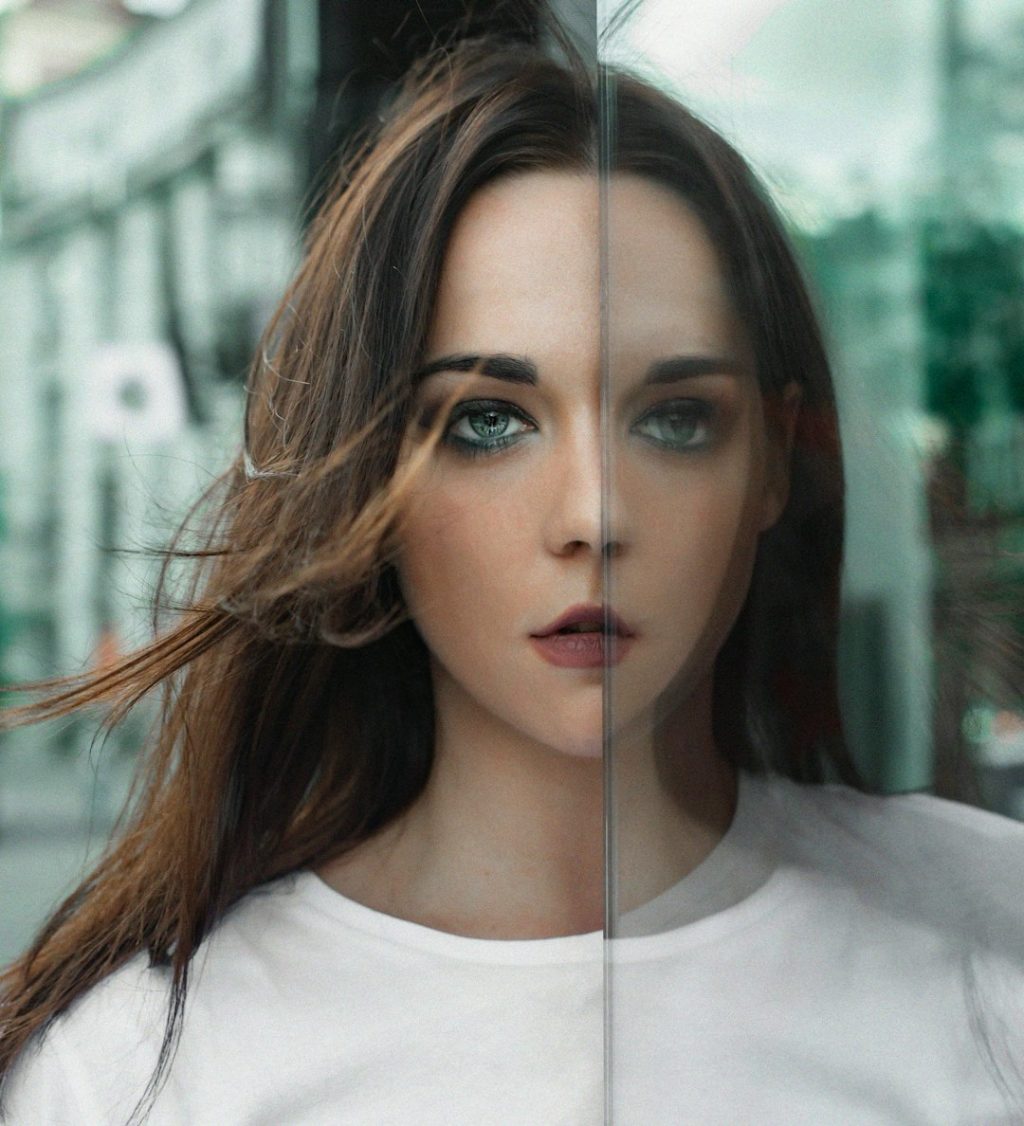
Best quick pick: use Topaz Photo AI if you want the strongest Enhancor AI alternative for sharp, clean, high quality images. Adobe says its Super Resolution feature can double image width and height, which means up to 4x more pixels [source: Adobe]. That is the kind of upgrade people expect from modern AI image tools. Less blur. More detail. Fewer “why does this face look like wax?” moments.
TLDR: The best Enhancor AI alternatives are Topaz Photo AI, Remini, Let’s Enhance, VanceAI, and Adobe Photoshop. For example, a small 800 px product photo can often be enlarged to 1600 px or more, while still looking good enough for an online shop. If you fix 50 old family photos, Remini may feel easiest. If you edit 500 ecommerce images, Let’s Enhance or VanceAI may save more time.
1. Topaz Photo AI
Topaz Photo AI is the “serious editor” choice. It is great for photographers, sellers, and anyone who wants sharp images without doing 20 manual steps.
It can reduce noise. It can sharpen soft photos. It can upscale small images. It also has face recovery tools. That helps when old portraits look mushy or flat.
- Best for: photographers, portraits, wildlife, product photos
- Strong point: sharp image recovery
- Weak point: it can feel heavy on older computers
The annoying bit? It may take longer than simple web tools. A big photo can take extra seconds to preview. Not the end of the world. Still, when you have 80 files waiting, you will notice.
Pick this if you want quality first and speed second.
2. Remini
Remini is famous for fixing faces. It is a fun choice for old family photos, blurry selfies, and social media pictures.
It works well when a face is the main subject. Eyes get clearer. Skin looks smoother. Old portraits can suddenly feel alive again.
- Best for: face restoration and old photos
- Strong point: simple mobile editing
- Weak point: results can look too smooth
Honestly, it feels like Remini sometimes gets too excited. A grandparent’s face can come back sharp, but also a bit too perfect. That may be fine for Instagram. It may not be ideal for a museum scan.
Pick this if you want fast photo restoration with almost no learning curve.
3. Let’s Enhance
Let’s Enhance is made for upscaling and batch work. It is very useful for ecommerce, real estate, print prep, and marketing images.
You upload an image. You choose the size. The tool improves detail, color, and clarity. It also supports batch processing. That is a big deal if you have many images.
- Best for: ecommerce images, posters, web graphics
- Strong point: batch upscaling
- Weak point: credit limits can get annoying
If you sell products online, this can be a lifesaver. A dull product shot can become cleaner and brighter. A small catalog image can become usable for a larger banner.
The catch is the credit system. You may test two or three settings, then realize you burned credits just trying to find the best look. Not fun.
Pick this if you handle lots of business images.
4. VanceAI
VanceAI is a toolbox. It includes image enlarging, sharpening, denoising, background removal, portrait retouching, and more.
This makes it handy if you do not want five different tools. You can clean a noisy photo, sharpen it, and enlarge it in one place.
- Best for: mixed editing tasks
- Strong point: many tools in one dashboard
- Weak point: the interface can feel busy
VanceAI is not always the prettiest tool. Some screens feel packed. But it does a lot. That matters if you need quick fixes more than a fancy editing space.
It is also useful for content teams. One person may need a sharper blog image. Another may need a cleaner profile photo. Another may need a bigger banner. VanceAI can cover all three.
Pick this if you want an all in one AI photo repair kit.
5. Adobe Photoshop
Adobe Photoshop is still a giant for image editing. It is not only an AI enhancer. It is a full editing studio.
Photoshop can upscale, remove noise, fix scratches, adjust color, and repair damaged areas. It also works well with Lightroom and Camera Raw. That is useful for photographers who already live inside Adobe apps.
- Best for: advanced edits and full control
- Strong point: professional tools
- Weak point: more learning required
Photoshop is powerful, but it is not the fastest choice for beginners. You may open it to fix one blurry photo and end up staring at 38 panels. We have all been there.
Still, if you need control, Photoshop wins. You can restore a torn photo by hand. You can use AI tools for missing areas. You can fine tune the final image until it looks right.
Pick this if you want deep editing power, not just one click enhancement.

How to choose the right Enhancor AI alternative
Keep it simple. Match the tool to the job.
- For best overall quality: Topaz Photo AI
- For old faces and family photos: Remini
- For bulk upscaling: Let’s Enhance
- For many quick AI tools: VanceAI
- For pro level control: Adobe Photoshop
If you only fix one or two photos, try a simple web or mobile tool first. If you edit every week, choose a tool with batch processing. If your images must look natural, avoid heavy face smoothing.
Final tip: always save the original file. AI can help a lot, but it can also invent details. Keep the real photo safe. Then let the robots clean up the mess.