How to Delete OnlyFans Account Permanently

So, you want to delete your OnlyFans account permanently. Maybe you are cleaning up your digital life. Maybe you are done subscribing. Maybe you are a creator moving to a new chapter. Whatever the reason, you can do it. And yes, it is easier when you know where to tap.
TLDR: To delete your OnlyFans account, log in, go to Settings, open Account, and choose Delete Account. Cancel active subscriptions first, save anything you need, and withdraw any creator earnings. Once deletion is finished, your account, profile, and access are gone permanently.
Before You Delete: Take a Tiny Pause
Deleting an account sounds simple. Click button. Boom. Gone. But hold your horses for one hot second.
OnlyFans is tied to subscriptions, payments, messages, content, and creator earnings. So you should check a few things before you hit the big red button.
Think of it like leaving a hotel room. You do not just run out the door. You check under the bed. You grab your charger. You make sure you did not leave snacks behind. Very important.
What Happens When You Delete Your OnlyFans Account?
When you delete your OnlyFans account permanently, your profile is removed. You lose access to your account. You cannot log back in and casually pretend nothing happened.
Here is what usually happens:
- Your account is scheduled for deletion.
- Your profile becomes unavailable.
- Your messages may no longer be accessible.
- Your saved payment details are removed.
- Your subscriptions stop renewing after cancellation.
- If you are a creator, deletion may wait until active subscriptions end.
Important: If you are a creator with active subscribers, your account may not vanish instantly. OnlyFans may keep it until the last active subscription expires. During that time, new subscribers should not be able to join. After the final subscription ends, the account can be deleted fully.
Translation: Fans must get what they already paid for. Then the curtain closes.
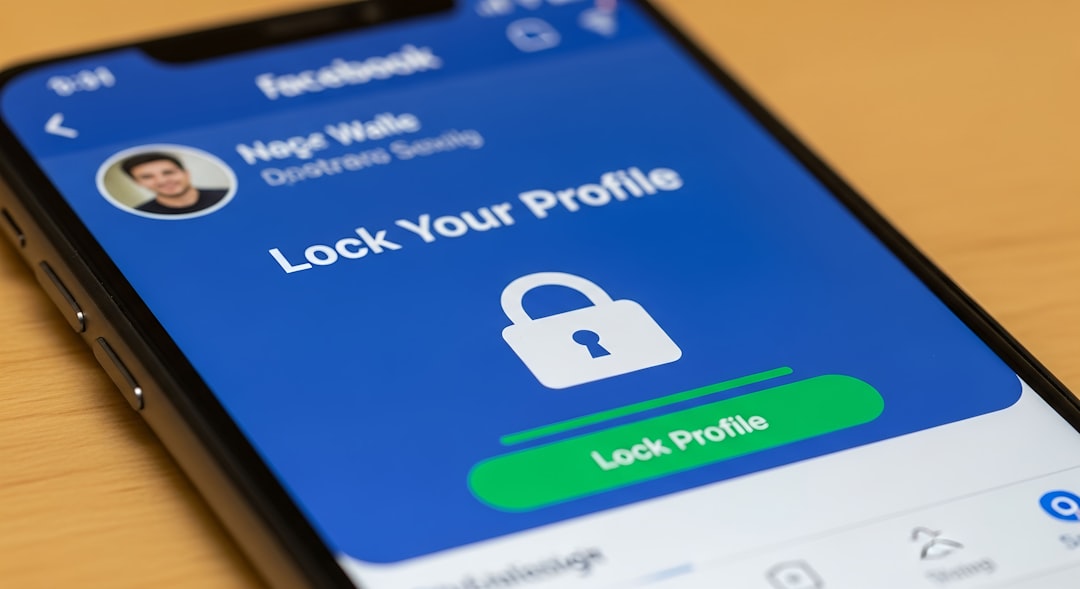
Step 1: Log In to Your OnlyFans Account
Start by going to the OnlyFans website or opening the app if you use it. Enter your email and password. If you use two factor authentication, complete that too.
If you cannot log in, do not panic. Use the password reset option. Check your email. Follow the reset link. Then come back like a digital ninja.
If you no longer have access to your email, you may need to contact OnlyFans support. You will likely need to prove the account belongs to you.
Step 2: Cancel Your Active Subscriptions
If you are a fan, cancel any active subscriptions before deleting your account. This helps stop future charges.
To cancel a subscription:
- Go to your account.
- Open your Subscriptions or Following list.
- Choose the creator you are subscribed to.
- Turn off Auto Renew.
- Repeat this for each active subscription.
This is a big deal. If auto renew is still on, you may be charged again before deletion is complete. Nobody wants a surprise bill. Surprise cake is good. Surprise billing is not.
After turning off auto renew, your subscription usually remains active until the paid period ends. You paid for the time. You can use the time. But it should not renew.
Step 3: Save Anything You Need
Before deleting your account, save any important information. Once your account is gone, getting it back may not be possible.
You may want to save:
- Receipts or payment records.
- Creator tax documents.
- Business reports.
- Your content, if you are a creator.
- Any important messages.
- Subscription details.
Do not save or share content you do not have the right to keep. Respect creators. Respect privacy. Be cool on the internet. The internet needs more cool people.
Step 4: Withdraw Your Earnings If You Are a Creator
If you are a creator, check your balance before deleting your account. You may have money waiting for payout.
Go to your banking or payout area. Look at your available balance. If you can withdraw it, do that first.
Also check for pending payments. Some earnings may still be processing. If money is pending, you may need to wait before deleting the account.
This step matters. Deleting too fast can turn into a support ticket adventure. And nobody wakes up hoping for a support ticket adventure.

Step 5: Go to Settings
Now we reach the main event. Time to find the delete option.
After logging in:
- Click your profile icon or menu.
- Choose Settings.
- Open Account.
- Scroll until you see Delete Account.
The wording may change a little over time. Platforms love moving buttons around. It is their hobby. If you do not see it right away, look under account settings, privacy settings, or help options.
Step 6: Choose Delete Account
Click or tap Delete Account. OnlyFans may ask you to confirm. You may need to enter a verification code or complete a captcha.
This is normal. The site wants to make sure you are a real person. Not a bot. Not your cat walking across the keyboard. Not your dramatic ex with your old password.
Follow the instructions on the screen. Read the warning. Then confirm deletion.
Once you confirm, your account starts the deletion process.
Step 7: Watch for Confirmation
After you submit the deletion request, check for a confirmation message. You may also receive an email.
Keep that email for your records. It may help if there is an issue later.
If you do not receive confirmation, log out and try logging in again later. If the account is still active after some time, contact OnlyFans support.
Can You Delete OnlyFans from the App?
In many cases, account settings are easier to manage from a web browser. So if you cannot find the delete option in the app, open OnlyFans in a browser instead.
Use your phone browser or desktop browser. Log in. Go to Settings. Then follow the same steps.
Simple rule: if the app hides the button, the browser may reveal it. Like a tiny treasure hunt. But with fewer pirates.
How to Delete OnlyFans If You Forgot Your Password
If you forgot your password, reset it first.
- Go to the login page.
- Click Forgot Password.
- Enter your email address.
- Open the reset email.
- Create a new password.
- Log in and delete your account.
If the reset email does not arrive, check your spam folder. Also make sure you used the correct email address.
If you still cannot get in, contact OnlyFans support. Explain the issue. Include the email linked to the account, if you know it.
How to Delete an OnlyFans Account If You Are a Creator
Creators should be extra careful. Your account may include subscribers, paid content, messages, payout settings, and tax details.
Before deleting, do this checklist:
- Turn off new subscriptions if possible.
- Tell subscribers if you want to give notice.
- Download your own content.
- Withdraw available earnings.
- Check pending payouts.
- Save tax documents.
- Wait for active subscriptions to expire.
You do not have to make a grand goodbye speech. But a short notice can reduce confusion. Something like, “This account will be closing soon. Thank you for your support.” Done. Classy. No fireworks needed.
Will Deleting OnlyFans Cancel Payments?
Deleting your account should stop your use of the platform. But you should still cancel subscriptions first. This is the safest move.
If you are worried about charges, check your bank or card statement. Look for recent or pending transactions.
If you see a charge you do not recognize, contact OnlyFans support. You can also contact your bank. But start with the platform if possible.
Tip: Do not just delete the app from your phone. That does not delete your account. It only removes the app. Your account may still exist. Your subscriptions may still renew. The app is not the account. Sneaky, right?
Can You Recover a Deleted OnlyFans Account?
Permanent deletion means permanent. In most cases, once the process is done, you cannot recover the account.
You may be able to create a new account later using the same or a different email. But your old messages, subscriptions, content, and settings may be gone.
So before deleting, ask yourself:
- Do I need any receipts?
- Do I need content I uploaded?
- Do I need payout history?
- Do I have active subscriptions?
- Am I fully ready to leave?
If the answer is yes, proceed. If not, wait a little.

What If the Delete Button Does Not Work?
Sometimes websites get weird. Buttons freeze. Pages fail. Captchas act like tiny gatekeepers with attitude.
If the delete option does not work, try this:
- Refresh the page.
- Log out and log back in.
- Try a different browser.
- Clear your browser cache.
- Use a desktop computer.
- Turn off browser extensions.
- Try again later.
If none of that works, contact support. Keep your message short and clear.
You can say:
“Hello, I would like to permanently delete my OnlyFans account. The delete account option is not working for me. Please help me close the account linked to this email address.”
Nice. Simple. No need to write a tragic novel.
Does Deleting OnlyFans Remove Your Data?
Deleting your account removes your profile and access. But some data may be kept for legal, safety, tax, fraud prevention, or business reasons.
This is common with financial platforms. Payment records may not disappear instantly. Creator tax records may also be kept as required by law.
If you want more details, read the OnlyFans privacy policy. Yes, privacy policies are boring. But they are useful when you want to know what happens to your data.
Privacy Tips After Deleting Your Account
Once your account is gone, do a little digital cleanup.
- Delete saved OnlyFans bookmarks.
- Remove saved passwords from your browser.
- Check your email for old account messages.
- Cancel related calendar reminders.
- Review your bank statements.
- Update your password if you used it elsewhere.
Also, never reuse passwords across important accounts. If one password leaks, the others can be at risk. Use a password manager if you can. It is like a tiny vault for your brain.
Common Mistakes to Avoid
Here are the big oops moments:
- Deleting the app only: This does not close your account.
- Forgetting to cancel subscriptions: Auto renew may still cause trouble.
- Leaving money in your creator balance: Withdraw first.
- Not saving records: Get receipts and tax info before leaving.
- Rushing: Check everything before you confirm.
Slow is smooth. Smooth is smart. Smart means fewer headaches.
Final Checklist Before You Go
Here is your quick goodbye checklist:
- Log in to OnlyFans.
- Cancel all active subscriptions.
- Save important records.
- Download your own creator content.
- Withdraw available earnings.
- Go to Settings.
- Open Account.
- Select Delete Account.
- Complete verification.
- Confirm deletion.
That is it. No magic spell required. No secret handshake. Just a few careful clicks.
Goodbye, OnlyFans
Deleting your OnlyFans account permanently is not hard. The trick is to prepare first. Cancel subscriptions. Save important records. Withdraw creator earnings. Then delete the account from settings.
Once it is done, you can move on with a cleaner digital life. Maybe you are simplifying. Maybe you are protecting your privacy. Maybe you just like fewer logins. All valid.
Take your time. Follow the steps. Click with confidence. Then enjoy one less account on the internet yelling for your attention.

155bets, eh? Had a go on there the other day. Not bad, a fair few options. Might be worth your time 155bets
Yo, looking for those results Gotta check ketqua04.info! Always seems reliable. Anyone else use this site Great way to follow the action! Find your lucky numbers at ketqua04
A23 games, huh? Heard some buzz about A23gamingcompany.com, gonna give it a spin. Fingers crossed for some fun and maybe a little somethin’ somethin’! Get your game on here: a23 games
I have tested quite a few platforms over the years and this one keeps surprising me in the best way. The bonus structure is very player friendly and the wagering requirements are completely reasonable. I love how fast the site responds and how smoothly the mobile version works. Customer support actually remembers my account details which makes things so much easier. If you want a reliable and entertaining spot this is it. peluckickcasino
Accessing this site is so straightforward and I love that there are no annoying popups interrupting my sessions. The game library keeps getting refreshed which keeps things fresh. I already referred a couple of friends who are loving it too. fakestakeunblocked
I stumbled upon this community while searching for trustworthy betting partners. The daily promotions are generous and the account verification process was surprisingly quick. It really stands out because they treat regular players like VIPs from day one. noibet
Living in Chile we appreciate a place that understands our pace and keeps things transparent. I played around for a while and the whole atmosphere just feels welcoming. The selection keeps me entertained and withdrawals actually arrive when promised. It is nice to finally find a spot that gets us right. Relax and enjoy the ride by checking clmicasinochile
I have tried quite a few betting platforms over the years and this one stands out for its honest approach. Payouts arrive without unnecessary delays and the interface is super intuitive. I always tell my friends to visit cosurebet when they ask for a solid sportsbook recommendation. cosurebet
I was looking for a spot that actually pays on time and I found exactly that. The betting options are wide and the odds feel fair compared to other places I tried. I stick with this one because I can trust the whole process cv6667bet