DVD Drive Repair: Common DVD Drive Problems, Troubleshooting Methods, Repair Options, and When Replacement Makes More Sense
Start with cleaning, cable checks, and software tests before assuming a DVD drive is dead. Most DVD drive problems come from dust, worn discs, loose connections, outdated drivers, or a weak laser. If the drive still spins, opens, and appears in the operating system, there is a fair chance it can be fixed without replacing it.
TLDR: A DVD drive that refuses to read discs is not always broken; first try known good discs, clean the lens, check cables, and test the drive in another computer if possible. In a small repair shop case, about 6 out of 10 “dead” DVD drives were restored by cleaning the lens or replacing a loose SATA cable. For example, if a drive reads CDs but not DVDs, the DVD laser may be weak, which often makes replacement smarter than repair. If the drive is older than five years and replacement costs under $25, do not spend hours chasing a failing mechanism.
Common DVD Drive Problems
DVD drives are simple in theory, but they fail in several annoying ways. Some failures are mechanical. Others are caused by software. A few are just bad media. Honestly, it feels like half the time goes into proving the problem is not the disc itself.
- The drive does not open: The tray may be jammed, the belt may be worn, or the eject motor may have failed.
- The drive opens but will not read discs: This often points to dust on the lens, a weak laser, scratched discs, or firmware issues.
- The drive reads CDs but not DVDs: Many optical drives use different laser wavelengths. One can fail while the other still works.
- The drive is missing from Windows or macOS: This may be a driver, BIOS, cable, or power issue.
- The drive spins loudly or clicks: The disc may be warped, the spindle may be unstable, or the internal mechanism may be worn.
- Burning fails near the end: This can come from poor blank media, buffer problems, weak laser output, or outdated burning software.
First Checks Before Repair
Use a step-by-step process. Do not open the drive first. That can make things worse, and it may not be needed.
- Try three different discs. Use one commercial DVD movie, one data DVD, and one CD if available.
- Inspect the disc surface. Deep circular scratches are worse than straight scratches from center to edge.
- Restart the computer. It sounds basic, but stuck drive services can clear after a reboot.
- Check power and data cables. For desktop drives, reseat both SATA power and SATA data cables.
- Listen carefully. A healthy drive spins up smoothly. Repeated clicking or stop-start spinning is a warning sign.
If the tray will not open, use the small emergency eject hole on the front panel. Insert a straightened paper clip and press gently. If the tray opens this way but not with the button, the drive may have a bad eject switch, belt, or motor.
Software Troubleshooting
Software problems are common, especially after system updates. Expect to waste time on device manager errors that say very little. Still, these checks can save money.
- Windows Device Manager: Open Device Manager and check under DVD/CD-ROM drives. If the drive has a warning icon, uninstall the device and restart.
- BIOS or UEFI detection: If the drive does not appear in BIOS, the issue is probably hardware, cable, or power related.
- Drive letter conflicts: In Windows Disk Management, assign a new drive letter if the drive appears without one.
- Region settings: DVD movie playback can fail if the region code is wrong. Region changes are limited, so avoid random changes.
- Playback software: Some systems no longer include DVD playback support by default. Try a trusted media player that supports DVD video.
- Burning software: Update or reinstall the burning application. Also test at a lower burn speed, such as 4x or 8x.
For external USB DVD drives, try another USB port. Avoid weak front-panel ports and cheap hubs. A drive that starts reading, then disconnects after 15 seconds, may not be getting enough power. Use a powered USB hub or a Y-cable if the drive supports one.
Cleaning the Lens Safely
Dust is a major reason for read errors. A DVD drive lens is small and delicate, so clean it with care.
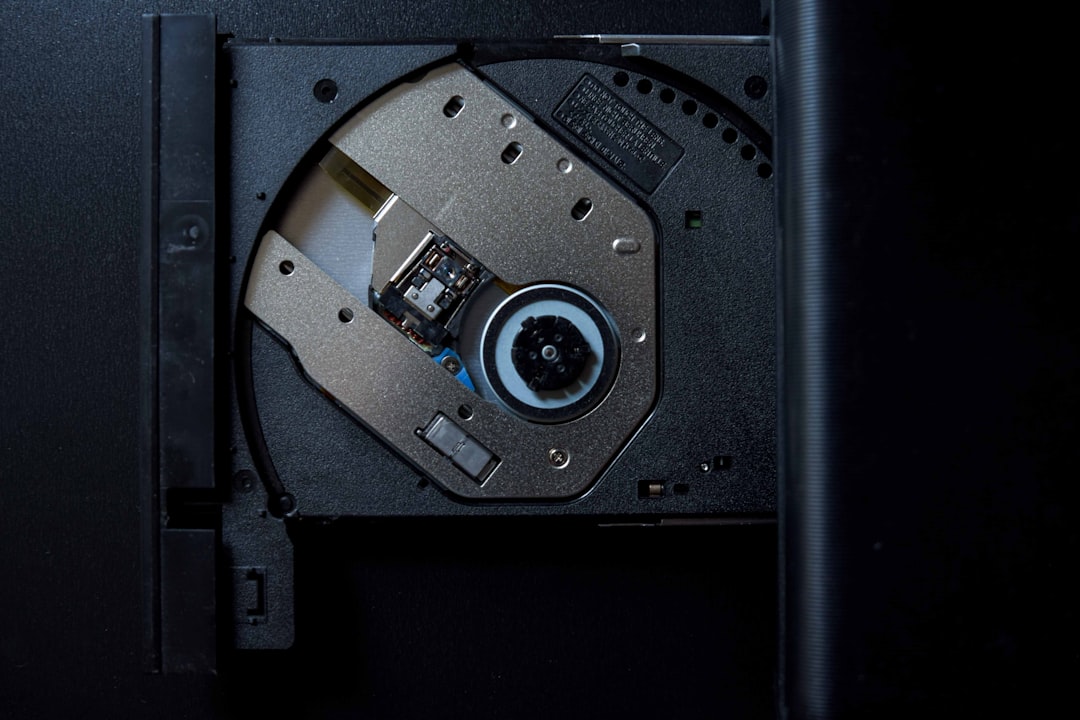
The safest option is a commercial DVD lens cleaning disc. These cost little and can remove light dust. If you are working on a desktop drive and feel comfortable opening it, unplug the computer first. Remove the drive, open the casing, and gently clean the lens with a cotton swab lightly dampened with 90% or higher isopropyl alcohol. Do not soak it. Do not press hard. Let it dry fully before testing.
A warning: if the lens is cloudy, scratched, or loose, cleaning will not solve the problem. That usually means the optical pickup is failing.

Mechanical Repair Options
Some mechanical faults can be fixed, but the labor can exceed the value of the drive. Internal DVD drives are cheap. Laptop slot-loading drives are more expensive and more annoying to service.
- Stuck tray: Clean the tray rails and check for broken plastic teeth. A worn rubber belt can sometimes be replaced.
- Noisy spinning: Check for labels peeling off discs. If every disc sounds bad, the spindle motor or clamp may be worn.
- Weak tray movement: The drive belt may be slipping. Belts are cheap, but finding the exact size can be irritating.
- Broken front bezel: This is cosmetic unless it blocks the tray. Salvage parts from the same model may work.
- Slot loading failure: Dirt, bent guides, or a weak loading motor may be involved. These are harder to repair cleanly.
Repair makes more sense when the drive is part of specialized equipment. Examples include medical systems, older industrial PCs, CNC controllers, and legacy audio/video machines. In those cases, the exact drive model may matter. Firmware, faceplate shape, or master/slave jumper settings may not be optional.
When the Laser Is the Problem
A weak laser is one of the most common true failures. The drive may read some discs and reject others. It may read CDs but not DVDs. It may take 45 seconds to list files that used to appear in 5 seconds. That delay is a useful clue.
Technicians can sometimes adjust laser power, but this is not a good general repair. Over-adjustment can shorten the drive’s life or make disc reading unreliable. Replacing the optical pickup is possible on some models, but for standard PC drives it rarely makes financial sense.
Repair Cost Versus Replacement
Replacement often wins. A standard internal SATA DVD writer usually costs far less than one hour of professional labor. External USB DVD drives are also affordable and simple to install.
| Situation | Best choice |
|---|---|
| Dirty lens, drive still detected | Clean and retest |
| Loose or damaged SATA cable | Replace cable |
| Reads CDs but not DVDs | Usually replace |
| Tray belt slipping | Repair if parts are available |
| Old desktop DVD writer | Replace |
| Rare drive in legacy equipment | Repair or source exact match |
A fair rule is simple: if repair parts and labor cost more than 50% of a new compatible drive, replace it. If the drive is used daily for disc burning, replace it sooner. Weak drives can create bad burns that appear fine at first but fail later.

Data Safety and Disc Burning Concerns
If the drive is failing while reading an old DVD with valuable files, stop repeated attempts. Each failed spin-up can stress the disc. Try a different known-good drive. For important discs, create an image file first, then recover files from the image.
For burning, use quality blank media. Store discs away from heat and sunlight. Burn at moderate speed, not always the maximum rating. After burning, run verification. Verification adds time, but it catches errors before the original files are deleted.
Practical Final Advice
For a home PC, the best repair path is short: test several discs, clean the lens, reseat cables, check detection in BIOS, then try another drive. If the same discs work elsewhere and your drive still struggles, replace it. For laptops, an external USB drive is often the cleanest fix.
Repair is worth it for rare hardware, stuck trays with easy belt access, or simple cable faults. Replacement makes more sense for weak lasers, repeated burn failures, missing detection after cable tests, and any drive with heavy wear. DVD drives are useful, but they are not worth endless guesswork.