How to Use Roku Internet Browser Step by Step
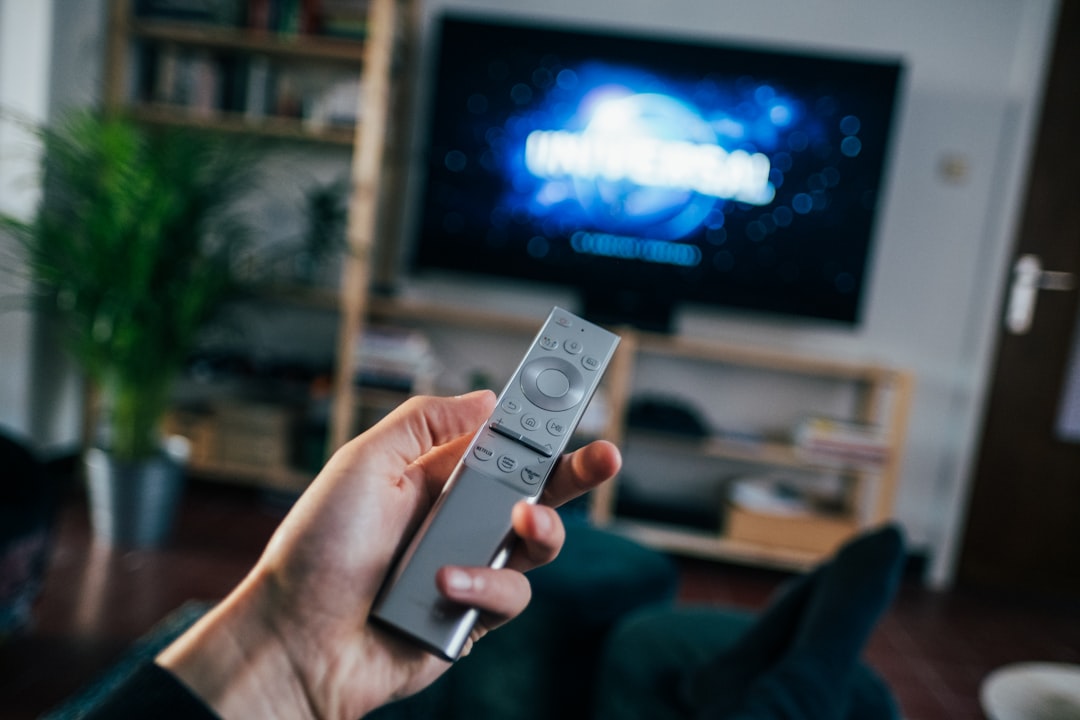
Roku devices are designed primarily for streaming channels, not for traditional web browsing. That means using a Roku internet browser is not as straightforward as opening Chrome, Safari, Firefox, or Edge on a computer. Still, you can view websites on a Roku TV or Roku streaming device by using reliable alternatives such as screen mirroring, AirPlay, or casting from another device.
TLDR: Roku does not currently include a full built-in internet browser for normal web browsing. The most dependable way to browse the web on Roku is to mirror or cast your phone, tablet, or computer screen to your Roku device. Windows and Android users can usually use screen mirroring, while iPhone, iPad, and Mac users can use AirPlay if their Roku model supports it. For the best experience, keep both devices on the same Wi-Fi network and use your phone or computer as the browser controller.
Understanding What “Roku Internet Browser” Really Means
Before starting, it is important to understand the limitations. Roku’s operating system is built around apps, also called channels, such as Netflix, YouTube, Hulu, Prime Video, and other streaming services. It does not work like a desktop operating system where you install a full web browser and freely type website addresses.
In the past, some unofficial or limited browser channels appeared on Roku, but most were basic, unreliable, or no longer supported. Because of this, the safest and most practical approach is to use your Roku as a display while your phone, tablet, or computer does the actual browsing.
This method is useful if you want to:
- View a website on a larger TV screen.
- Show online photos, documents, or articles to other people.
- Watch web-based video content that is not available in a Roku channel.
- Use your TV as a larger monitor for casual browsing.

Before You Begin: Check Your Roku Setup
To use a web browser through Roku, both your Roku device and the device you are browsing from must be prepared correctly. A few minutes of setup can prevent most connection problems.
- Connect both devices to the same Wi-Fi network. Your Roku and your phone, tablet, or computer should be on the same home network.
- Update your Roku software. Go to Settings > System > Software update > Check now.
- Confirm your Roku model supports mirroring or AirPlay. Most modern Roku TVs and Roku streaming players support at least one of these methods.
- Keep your remote nearby. You may need it to approve a screen mirroring or AirPlay request.
Once these basics are in place, choose the method that matches your device.
Method 1: Use Screen Mirroring from a Windows PC
If you use a Windows laptop or desktop, screen mirroring is one of the most effective ways to use an internet browser on Roku. This allows your TV to display whatever is on your computer screen, including Chrome, Edge, Firefox, or any other browser.
Step 1: Enable Screen Mirroring on Roku
- Press the Home button on your Roku remote.
- Go to Settings.
- Select System.
- Choose Screen mirroring.
- Select Screen mirroring mode.
- Choose Prompt or Always allow.
Prompt is usually the better choice because Roku will ask for permission each time a device tries to connect. This is more secure than allowing every connection automatically.
Step 2: Connect from Windows
- On your Windows computer, open the browser you want to use.
- Press Windows + K on your keyboard.
- A list of available wireless displays should appear.
- Select your Roku device from the list.
- If a prompt appears on your TV, approve the connection using your Roku remote.
After connection, your Windows screen should appear on your Roku-connected TV. You can now browse normally from your computer while viewing the browser on the large screen.
Step 3: Adjust the Display
If the image does not fit correctly, open the Windows display settings. You can choose to duplicate your screen, extend your screen, or use the TV as the main display. For simple browsing, duplicating the screen is normally the easiest option.
Method 2: Use Screen Mirroring from Android
Many Android phones and tablets support screen mirroring, although the feature name may vary depending on the manufacturer. It may be called Smart View, Cast, Screen Cast, Wireless Display, or Screen Share.
Step 1: Prepare Roku
On your Roku, go to Settings > System > Screen mirroring and set the mode to Prompt or Always allow.
Step 2: Open the Android Casting Feature
- Swipe down from the top of your Android screen to open Quick Settings.
- Look for Cast, Smart View, or a similar option.
- Tap it and wait for nearby devices to appear.
- Select your Roku device.
- Approve the connection on your Roku TV if asked.
Once connected, open Chrome or another browser on your Android device. The website will appear on your TV through Roku.
Step 3: Use Your Phone as the Controller
Your Android device remains the main control device. You will type, scroll, zoom, and click links on the phone or tablet. The Roku simply displays the mirrored content. For reading articles or viewing static pages, this works well. For fast video or interactive websites, performance depends on your Wi-Fi quality and device speed.
Method 3: Use AirPlay from iPhone, iPad, or Mac
If you use Apple devices, AirPlay is often the smoothest way to display a browser on Roku. Many newer Roku models support Apple AirPlay, but older models may not. If your Roku has AirPlay settings, this method should work.
Step 1: Enable AirPlay on Roku
- Press Home on your Roku remote.
- Go to Settings.
- Select Apple AirPlay and HomeKit.
- Set AirPlay to On.
- Review the security settings and choose whether to require a code.
For home use, requiring a code the first time is a sensible security option. It prevents unauthorized devices from sending content to your TV.
Step 2: Mirror an iPhone or iPad
- Make sure your iPhone or iPad is on the same Wi-Fi network as Roku.
- Open Control Center.
- Tap Screen Mirroring.
- Select your Roku device.
- Enter the AirPlay code if one appears on the TV.
Now open Safari, Chrome, or another browser on your iPhone or iPad. Your browsing session will be shown on the Roku-connected screen.
Step 3: Mirror a Mac Browser
- Click the Control Center icon in the Mac menu bar.
- Select Screen Mirroring.
- Choose your Roku device.
- Open Safari, Chrome, Firefox, or another browser.
A Mac often provides a better browsing experience than a phone because you can use a keyboard, mouse, and full desktop browser while viewing the page on your TV.
Method 4: Cast Video from Supported Websites and Apps
If your main goal is watching video rather than browsing entire websites, casting may be a better option than full screen mirroring. Some websites and apps support casting directly to Roku-compatible channels. For example, YouTube content is usually better viewed through the Roku YouTube app than through a mirrored browser tab.
To try this method:
- Install the relevant Roku channel, such as YouTube or another supported service.
- Open the same app or website on your phone or computer.
- Look for the Cast icon.
- Select your Roku device.
This is not the same as a full Roku internet browser, but it can provide better video quality and fewer delays.
Can You Install a Real Browser on Roku?
In most cases, you should not expect to install a full modern browser directly on Roku. Roku does not officially offer Chrome, Safari, Edge, or Firefox in its Channel Store. Some private or unofficial channels may claim to provide browsing features, but they are often limited, outdated, or potentially unreliable.
For security and privacy reasons, be cautious with any unofficial browser solution. Avoid entering sensitive information, such as passwords, banking details, or personal documents, into unknown apps. A trusted phone, tablet, or computer browser mirrored to Roku is generally safer than relying on unsupported Roku channels.
Troubleshooting Common Problems
If your Roku internet browsing setup does not work correctly, use the following checklist.
- Roku does not appear in the device list: Confirm both devices are on the same Wi-Fi network and restart both devices.
- Connection fails: Check that screen mirroring or AirPlay is enabled in Roku settings.
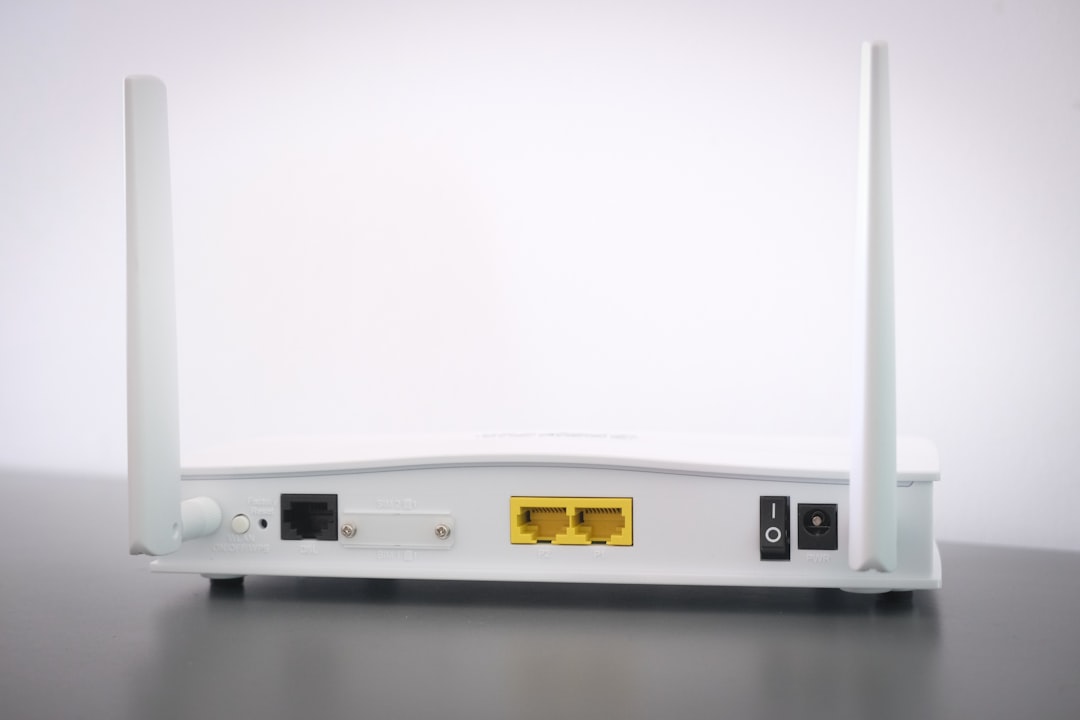
- Lag or delay: Move closer to the Wi-Fi router, reduce network traffic, or restart the router.
- No sound: Check the volume on both Roku and the source device. Also verify the selected audio output.
- Picture does not fit the screen: Adjust display settings on your computer or picture settings on your TV.
- AirPlay does not work: Update Roku software and confirm your Roku model supports AirPlay.
Security and Privacy Tips
When browsing through Roku, remember that your TV may be visible to other people in the room. Avoid displaying private accounts, financial information, medical records, or confidential work documents unless you are in a secure environment.
For better safety:
- Use Prompt mode for Roku screen mirroring.
- Disconnect mirroring when you are finished.
- Do not approve unknown devices trying to connect.
- Use official browser apps on your phone, tablet, or computer.
- Keep your Roku and source device updated.
Best Practices for a Better Browsing Experience
For casual browsing, a mirrored laptop usually provides the most comfortable experience. You get a full keyboard, easier navigation, and better control over multiple tabs. A phone or tablet works well for quick searches, simple pages, and sharing content with others.
If you plan to read long articles, increase the browser zoom level before mirroring. If you plan to watch web video, check whether the service has an official Roku channel first. Official channels usually perform better than browser mirroring and are less likely to stutter.
Conclusion
Using a Roku internet browser step by step is really about choosing the right workaround. Roku does not provide a full built-in browser, but you can still view websites on your TV by mirroring from Windows, Android, iPhone, iPad, or Mac. For most users, Windows screen mirroring and Apple AirPlay are the most dependable methods.
By keeping your devices updated, using the same Wi-Fi network, and following basic security practices, you can browse the web on a Roku-connected TV with minimal difficulty. Roku may not replace a computer for serious web browsing, but it can be a practical way to display online content on a larger screen.


Roku really isn’t built for browsing. I spent an evening on the workarounds, gave up, and now I just cast a tab from my laptop when I want a web page on the TV. Fine for reading, still clunky with the remote.
Same lazy approach with everything else lately. Last week I needed a poster for our Saturday market stall, so I opened ShimmerPic in a browser tab — an AI image generator for posters — typed one line, and got back something already laid out: headline type, colours and composition picked for me. The small print under the stall hours drifted on the first run, so I did it again, and the second one was fine to print.