How to Reduce System Data on iPhone: Built-In Storage Tools vs Cleaner Apps and Other Options
The fastest way to reduce System Data on an iPhone is to use built-in storage tools first, then restart the phone, update iOS, and only use cleaner apps for photos, videos, and contacts. Apple says iOS can remove cached files and temporary files automatically when space is needed [source: Apple]. Still, System Data can swell after streaming, messaging, app updates, and long browsing sessions.
TLDR: System Data usually contains caches, logs, Siri voices, update files, and other files iOS manages in the background. A user with a 128 GB iPhone showing 34 GB of System Data may recover 8 to 15 GB by deleting large message attachments, offloading apps, clearing Safari data, and restarting. Cleaner apps can help find duplicate photos, but they cannot safely delete most System Data. Built-in tools are safer, but they feel slow and oddly hidden.
What System Data Means
System Data is the gray storage category found under Settings > General > iPhone Storage. It used to be called “Other.” It includes files that do not fit neatly into apps, photos, media, or iOS itself.
- App caches
- Browser files
- Streaming leftovers
- Logs and crash reports
- Temporary update files
- Message attachments and indexes
- Offline content from apps
Some of it is useful. Some of it is junk. The annoying part is that iOS does not show one big “delete System Data” button. Honestly, it feels like Apple could make this clearer.
Best Built-In Tools to Try First
The safest cleanup starts inside iOS. These tools are free, built in, and less likely to break anything.
1. Check iPhone Storage Recommendations
The user should open Settings > General > iPhone Storage. iOS may suggest actions such as Offload Unused Apps, review large attachments, or delete downloaded videos.
Offloading removes the app but keeps its documents and data. If the app is installed again later, the data should return. This is useful for large apps that sit untouched for months.
2. Delete Large Message Attachments
Messages can quietly eat storage. Videos, GIFs, voice notes, and photo threads add up fast. In iPhone Storage, Messages often has a section for large attachments.
A user who sends family videos every week may find several gigabytes sitting there. Deleting old 200 MB clips is much faster than hunting through every chat.
3. Clear Safari Website Data
Safari cache can join System Data. To clear it, the user can go to Settings > Safari > Clear History and Website Data.
This may sign the user out of websites. That part is irritating. Still, it can shrink cached data after months of browsing.
4. Restart the iPhone
A restart sounds too simple, but it works more often than expected. Temporary files can clear after the phone shuts down and boots again.
The catch is that the result is not always instant. Sometimes iPhone Storage takes a few minutes to recalculate. Expect to wait before checking the number again.
5. Update iOS
Old update files can sit in storage. Installing the current iOS version may clear pending installer files and fix storage reporting bugs. Apple also lists system updates as a way to keep an iPhone working properly [source: Apple].
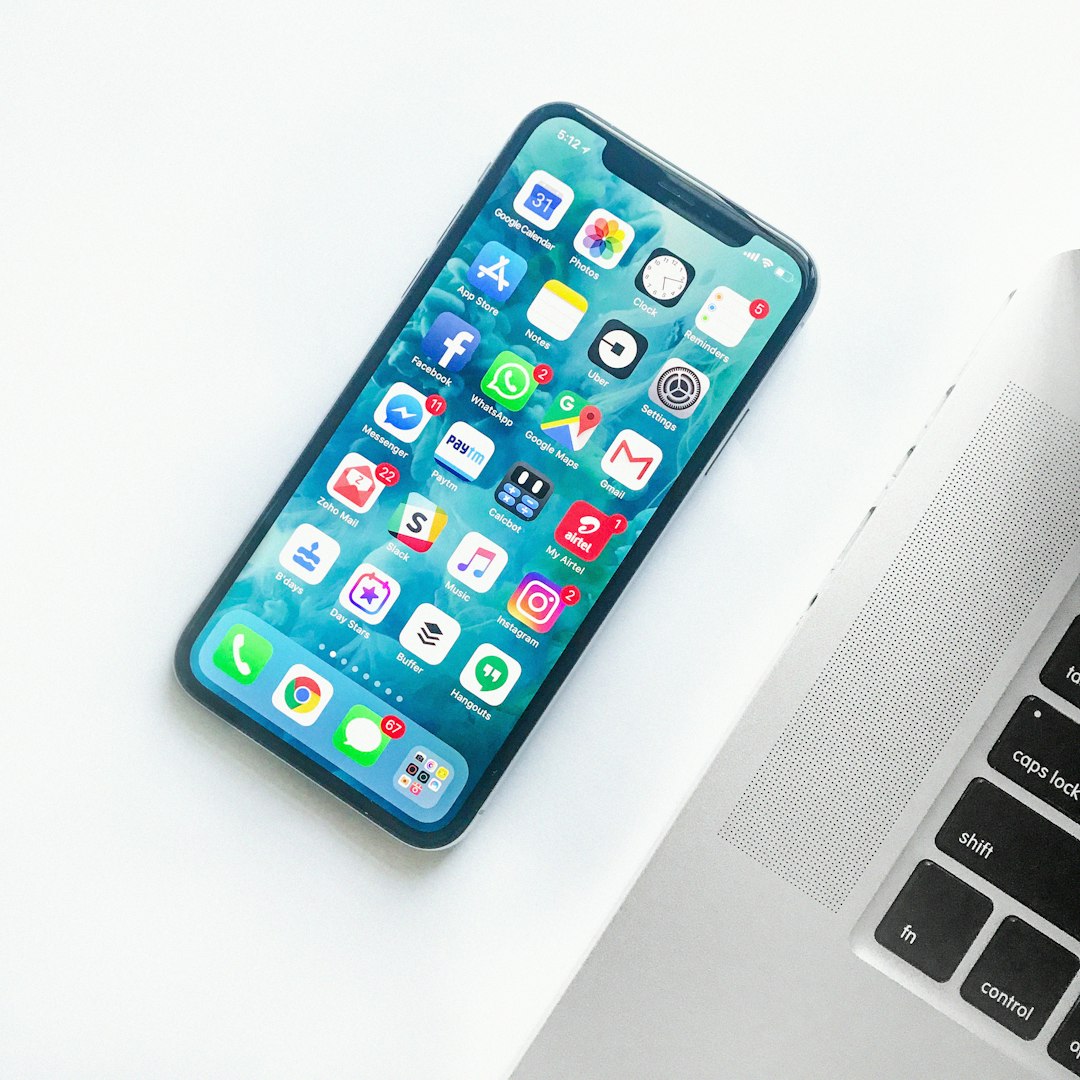
Cleaner Apps: Useful, but Limited
Cleaner apps are often marketed like magic. They are not. Apple does not allow third-party apps to freely erase iOS system caches. That would be risky.
Most cleaner apps focus on visible clutter:
- Duplicate photos
- Similar selfies
- Large videos
- Old screenshots
- Duplicate contacts
- Calendar spam
That can still help. A camera-heavy user might remove 3 GB to 10 GB by deleting duplicate bursts and old screen recordings. But this is not the same as deleting System Data directly.
The user should be careful with paid trials. Some apps scan for free, then ask for payment at the final delete step. It drives people crazy that a “quick clean” can take 40 seconds to scan, then still require manual approval for every batch.
Other Options That Can Reduce System Data
Delete and Reinstall Bloated Apps
Social apps, video apps, map apps, and music apps can store large caches. If one app shows a huge “Documents & Data” size, deleting and reinstalling it may help.
This is more forceful than offloading. It removes app data too. The user should only do it when account data is backed up or stored online.
Remove Offline Downloads
Spotify, Netflix, YouTube, Podcasts, Maps, and audiobook apps may store offline files. These downloads are not always obvious. They can also feed into confusing storage totals.

Back Up, Erase, and Restore
This is the heavy option. It can shrink stubborn System Data when nothing else works. The user backs up the iPhone, erases it, then restores the backup.
It takes time. It can also require passwords, two-factor codes, and app logins. This method should be saved for cases where System Data is huge, such as 40 GB or more on a 128 GB phone.
Built-In Tools vs Cleaner Apps
- Built-in tools: Safer, free, and better for Messages, Safari, apps, and downloads.
- Cleaner apps: Better for duplicate photos, large videos, and contact cleanup.
- Manual reinstall: Best for bloated social, streaming, or map apps.
- Erase and restore: Best for extreme System Data problems.
For most people, the best order is simple: check iPhone Storage, delete large attachments, clear Safari, remove offline downloads, restart, then update iOS. Cleaner apps should come after that, not before.
FAQ
Why is System Data so large on an iPhone?
It grows because of caches, logs, temporary files, message data, app activity, and iOS update files. Streaming and social apps can make it grow faster.
Can cleaner apps delete System Data?
Not directly in most cases. They can clean photos, videos, contacts, and visible clutter, but iOS blocks deep system cleanup.
Is it safe to clear Safari history and website data?
Yes, but saved website sessions may be removed. The user may need to sign in again.
Does restarting the iPhone reduce System Data?
Sometimes. It can clear temporary files and refresh storage calculations. It is quick, so it is worth trying.
When should someone erase and restore an iPhone?
Only when System Data is extremely large and normal cleanup fails. A full backup should be made first.