How to Find Your Wi-Fi Password: Windows Settings vs Router Admin Dashboard
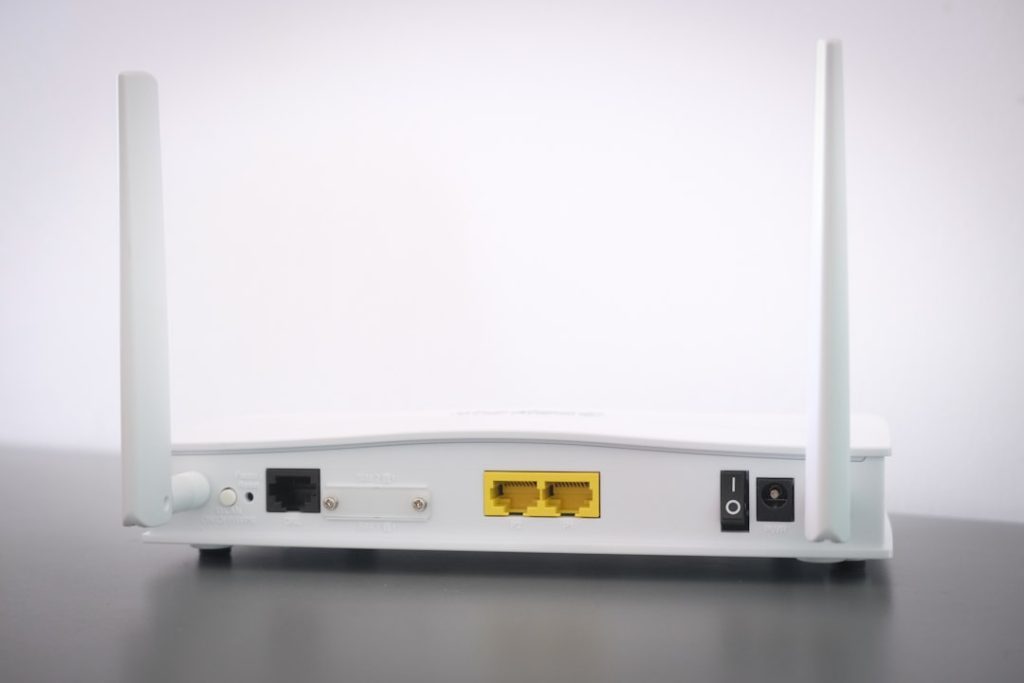
The fastest move is simple: if your Windows PC is already connected to the Wi-Fi, use Windows Settings first. If you need the password for the whole network, or you want to change it, use the router admin dashboard. Windows can show saved Wi-Fi passwords in a few clicks on Windows 11, according to Microsoft [source: Microsoft].
TLDR: Use Windows Settings when your computer has already joined the network. Use the router admin dashboard when you manage the network itself. Example: Maya has 1 laptop, 2 phones, 1 TV, and 6 smart bulbs at home. If she changes the router password, she may need to reconnect all 10 devices, so checking Windows first can save a tiny tech headache.
Windows Settings or router dashboard?
Both can help you find your Wi-Fi password. But they solve different problems.
Windows Settings is like asking your laptop, “Hey, what password did we use?” It works only if that PC already knows the network.
The router admin dashboard is like opening the control room. You can see or change the Wi-Fi name, password, security mode, and more. That sounds cool. It can also be mildly annoying. One wrong click and your smart speaker starts acting like it has been abandoned.
So, pick the right door.
- Need the password for a guest? Try Windows first.
- Need to change the password? Go to the router dashboard.
- Forgot the router admin login? Check the sticker or your internet provider app.
- Not connected to the Wi-Fi on any device? The router method may be your best bet.

Method 1: Find your Wi-Fi password in Windows Settings
This is the low-drama option. No router login. No tiny reset button. No guessing whether the username is “admin” or “Admin” or something your provider invented in 2017.
Use this when your Windows computer is already connected to the Wi-Fi network.
On Windows 11
- Click Start.
- Open Settings.
- Go to Network & internet.
- Click Advanced network settings.
- Open the Wi-Fi adapter options or related network settings.
- Choose your Wi-Fi network.
- Open Wireless Properties.
- Click the Security tab.
- Tick Show characters.
Your Wi-Fi password should appear in the Network security key box.
On some Windows 11 versions, you may see a direct option to view the saved Wi-Fi security key inside the Wi-Fi settings. Nice. Finally, a button that does what humans expect.
On Windows 10
- Click Start.
- Open Settings.
- Go to Network & Internet.
- Click Status.
- Choose Network and Sharing Center.
- Click your Wi-Fi network name.
- Select Wireless Properties.
- Open the Security tab.
- Check Show characters.
That is it. The password appears. Copy it carefully. Wi-Fi passwords love to hide sneaky capital letters and symbols.
When Windows Settings wins
Windows Settings is best when you need speed.
- It is quick. No router IP address needed.
- It is safer for beginners. You are not changing router settings.
- It works well for saved networks. Your PC remembers the password.
- It avoids family chaos. Nobody gets kicked off the Wi-Fi.
Honestly, it feels like this should always take 10 seconds. Sometimes it takes 45 because Windows hides old settings inside newer settings. Fun? Not really. Still, it beats crawling under a desk to read a dusty router sticker.
When Windows Settings fails
Windows is not magic. It only knows what it has saved.
You may hit a wall if:
- The PC has never joined that Wi-Fi network.
- The password was changed after the PC last connected.
- You are using a work or school device with restrictions.
- You do not have permission to view saved passwords.
- The Wi-Fi profile was removed.
If that happens, do not panic. This is where the router dashboard comes in.
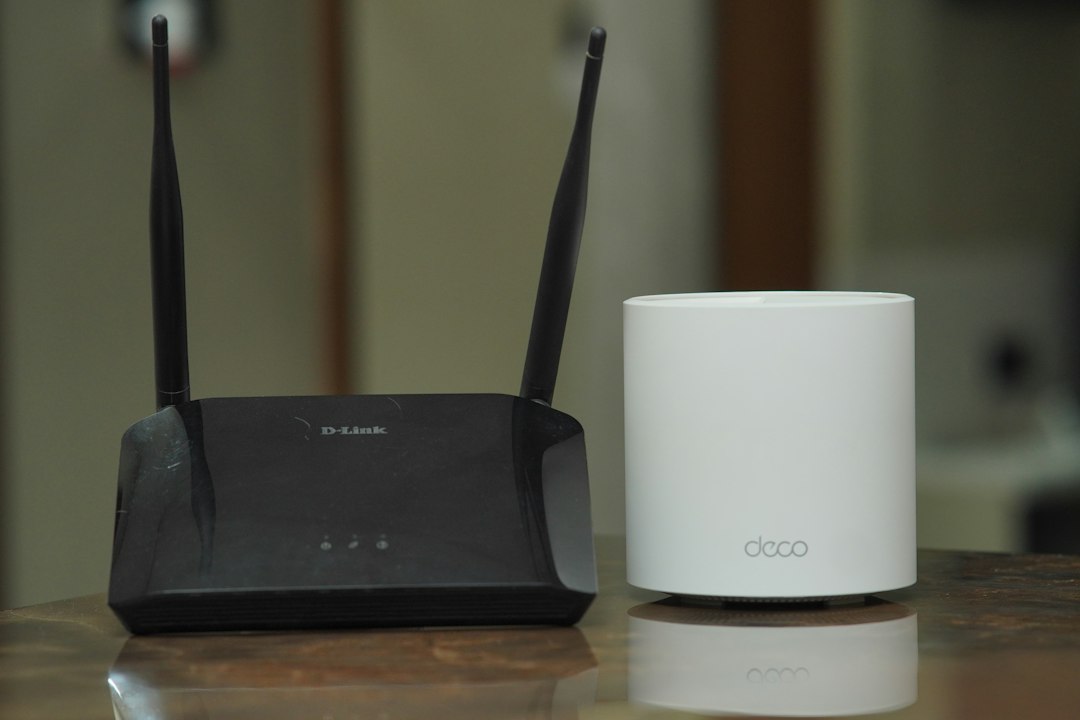
Method 2: Find your Wi-Fi password in the router admin dashboard
The router dashboard controls your home Wi-Fi. It is usually opened in a web browser. You type in the router’s local address, then log in.
Common router addresses include:
- 192.168.0.1
- 192.168.1.1
- 10.0.0.1
If those do not work, find the gateway address in Windows.
- Press Windows + R.
- Type cmd.
- Press Enter.
- Type ipconfig.
- Look for Default Gateway.
Type that number into your browser. Then log in to the router.
The login is not always your Wi-Fi password. This trips people up all the time. The router admin password opens the settings. The Wi-Fi password connects devices to the network. Two passwords. One headache.
Where to look inside the router
Every router brand is different. Because of course it is.
Look for sections called:
- Wireless
- Wi-Fi
- WLAN
- Security
- Network
- SSID
The Wi-Fi password may be labeled as:
- Password
- Wireless key
- Security key
- Pre-shared key
- WPA key
Some routers show the current password. Others hide it behind dots. Some only let you create a new one. It drives me crazy that two routers from the same provider can use different menu names. But that is the game.
When the router dashboard wins
The router method is more powerful. Use it when you need control.
- You can view or change the Wi-Fi password.
- You can rename the network.
- You can check the security type.
- You can manage guest Wi-Fi.
- You can remove unknown devices on some routers.
This is ideal after a roommate moves out. It is also smart after sharing the password with too many guests. If your neighbor’s tablet is somehow still connected, the router dashboard is where the truth lives.
When the router dashboard is a pain
Expect to waste time on tiny things. The admin password may be missing. The login page may be slow. The router app may demand an account. A sticker may be printed in gray text on a black box. Who thought that was helpful?
You may also need the owner’s permission. If you are in a rental, dorm, office, hotel, or shared house, do not change router settings unless you are allowed to do it.
If you change the Wi-Fi password, every connected device must use the new one.
That means:
- Phones
- Laptops
- Tablets
- Smart TVs
- Printers
- Game consoles
- Smart bulbs
- Cameras
Settings vs dashboard: quick comparison
| Task | Best choice |
|---|---|
| Find password saved on this PC | Windows Settings |
| Change Wi-Fi password | Router dashboard |
| Help a guest connect fast | Windows Settings |
| Set up guest network | Router dashboard |
| Check router security settings | Router dashboard |
Safety tips before you share the password
Wi-Fi passwords should not be treated like candy. Share them with people you trust.
- Use WPA2 or WPA3 security if available.
- Avoid passwords like password123 or your street name.
- Use at least 12 characters.
- Mix words, numbers, and symbols.
- Create a guest network for visitors.
A good password can still be easy to type. Try something like BlueMug!River72. It is stronger than a pet name. It is also less painful than a random 28-character monster.
The simple rule
Use Windows Settings when you only need to reveal a password your PC already knows. Use the router admin dashboard when you need to manage the network.
That is the whole trick. Start with the easy path. Avoid changing router settings unless you mean it. Your future self, your printer, and your smart bulbs will thank you.