How to Fix Fortnite PS4 Not Working Issue

Few things are more frustrating than sitting down for a quick match of Fortnite on your PS4, only to be stopped by crashes, login errors, endless loading screens, lag, or the game refusing to launch at all. The good news is that most Fortnite PS4 problems are caused by temporary network issues, corrupted cache data, outdated files, or console storage problems—and they can often be fixed without reinstalling everything.
TLDR: If Fortnite is not working on PS4, first check whether Epic Games servers and PlayStation Network are online, then restart your console and router. Make sure Fortnite and your PS4 system software are fully updated, clear temporary cache by power cycling the console, and free up storage space. If the issue continues, rebuild the PS4 database, reinstall Fortnite, or check your network settings for connection problems.
Common Fortnite PS4 Problems
Before jumping into fixes, it helps to identify what “not working” actually means. Fortnite can fail in several different ways on PS4, and each symptom points to a slightly different cause.
- Fortnite will not launch: The game may crash immediately or return you to the PS4 home screen.
- Stuck on loading screen: Fortnite opens but never reaches the lobby.
- Login failed: You may see an Epic Games account error or connection message.
- Matchmaking not working: The lobby loads, but you cannot join a game.
- Lag, freezing, or stuttering: Gameplay feels choppy, delayed, or unstable.
- Update errors: The game will not download or install the latest patch.
Once you know which issue you are dealing with, you can work through the solutions below in order. Start with the simplest steps first, because many Fortnite problems are temporary and do not require advanced troubleshooting.
1. Check Fortnite and PlayStation Server Status
Fortnite is an online game, so it depends on both Epic Games servers and PlayStation Network. If either service is down, your PS4 may be perfectly fine while Fortnite still refuses to connect.
Check the official Epic Games status page and the PlayStation Network service status page. Look for issues related to login, matchmaking, game services, account management, or downloads. You can also check Fortnite’s official social media channels, where server outages and maintenance periods are usually announced quickly.
If the servers are down, there is nothing to fix on your console. Wait until service is restored, then try again. This is especially common after major Fortnite updates, new seasons, live events, or limited-time events that bring a large number of players online at once.

2. Restart Fortnite and Your PS4
It sounds basic, but restarting is one of the most effective fixes for Fortnite PS4 issues. Games can sometimes get stuck because of memory glitches, failed background processes, or temporary connection errors.
- Press the PS button on your controller.
- Highlight Fortnite on the home screen.
- Press the Options button.
- Select Close Application.
- Open Fortnite again.
If that does not work, restart the entire console. Go to Power > Restart PS4. Avoid simply putting the console into Rest Mode, because that does not fully refresh the system. A proper restart clears active processes and gives Fortnite a cleaner start.
3. Power Cycle the PS4 to Clear Cache
The PS4 stores temporary data to help games load faster. Over time, that cache can become messy or outdated, especially after repeated updates. Power cycling the PS4 clears temporary data without deleting your games, saves, or account information.
- Turn off the PS4 completely. Do not use Rest Mode.
- Wait until all lights on the console are off.
- Unplug the power cable from the back of the PS4.
- Wait at least 60 seconds.
- Plug the cable back in and turn on the console.
- Launch Fortnite again.
This simple reset can fix crashes, loading issues, and strange menu behavior. It is a safe troubleshooting step and worth trying early.
4. Update Fortnite
Fortnite changes constantly. Epic Games releases patches for bug fixes, events, balance updates, new modes, and security improvements. If your version is outdated, the game may not connect to Fortnite services or may fail during matchmaking.
To check for updates:
- Highlight Fortnite on the PS4 home screen.
- Press the Options button.
- Select Check for Update.
- If an update is available, download and install it.
If the update gets stuck, pause and resume the download from Notifications > Downloads. You can also restart the PS4 and try again. Always make sure you have enough free storage before downloading a Fortnite update, because patches can require more space than expected during installation.
5. Update PS4 System Software
Fortnite also depends on your PS4’s system software. An outdated console may cause compatibility issues, network errors, or crashes after newer game updates.
To update your PS4:
- Go to Settings.
- Select System Software Update.
- Install any available update.
- Restart your console after the installation finishes.
If you usually leave your PS4 in Rest Mode, updates may not always complete properly. It is a good idea to manually check for system updates whenever Fortnite suddenly stops working after a patch.
6. Check Your Internet Connection
Many Fortnite PS4 problems are actually network problems. Even if other apps seem to work, Fortnite is sensitive to unstable connections because it needs constant communication with online servers.
Go to Settings > Network > Test Internet Connection. Pay attention to whether the PS4 successfully obtains an IP address, connects to the internet, and signs in to PlayStation Network.
If the test fails or the connection seems weak, try these steps:
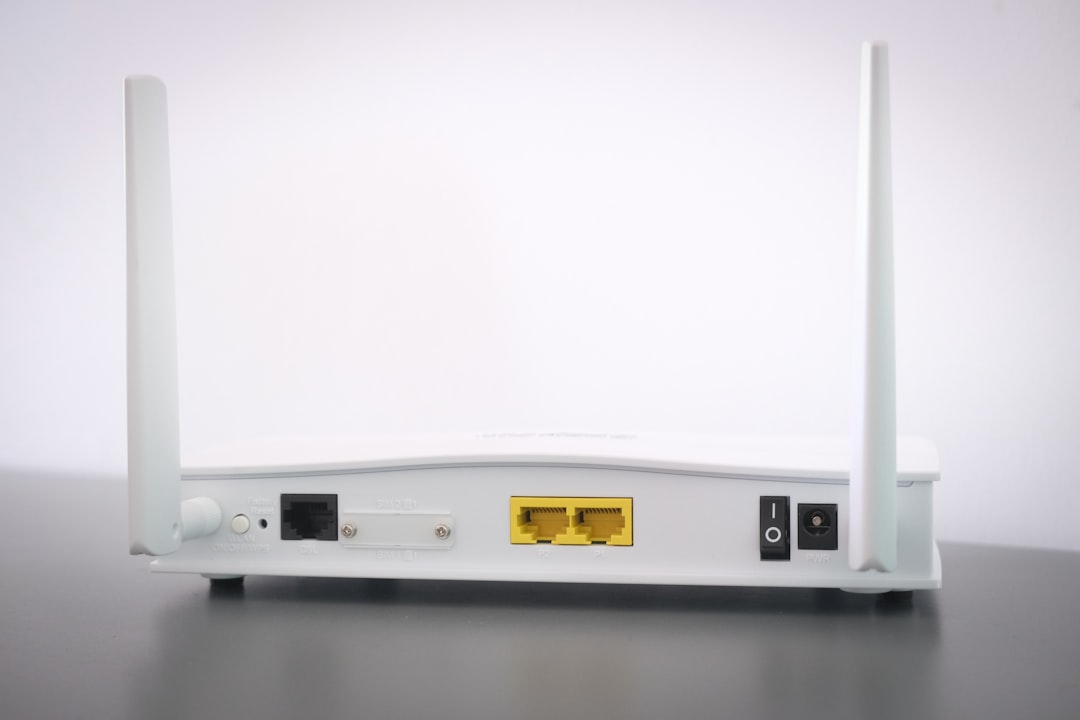
- Restart your router: Unplug it for 30 seconds, then plug it back in.
- Use a wired connection: Ethernet is usually more stable than Wi Fi for Fortnite.
- Move closer to the router: If using wireless, reduce distance and interference.
- Pause other downloads: Streaming, updates, and downloads can cause lag.
- Disconnect unused devices: Too many devices can overload your home network.
Tip: If Fortnite loads but feels delayed in matches, your issue may be high ping or packet loss rather than a broken game installation. A wired connection can make a noticeable difference.
7. Change DNS Settings
If Fortnite has trouble connecting to servers, changing DNS settings may help. DNS works like an address book for the internet, and a slow or unreliable DNS server can cause login or connection delays.
To change DNS on PS4:
- Go to Settings > Network.
- Select Set Up Internet Connection.
- Choose Wi Fi or LAN Cable.
- Select Custom.
- For IP Address Settings, choose Automatic.
- For DHCP Host Name, choose Do Not Specify.
- For DNS Settings, choose Manual.
- Enter a public DNS option, such as 8.8.8.8 and 8.8.4.4.
- Set MTU to Automatic.
- Set Proxy Server to Do Not Use.
After saving the settings, test your internet connection and reopen Fortnite. This does not guarantee a fix, but it can help if your default DNS is causing slow lookups or poor routing.
8. Free Up Storage Space
Fortnite updates can be large, and the PS4 often needs extra temporary space to install patches. If your drive is almost full, Fortnite may fail to update, load slowly, or behave unpredictably.
Go to Settings > Storage and check available space. If storage is low, delete games, captures, or applications you no longer use. Video clips and screenshots can take up more space than expected, especially if you save gameplay often.
Try to keep at least 20 to 30 GB free when updating Fortnite. Even if the patch itself is smaller, the PS4 may need room to copy and reorganize game files.
9. Rebuild the PS4 Database
If Fortnite keeps crashing, freezing, or loading unusually slowly, you may need to rebuild the PS4 database. This does not delete your games or saved data. Instead, it reorganizes the system’s files and can fix corrupted data references.
To rebuild the database:
- Turn off the PS4 completely.
- Hold the power button until you hear two beeps. The second beep usually comes after about seven seconds.
- Connect your controller with a USB cable.
- Press the PS button.
- Select Rebuild Database from Safe Mode.
- Wait for the process to finish.
The process may take a few minutes or much longer depending on your storage. After the PS4 restarts, launch Fortnite and see if performance improves.
10. Delete and Reinstall Fortnite
If none of the previous steps work, the Fortnite installation itself may be corrupted. Reinstalling gives you a clean copy of the game files. Your Fortnite account progress, skins, V Bucks, and battle pass items are tied to your Epic account, not the local installation, so they should not disappear when you delete the game.
To reinstall Fortnite:
- Highlight Fortnite on the PS4 home screen.
- Press the Options button.
- Select Delete.
- Restart the PS4.
- Open the PlayStation Store.
- Download Fortnite again.
This can take time depending on your internet speed, so it is best used after trying quicker fixes. Once installed, open Fortnite and allow it to download any additional updates.
11. Check Your Epic Games Account
Sometimes Fortnite is working, but your account is not connecting correctly. If you see login errors, missing account data, or repeated sign-in prompts, check whether your Epic Games account is properly linked to your PlayStation account.
Sign in to your Epic Games account on a browser and review your connected accounts. Make sure the correct PlayStation Network account is linked. If you recently changed passwords, enabled two-factor authentication, or moved accounts, you may need to sign in again on your console.
Be careful when unlinking accounts. Doing so incorrectly can affect access to cosmetics or progress. If you are unsure, check Epic’s support instructions before making account changes.
12. Look for Error Codes
If Fortnite shows a specific error code, write it down or take a screenshot. Error codes can point to server outages, corrupted files, account problems, or network restrictions. Searching the exact error code on Epic Games support can save time because it narrows the problem immediately.
For example, some errors relate to matchmaking services, while others are tied to login authentication. Treat an error code as a clue rather than a random message.
When to Contact Support
If you have checked server status, updated everything, power cycled your console, tested your network, rebuilt the database, and reinstalled Fortnite, it may be time to contact support. Reach out to Epic Games Support for Fortnite account or game-specific issues. Contact PlayStation Support if your PS4 has broader problems, such as multiple games crashing, download failures, or PSN sign-in issues.
When contacting support, include your PS4 model, Fortnite version if known, error messages, what you have already tried, and whether the problem happens with other games. The more details you provide, the faster support can identify the cause.
Final Thoughts
Fortnite not working on PS4 can feel like a major headache, especially when friends are already in the lobby. Fortunately, most issues come down to servers, updates, cache problems, storage limitations, or network instability. Start with simple fixes like restarting the game, checking server status, and updating Fortnite, then move on to power cycling, DNS changes, database rebuilding, and reinstalling only if needed.
With a systematic approach, you can usually get back into the Battle Bus without too much trouble. Keep your PS4 updated, maintain free storage space, and use a stable internet connection whenever possible. Those small habits can prevent many Fortnite problems before they interrupt your next match.